Create an Occupancy
BluSKY URL: https://blusky.blub0x.com/en-US/Occupant/Create
Overview
An Occupancy is a company or organization which resides in a facility controlled by an access control system. This page shows you to How to Create an Occupancy in BluSKY.
Instructions
- Log in and navigate to Occupancy. Main Menu-> Administration-> Occupancy
- On the lower left-hand side click the
 Create button.
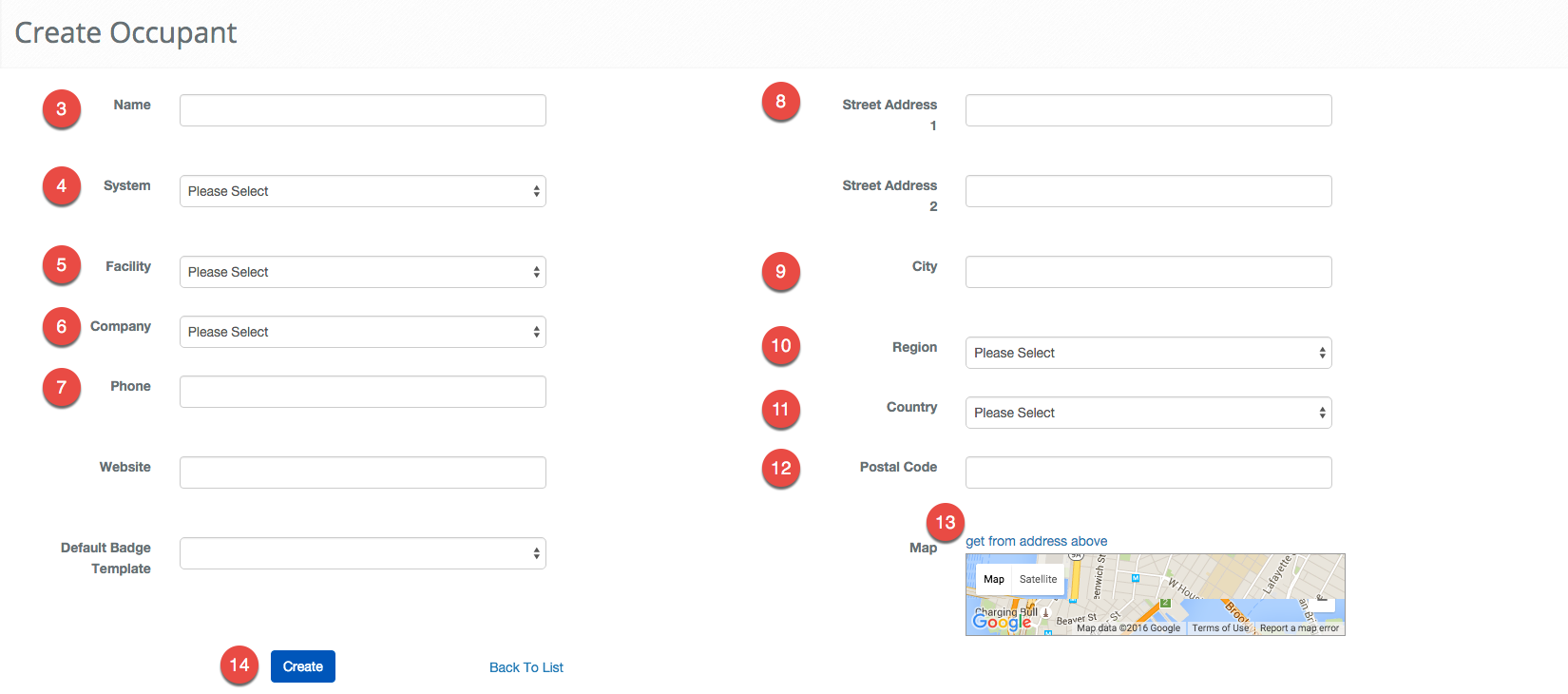
 - Enter the name of the Occupancy.
- Use the System drop-down menu to select the proper access control system.
- Use the Facility drop-down to select the Facility.
- Use the Company drop-down to select the Company. Often you will use the "New Occupancy" option.
- Optional: Enter the **Phone****Number,**Website, and Badge Template in the fields provided.
- Optional: Email Address Formula information can be entered, but this feature is still in development and has no effect at this time.
- Use the Street Address 1 text area to add an address. Street Address 2 is available if needed.
- Enter the City.
- Use the Region drop-down menu to select the State or Region.
- Select the Country.
- Enter the Postal Code.
- Click the get from address above text to add a location marker to the Map.
- When finished use the
 button to finish.
 - Select the "Floors" button
- Select the checkbox for the floor the occupancy resides in.
- Select "Set Default" for the floor is the default floor.
- Select "Save"
Occupancy Definitions
| Name | Description |
|---|---|
| City | The city the Occupancy is located in. |
| Company | Name of the Company. |
| Country | The country of the Occupancy. |
| Date Deleted | Date this entry was disabled or deleted from BluSKY. BluSKY never fully deletes these records but deleting them does make them unaccessible. |
| Date Inserted | Date this entry was added to BluSKY. |
| Date Updated | Date this entry was last updated. |
| Default Badge Template | Badge Design most commonly used by the customer. |
| Deleted | If checked, entry is deleted from BluSKY |
| Deleted By | Who disabled this entry. |
| Facility | Name of the Facility the Occupancy is associated with. |
| Inserted By | Who added this entry into BluSKY. |
| Map | Geographical Location of the Occupancy. |
| Occupancy | Name of the Occupancy. |
| Phone | Phone Number of the Occupancy. |
| Region | Region, ie.e State, Provence, County, etc. |
| Street Address 1 | Address of the Integrator, User, or Company. |
| Street Address 2 | Sub address. |
| System | Name of the BluSKY access control system. |
| Website | Website of the Occupancy. |
What's Next
For configuring floors and making edits please check out our Edit an Occupancy How-To guide.