Person - Quick Start
Overview
An access control system fundamentally controls the flow of people through a secure Facility. It should be no surprise that each Person's record contains a large amount of information. In most cases entering a Person, is straight forward. Input the basic information, determine if the Person needs a login of their own. Assign them one or more Access Level or Access Level group to provide access to secure portions of the system. Assign the Person a Card so the Readers can identify them. If the Person does need to utilize BluSKY, when you assign them a Role, remember to ensure they are also given a BluSKY login.
Getting to People in BluSKY
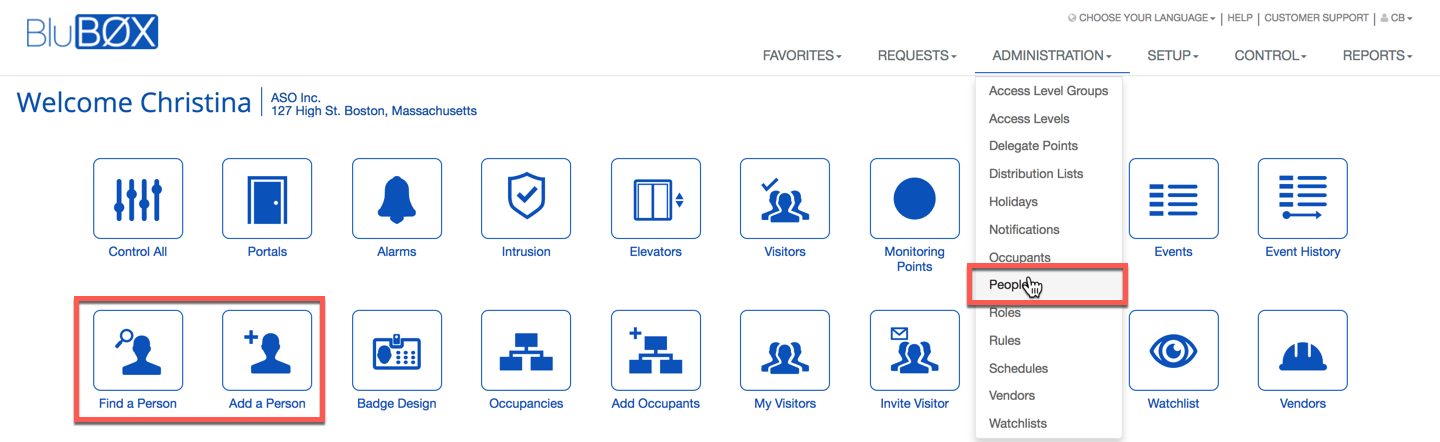
Administering People in BluSKY
See below for more information on how to manage your personnel:
There are certainly a lot of option under this record. Most of this functionality is straightforward enough, but if you have any remaining questions, please check out the links provided above. Our knowledge base provides in-depth instruction on how to perform each task.
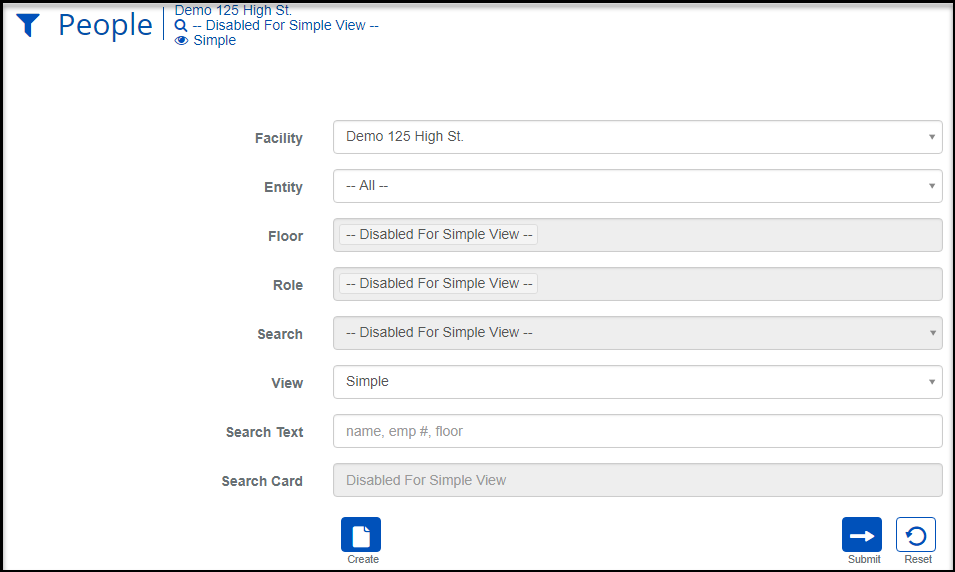
Search Criteria
| Name | Description |
|---|---|
| Facility | The physical building the Person belongs to. |
| Entity | Name of the Company. |
| Floor | The floor or floors. |
| Role | A collection of permissions granted to a Person. |
| Search | Select the pre-selected filter to look at very specific slices of people data. |
| View | View will bring you to the view screen. Use this to look up information on existing entities and access Audit Info. |
| Search Text | This field is used to limit the number of rows listed in the list box below. To use simply type a string of characters or words. Please note you will only see those items you have the permission and access rights for. It is a good idea to search first, even when you are creating a new entry. |
| Search Card | Search for a Persons Card Number. |
| Create | Will bring you to the create screen. Use this if the entity does not exist in the BluSKY database. Be extremely careful not to create duplicates with slightly different names. |
| Submit | This button performs a search based on the criteria selected in the filter. |
| Reset | This button clears all fields in order to start a new search. |
Person List
Below we have included a screenshot of the Person View List. This screen has a bunch of great features that are discussed more in the Person List View Features article.

Definitions
| Name | Description |
|---|---|
| Last Name | The person's last name. |
| First Name | The person's first name. |
| M.I. | Middle initial. |
| Employee # | A number assigned by the employer for an employee. |
| Primary Card | The primary Card number of the user. |
| Contact Info | The preferred way to contact the user. |
| Primary Role | The Role assigned to the user. |
| System | The name of the access control system. |
| Facility | The name of the physical building associated with the System. |
| Company | Name of the Company. |
| Floor | The floor the person is assigned to. |
| Gender | The gender of the person |
| Start Datetime | Date and time when this access should be started. This is not to be confused with the device or access schedules. |
| Stop Datetime | Date and time when access should end. This is not to be confused with the device or access schedules. |
| Access Suspended | Whether or not the person's access rights have been suspended. |
| Suspension Start | When a suspension will start or has started. |
| Suspension End | When a suspension will end. |
| Login Suspended | If access to BluSky has been suspended. |
| Web Suspension Start | When access to BluSky was or will be suspended. |
| Web Suspension Stop | When access to BluSky will be or has been restored. |
| Date Inserted | The date this entry was added to BluSky. |
| Inserted By | The name of the login who created this entry in BluSKY. |
| Date Updated | The date this entry was last updated. |
| Date Deleted | The date this entry was disabled or deleted from BluSky. |
| Deleted By | Name of person who disabled this entry. |