Elevator Control
Overview
This article will discuss how to use the real time elevator control interface. It is important to note that for safety reasons and manufacturer specifications, BluSKY access control system controls the access rights to an elevator and not to the elevator itself. BluSKY is only enabling or disabling the ability to access the elevator on a specific floor or floors depending on your access rights.
Getting Started
When using the Elevator Control screen for the first time you may be prompted to select the Systems and Facilities you want to control. Don't worry if you don't see this prompt, it is always available by clicking the filter icon in the top right-hand side of the screen. The "View" field enables the user to choose between displaying floor stops by Floors or Elevator Cars.
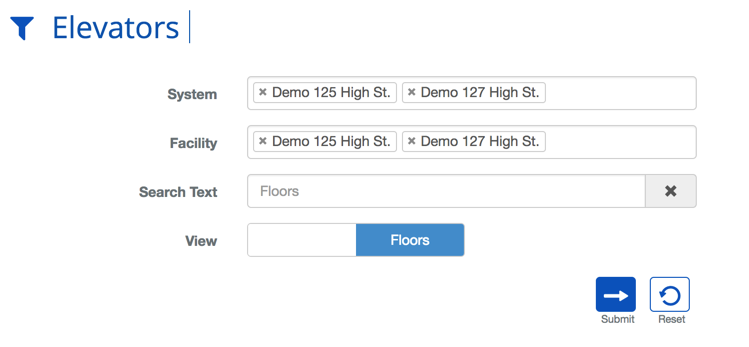
Once you select the  button, the screen will display all floor stops, allowing you to select and control each of the Elevators or Floor Stops.
Monitoring Elevators
The Elevator Control screen provides a powerful tool for viewing the real-time state of the elevator system at-a-glance. The rich visual language can help you quickly diagnose issues.
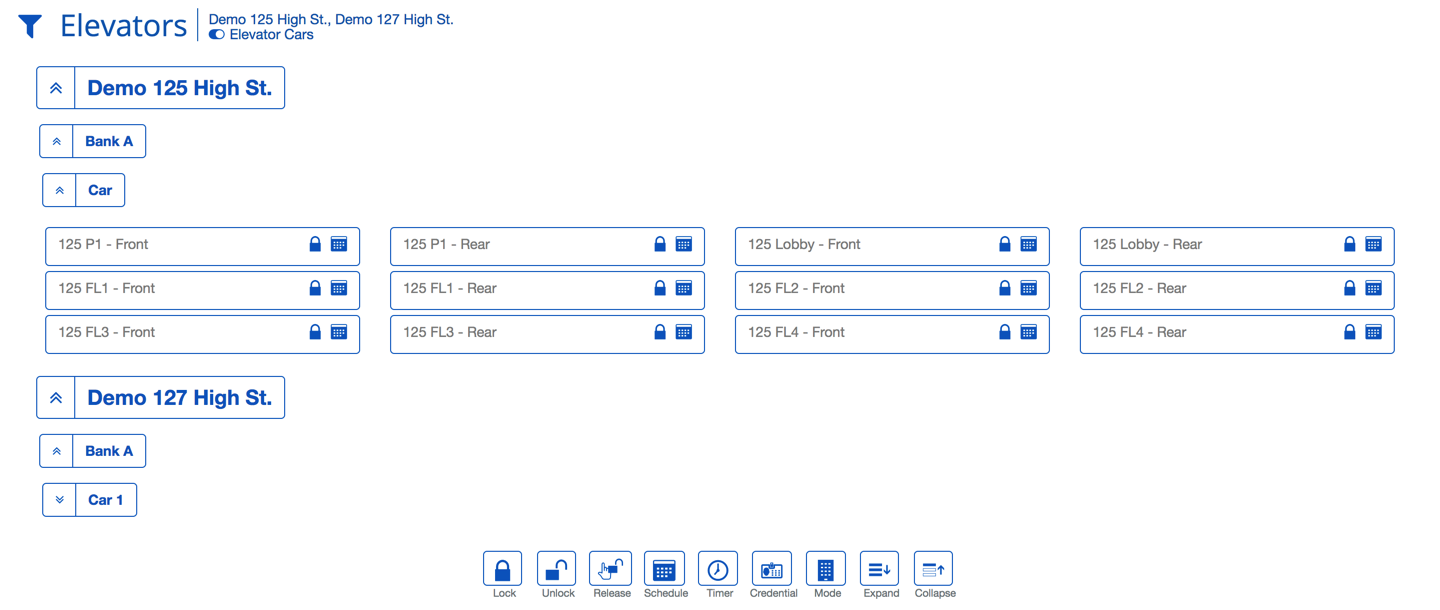
Elevator Statuses
| Item | Description |
|---|---|
 On Schedule No Boarder.PNG On Schedule No Boarder.PNG | The Floor or Elevator Car's Floor Stop is currently secured and on schedule. |
 On Schedule No Boarder.PNG On Schedule No Boarder.PNG | The Floor or Elevator Car's Floor Stop is currently unsecured and on schedule.. |
| Toggles between Unlock no boarder.PNG and Lock No Boarder.PNG | The Floor or Elevator Car's Floor Stop is currently in a release cycle. This is usually due to a timed release. |
 | The Floor or Elevator Car's Floor Stop schedule has been interrupted by a manual override. |
| Manual Override No Boarder.PNG | The Floor or Elevator Car's Floor Stop is currently secured due to a manual override. |
| Manual Override No Boarder.PNG | The Floor or Elevator Car's Floor Stop is unsecured due to a manual override. |
 On Schedule No Boarder.PNG On Schedule No Boarder.PNG | The Destination Dispatch Elevator is on schedule. |
 Manual Override No Boarder.PNG Manual Override No Boarder.PNG | The Destination Dispatch Elevator has manually been put on Card Only Access. |
| On Schedule No Boarder.PNG | The Destination Dispatch Elevator is on Scheduled and Card Only Access |
Controlling Elevators
You are also able to control the Elevators and Floor Stops from this screen directly. Simply select the System, Elevator Bank, Car, Floor or Floor Stop you wish to control and use the buttons located at the bottom of the screen.
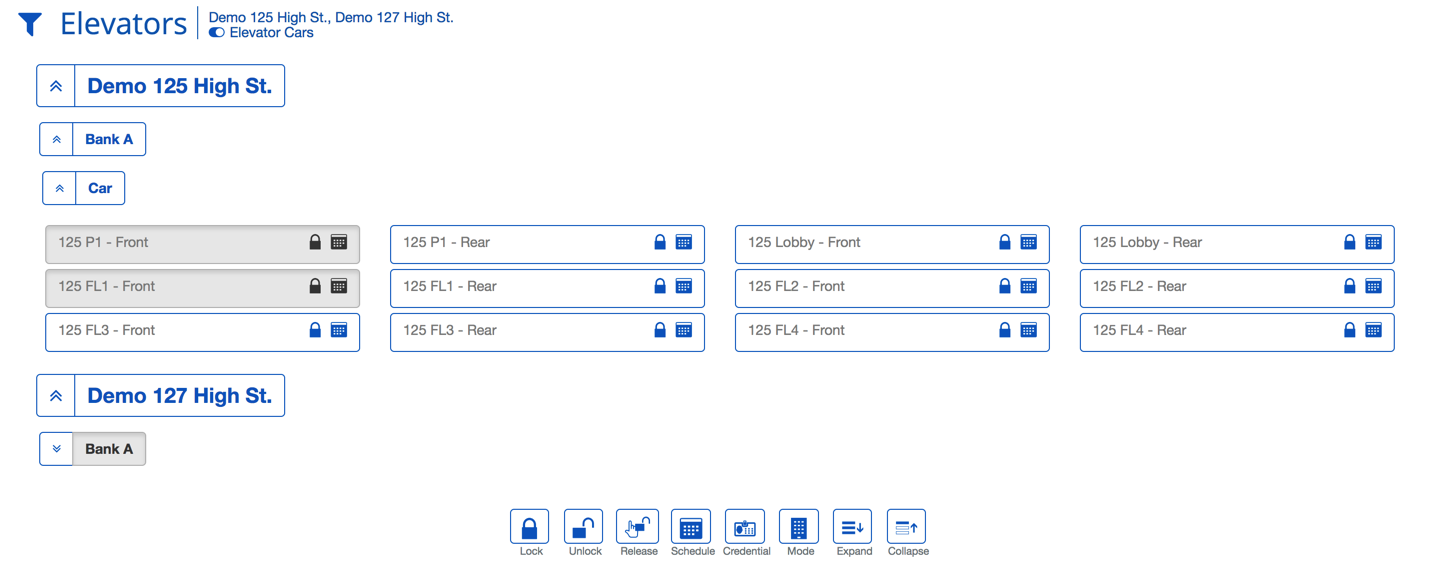
Definitions
| Item | Description |
|---|---|
 | Unlock - This will allow unrestricted access to the selected Floor Stops. |
 | Lock - This will secure access to the Floor Stop. Elevators cannot be put on lock as they are always accessible. |
 | Release - This will cause a timed unlocked period, allowing a person to use the Floor Stop temporarily without a credential. |
 | Schedule - This return the Floor Stops to their normal operating schedule. |
 | Timer - A custom timed release of the Floor Stop. |
 | Credential - This will allow the operator to simulate a person's credential without needing a physical copy. |
 | Mode - This will set the Floor Stop to a specific access mode. See List below. |
 | Expand - Makes all of the individual Floor Stops visible |
 | Collapse - Show only the topmost level of the Elevator Control hierarchy. |
How-To Simulate a Credential
A great way to debug access issues is by simulating a credential at the Reader via the control interface. This provides a useful and convenient tool for determining if access issues are being caused by the hardware or the configuration in BluSKY. For example, if I were to simulate Alice's card at the Reader and see the Portal cycle, I would want to check Alice's physical card and the hardware. If I simulate Bob's card and nothing happens or I see a denied entry, I should start my debugging process in the configuration of Bob's Person record to ensure they have the proper credential and access rights.
- Navigate to Portal Control, or Elevator Control in BluSKY.
- Fill in search criteria if necessary.
- If you use the Control interface often you can likely skip this step.
- Click the Portal or Floor Stop you wish to simulate the credential against.
- Click the button to open the credential selection dialog.
- Start typing in the name of the Person you want to use for the simulated credential.
- Click the Person's name once it appears.
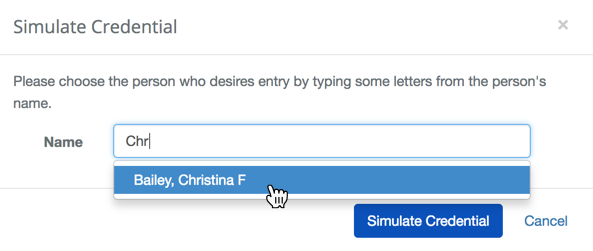
- Click the
 button and observe the status of the Floor Stop or Portal change.
Access Modes
| Item | Description |
|---|---|
| Card Only | This will only allow access to people with Card credentials and the proper access rights to use the elevator. |
| PIN Only | This will only allow a person with a valid PIN to use the elevator. |
| Card and PIN | This will require a person to enter a PIN and present a card to gain access. |
| Card or PIN | This will require either a PIN or card to gain access to the elevator. |
| Disable 2 Card Mode | This disables the requirement that two cards are presented to gain access. Common in ultra-secure settings requiring an escort. |
| Enable 2 Card Mode | This will require that two card are presented each time to gain access to the elevator. |
| Disable Bio Verify Mode | Feature coming soon. |
| Enable Bio Verify Mode | Feature coming soon. |
| Disable Bio Enroll Mode | Feature coming soon. |
| Enable Bio Enroll Mode | Feature coming soon. |
| Disable Cypher Mode | Feature coming soon. |
| Enable Cypher Mode | Feature coming soon. |