Monitoring Point Control
Overview
The Monitoring Point monitoring screen is a great tool for getting real-time statuses on the operation of IPS Points and Monitoring Points.
Getting Started
If you are using the Control Points Control screen for the first time you may need to select the Systems and Facilities you want to control. If you don't see this option, don't worry, BluSKY was able to select your default System. These settings can be changed at any time by clicking the filter icon in the top left-hand side of the screen. This can be a useful way to filter the results for larger systems or when controlling more than one System at a time.

Once you have selected all of the criteria needed, click the  button to load the available Control Points.
Key Features
- Multi-System/Multi-Facility - BluSKY's unique architecture is not limited by distance. You can control multiple buildings and systems all at once.
- "At-a-glance Information" - Visual cues provide information on the system at-a-glance.
- This shows you the status of the alarm,
 means open, or not active,
  means closed, or active.
Monitoring
Unlike some of the similar screens, there are no ways to control the Monitoring Points. They, by definition, are suppose to be passive but they can provide a lot of insight into the operation of the Facility.
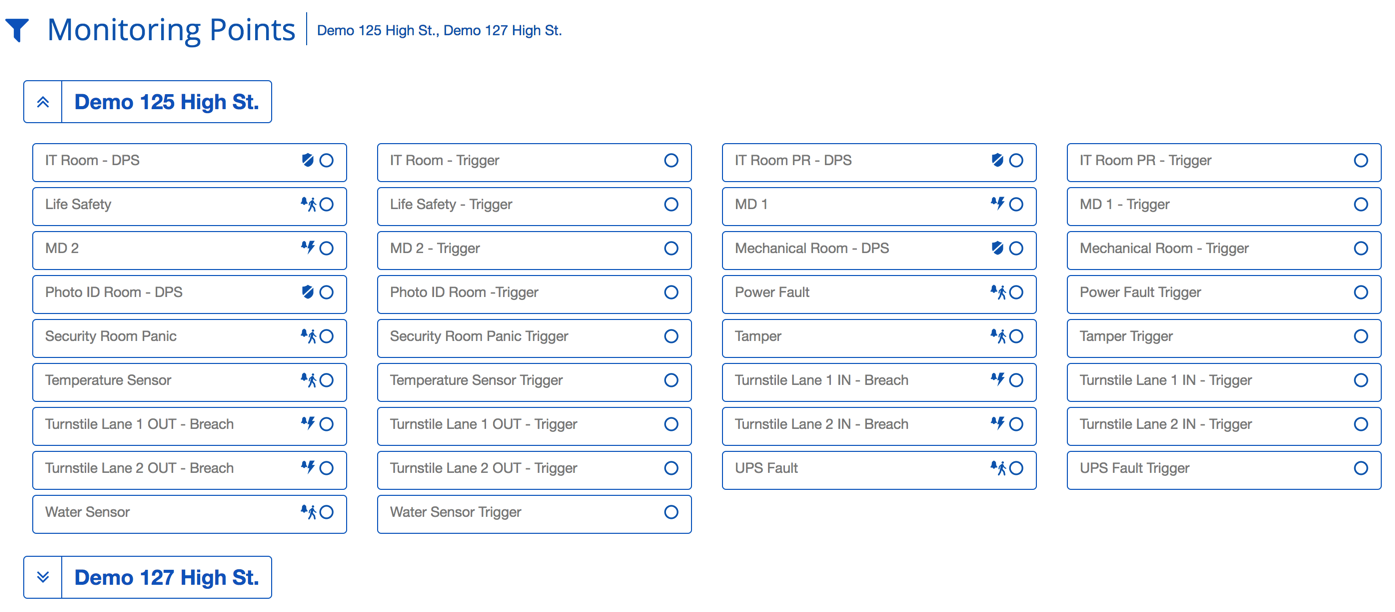
Definitions
| Item | Description |
|---|---|
| Active - This indicates that the Monitoring Point is currently activated. |
| Inactive - This indicates that the Monitoring Point is not currently active. |
| The following symbols will only appear for Monitoring Points that are associated with the Intrusion Prevention System ( IPS ). | |
 | The IPS Group associated with the Monitoring Point is Armed Instantly. |
 | The IPS Group associated with the Monitoring Point is Disarmed. |
 | The IPS Group associated with the Monitoring Point is Armed Stay. |
 | The IPS Group associated with the Monitoring Point is Armed Away. |
More on IPS States.