Portals Control
Overview
This tool is intended for system administrators or security professionals who will need to control portal access in an ad-hoc nature. Portal Control will enable people with the proper permission the ability to temporarily lock or unlock a portal, simulate a card swipe and control the schedule of the Portal.
Meat
Getting Started
When you navigate to the Portal Control screen for the first time you may be asked to select your System. If this does not happen, don't worry, it simply means that we were able to determine your default system automatically.

As you can see from the screen shot selecting multiple Systems or Facilities is a breeze. You can add as many Systems and Facilities as you have available. Once you have all of the necessary fields entered click the  button to populate the control screen.
Getting StartedPortal Filter
Controlling the Portals
It should be no surprise that the hallmark of any access control system is the ability to control the flow of people through a system. This can be done with credentials and access rights but there are certainly times where having direct control is key. This is where the Portal Control screen comes into play. This control screen provides options for controlling one or more systems or facilities, allowing you to control your system on the east coast at the same time as controlling another system across the country. BluSKY delivers a flexible interface that provides the user the ability to control each individual Portal or entire Facilities with a few clicks.
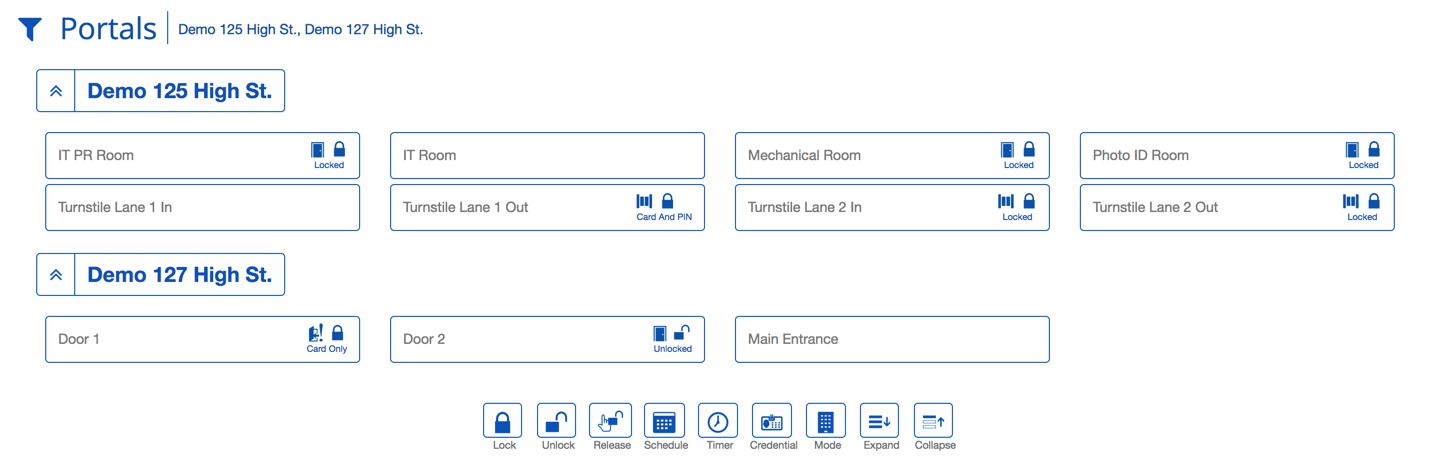
To control the Portal click on one or more of the Facilities or Portals and use the buttons on the bottom screen. Just please be aware than manual actions and modes will remain persistent until modified or the system is reset/resync'd.
Definitions
| Item | Description |
|---|---|
 | Unlock - This will allow unrestricted access to the selected Portals. |
 | Lock - This will secure access to the Portals. This will prevent people from accessing even if they have valid credentials. |
 | Release - This will cause a timed unlocked period, allowing a person to use the Portals temporarily without a credential. |
 | Schedule - This return the Portal to their normal operating schedule. |
 | Timer - A customizable release timer for the Portal. |
 | Credential - This will allow the operator to simulate a person's credential without needing a physical copy. A useful tool for access right debugging. |
 | Mode - This will set the Portal to a specific access mode. See List below. This setting will remain until overridden or the Controller is set. |
 | Expand - Makes all of the individual Portals visible. |
 | Collapse - Show only the top most level of the Portal Control hierarchy. |
Portal Statuses
| Name | Description |
|---|---|
 | The status of the portal is unknown. This is the initial status of all portals when the portal controller is first started. Once BluSKY has probed a portal the status will be updated. |
 | The Portal is open for entry. |
 | The Portal is open for exit. |
 | The Portal is currently closed. |
 | The Portal currently has an alarm status. |
| The Portal is currently locked. Request exit switch works. | |
| The Portal is currently unlocked. | |
| Card | The Portal can only be accessed by using a card. |
| Card and Pin | The Portal can only be used by a card and a PIN. User has to have both to access the portal. |
| Card or Pin | The Portal can be accessed by a card or a PIN. |
| PIN | The Portal can be accessed only be a PIN code. |
How-To Simulate a Credential
A great way to debug access issues is by simulating a credential at the Reader via the control interface. This provides a useful and convenient tool for determining if access issues are being caused by the hardware or the configuration in BluSKY. For example, if I were to simulate Alice's card at the Reader and see the Portal cycle, I would want to check Alice's physical card and the hardware. If I simulate Bob's card and nothing happens or I see a denied entry, I should start my debugging process in the configuration of Bob's Person record to ensure they have the proper credential and access rights.
- Navigate to Portal Control, or Elevator Control in BluSKY.
- Fill in search criteria if necessary.
- If you use the Control interface often you can likely skip this step.
- Click the Portal or Floor Stop you wish to simulate the credential against.
- Click the button to open the credential selection dialog.
- Start typing in the name of the Person you want to use for the simulated credential.
- Click the Person's name once it appears.
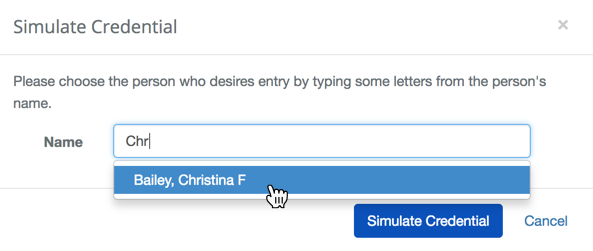
- Click the
 button and observe the status of the Floor Stop or Portal change.
Access Modes
| Item | Description |
|---|---|
| Card Only | This will only allow access to people with Card credentials and the proper access rights to use the Portal. |
| PIN Only | This will only allow a person with a valid PIN to use the elevator. |
| Card and PIN | This will require a person to enter a PIN and present a card to gain access. |
| Card or PIN | This will require either a PIN or card to gain access to the elevator. |
| Disable 2 Card Mode | This disables the requirement that two cards are presented to gain access. Common in ultra-secure settings requiring an escort. |
| Enable 2 Card Mode | This will require that two card are presented each time to gain access to the elevator. |
| Disable Bio Verify Mode | Feature coming soon. |
| Enable Bio Verify Mode | Feature coming soon. |
| Disable Bio Enroll Mode | Feature coming soon. |
| Enable Bio Enroll Mode | Feature coming soon. |
| Disable Cypher Mode | Feature coming soon. |
| Enable Cypher Mode | Feature coming soon. |
Portal Control Overview
BluSKY provides portal control over one or more facilities from any device anywhere at any time. A portal is any door, turnstile, garage or gate. There are many instances when it becomes necessary to manually override the standard operation of portals. The portals screen is designed for this purpose and can quickly control portals from any device either on site or remote. This provides the ability for lockdowns or one-time remote access from anywhere. To access portals either select the Portals icon on the home screen or select Portals from the control menu.
The portal screen works as follows:
- Each portal is a button with the portal name and several icons. The icons indicate whether the portal is opened or closed, the status of the lock and the operation of the reader. If no icons appear with a portal that indicates that the portal is offline. Selecting the facility name selects all the active portals in the facility. The buttons at the bottom of the screen control what actions are applied to the selected portals. Manually controlling the portals changes the icons to indicate normal operation has been overridden along with the new state of the portal. Anyone viewing the portal screen sees these changes.
- To choose the portals or facilities, select the filter button in the upper left corner, choose the criteria and hit the select button. BluSKY has the ability to view and control multiple disparate facilities simultaneously.
- To manually lock one or more portals, select the portals and then the lock button. This will prevent any credential from unlocking the portal. The only exception are credentials that have special emergency access.
- To manually unlock one or more portals, select the portals and then the unlock button. This will unlock the portal and provide free access to anyone.
- To manually release one or more portals, select the portals and then the release button. This will momentarily release the portal(s) and provide access. The portal will go through one standard access cycle and return to its normal state.
- To return one or more portals to their scheduled operation, select the portals and then the schedule button.
- To manually unlock one or more portals for a period of time, select the portals and then the timer button. Enter the time in the popup window and select release button. This will unlock the portal(s) for the period of time selected and provide free access to anyone. The portal will return to its normal state after the timer has expired.
- To manually simulate a person’s credential at a portal, select the portal and then the credential button. Enter a few letters of the person’s last name in the pop up window, find the person in the list and select the simulate credential button. This sends the person’s credential to the controller as if their credential was presented to the reader. If the person has access then the portal will open. If they don’t have access the portal will not open.
- To manually change the mode of the portal(s), select the portals and the mode button. Select the mode of the reader in the popup window.
- To expand and collapse portal buttons use the expand and collapse controls.
- For additional information on Portal control please refer to the BluINFO Knowledgebase.