My Ticket Beta
Support Screen
Screen Overview
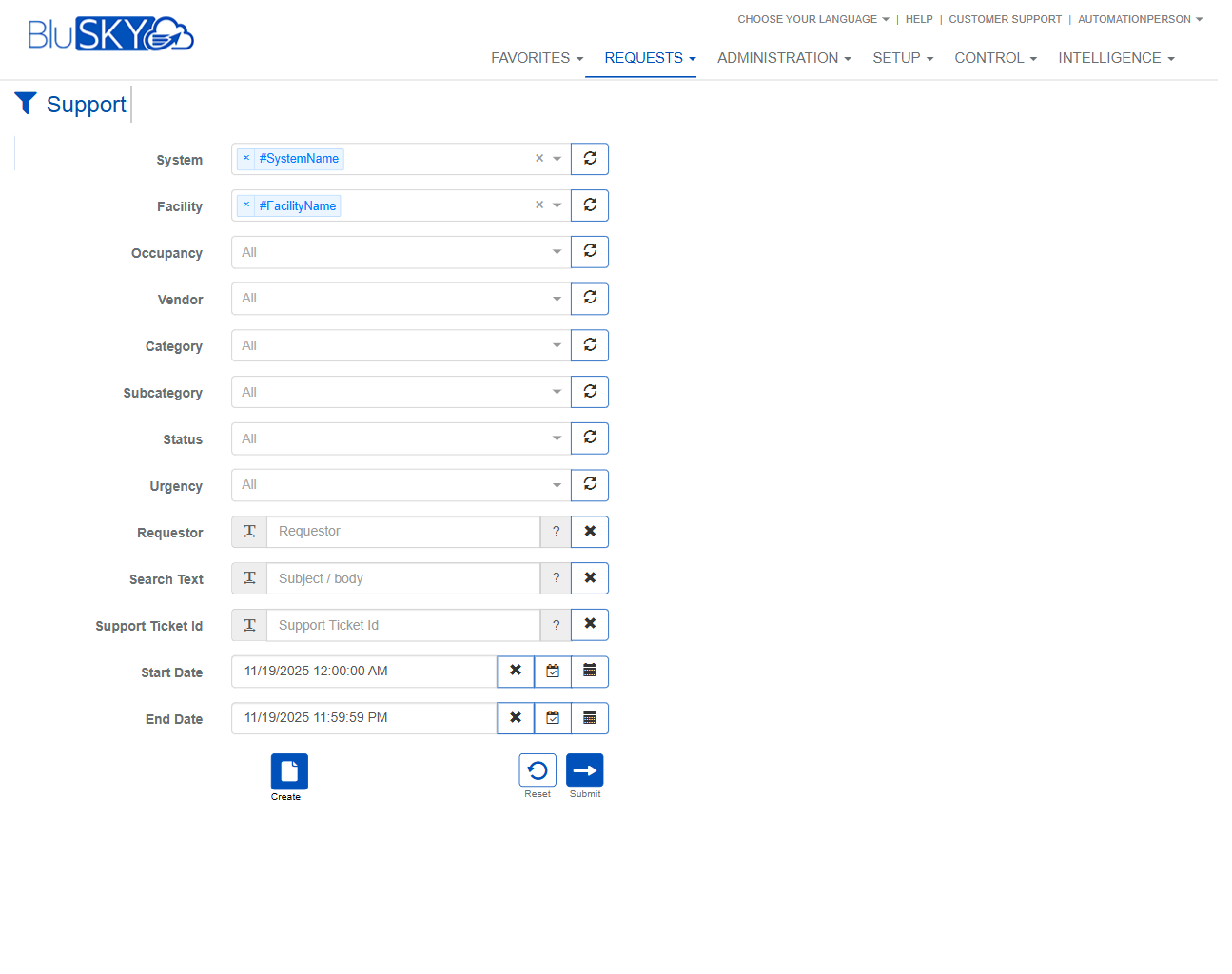
The Support screen (Requests > Support) allows users to search, review, and manage support tickets. It provides a comprehensive filter panel to find tickets by system, facility, category, status, urgency, requester, text keywords, ticket ID, and date range. Results display in a grid with actions to create, edit, export, or delete tickets. A summary bar above the grid shows the active filters (System, Facility, Start Date, End Date).
Field Definitions
| Field Label | Definition | Notes |
|---|---|---|
| System | Limits results to tickets associated with one or more systems. | Multi-select chip field. Use the X on each chip to remove; use the refresh icon to reload available values. |
| Facility | Limits results to tickets for one or more facilities within the selected system(s). | Multi-select chip field; values are scoped by the selected System(s). |
| Occupancy | Filters tickets by occupancy context. | Dropdown; “All” returns without filtering by occupancy. |
| Vendor | Filters tickets assigned to or associated with a specific vendor. | Dropdown; values may be scoped by Facility/System. |
| Category | Filters tickets by the primary issue category. | Dropdown; selecting a Category limits available Subcategories. |
| Subcategory | Filters tickets by a more specific issue type under the chosen Category. | Dependent on Category selection. |
| Status | Filters by current ticket status (e.g., Open, In Progress, Closed). | Dropdown; “All” shows every status. |
| Urgency | Filters tickets by urgency/priority level. | Dropdown; “All” shows every urgency. |
| Requestor | Returns tickets created by or for a specific person. | Person picker with quick search; use the X to clear. |
| Search Text | Keyword search across ticket subject and body. | Free text; supports partial matches. Use the X to clear. |
| Support Ticket Id | Searches for an exact ticket identifier. | Free text; exact match. Use the X to clear. |
| Start Date | Beginning of the date/time window for the search. | Date/time picker; must be earlier than End Date. |
| End Date | End of the date/time window for the search. | Date/time picker; must be later than Start Date. |
Screen Actions and Functions
- Create – Opens the new Support Ticket form.
- Edit – Opens the selected ticket for modification.
- Delete – Removes the selected ticket from active listings (typically a soft delete/archival).
- Export – Exports the current result set to a file (e.g., CSV/Excel).
- Submit – Executes the search with the selected filters and populates the grid.
- Reset – Clears all filter fields back to system defaults.
- Field Clear (X) – Clears the value for the adjacent filter field.
- Field Help (?) – Displays inline help for the adjacent field.
- Refresh icon next to selectors – Reloads the available options for that field from the server.
- Calendar/Clock icons – Open date and time pickers for Start Date and End Date.
Usage Instructions & Examples
How to find tickets for a specific facility and day
- Open Requests > Support.
- In System, select the desired system.
- In Facility, select the target facility.
- Set Start Date to 12:00 AM of the day and End Date to 11:59:59 PM of the same day.
- Click Submit to view results.
How to search by text or ticket ID
- To search by keywords, enter terms in Search Text (e.g., “reader offline”) and click Submit.
- To find a specific ticket, enter the value in Support Ticket Id and click Submit. If the ID exists, only that ticket will be shown.
How to filter by category and urgency
- Choose a Category (e.g., Access Control) and then select the relevant Subcategory.
- Set Urgency to the desired level (e.g., High).
- Click Submit to view matching tickets.
How to create a new support ticket
- Click Create.
- Complete the ticket details on the creation form (subject, description, category, facility, urgency, etc.).
- Save. The ticket appears in the grid and notifications may be sent per system settings.
How to export current results
- Apply filters and click Submit.
- When results are displayed, click Export.
- Save the downloaded file for reporting or analysis.
System Behaviors and Edge Cases
- The grid shows 0/0 when no results match the filters.
- Start Date must be earlier than End Date; invalid ranges will block submission or return no results.
- Category and Subcategory are dependent; clearing Category will reset Subcategory.
- Facility options are scoped by the selected System(s).
- Support Ticket Id is an exact match filter and will narrow results to that ticket only; if not found, no results will display.
- Export includes only the records currently returned by the applied filters.
- Edit and Delete require a single ticket selection; the buttons are disabled if nothing is selected.
- Date/time filtering uses the user’s time zone context.
- The filter summary bar above the grid reflects active System, Facility, Start Date, and End Date.
- Refresh icons reload list values (useful after changes to Systems/Facilities/Vendors in other modules).
Permissions
- Access to the Support screen is typically granted to:
- Global Administrators and Tenant/Facility Administrators – full access including Create, Edit, Export, and Delete.
- Support/Service Desk roles – create, view, and edit tickets within their scope; may export if granted.
- Standard users/requesters – create tickets and view those they created; limited editing.
- Delete and Export actions may require specific permissions beyond general access.
- Visibility of Systems/Facilities and resulting tickets is restricted to the user’s assigned scope.
Linked Workflows
- People (Requestor) – Create or manage the person record used as the ticket requester.
- Vendors – Maintain vendor records that can be selected on tickets.
- Facilities and Systems – Define the operational context that scopes tickets and filter options.
- Reports/Intelligence – Use exports or reporting modules to analyze ticket volume, status, and SLA performance.
- Notifications/Communications – Email or in-app updates may be triggered when tickets are created or updated (per configuration).
Reference Image Links