Vendor Invitation
Vendor Invitation Screen
Screen Overview
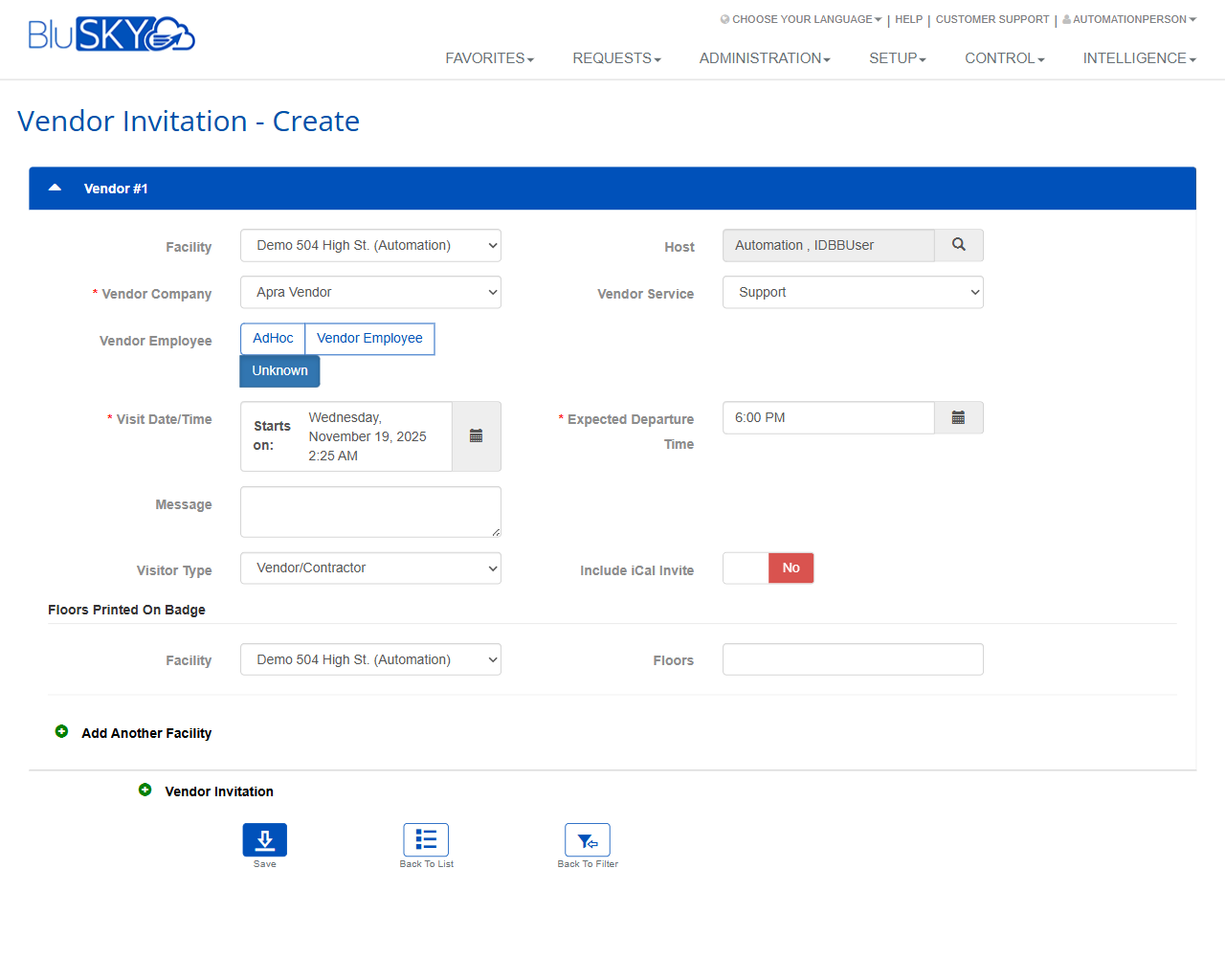
The Vendor Invitation screen allows authorized users to search, review, and create vendor visit invitations for one or more facilities. It provides filters to narrow results, a tabular list of invitations, and a creation form to specify host, vendor organization, visit dates/times, messaging, and optional badge floor details. This screen is central to coordinating vendor/contractor visits in BluSKY.
Field Definitions
| Field Label | Definition | Notes |
|---|---|---|
| System | Filters results to a specific BluSKY system. | Optional; influences available Facility choices. |
| Facility | The building/location tied to an invitation. | Appears in Filter and Create forms; required when creating. |
| Host Association | Filters invitations by the host’s association (e.g., tenant/company). | Optional; scope depends on your configuration. |
| From | Start of the date/time window to filter invitations. | Time zone indicator appears next to the field. Optional. |
| To | End of the date/time window to filter invitations. | Optional; must be on/after From when used. |
| Search | Status filter for invitations. | Default shown as Active. Options depend on site configuration. |
| View | Predefined view selector for the list. | Default shown as All. |
| Search Text | Free text search against invitation details. | Placeholder “Name”; matches guest/host names and related text. |
| Guest Name | Name of the invited vendor person. | List column; read-only. |
| Affiliation | Vendor’s company or group affiliation. | List column; read-only. |
| Guest Email | Email address of the invited person. | List column; read-only. |
| Guest Phone | Phone number of the invited person. | List column; read-only. |
| Vendor Approval Status | Current approval state for the vendor. | List column; sourced from vendor approval workflows. |
| COI Status | Certificate of Insurance status for the vendor. | List column; sourced from COI workflows. |
| Visit Date/Time | Scheduled start date/time for the visit. | List column; read-only. |
| Visitation Pattern | Indicates one-time or recurring pattern. | List column; read-only. |
| Host Name | The person hosting the vendor. | List column; read-only. |
| Host Company | Company/tenant of the host. | List column; read-only. |
| Host | Host assigned to the invitation. | Create form; searchable picker. Required by most sites. |
| Vendor Company | Organization providing the service. | Create form; required. |
| Vendor Service | Service category (e.g., Support). | Create form; optional unless required by policy. |
| Vendor Employee | Vendor person type/selection. | Create form; options shown include AdHoc, Vendor Employee, Unknown. |
| Visit Date/Time – Starts On | Start date and time for the visit. | Create form; required. Uses facility/system time zone. |
| Expected Departure Time | Planned end time for the visit. | Create form; required. Time-only input. |
| Message | Optional note included with the invitation. | Create form; optional. |
| Visitor Type | Classification of the visitor. | Create form; default shown as Vendor/Contractor. |
| Include iCal Invite | Toggle to include a calendar (.ics) invite. | Create form; default shown as No. |
| Floors Printed On Badge – Facility | Facility context for badge floor printing. | Create form; used within the Floors Printed On Badge section. |
| Floors | Floors to print on the visitor badge. | Create form; free text or site-defined format. |
Screen Actions and Functions
- Filter toggle (funnel icon) – Opens/closes the filter panel.
- All – Displays all invitations within the current scope.
- Column sort – Click any list column header to sort ascending/descending.
- Create – Opens the Vendor Invitation Create form.
- Submit (Filter) – Applies the selected filter criteria.
- Reset (Filter) – Clears all filter criteria back to defaults.
- Save – Saves a new or edited vendor invitation.
- Back To List – Returns to the invitation list.
- Back To Filter – Returns to the filter panel with criteria preserved.
- Add Another Facility – Adds an additional Floors Printed On Badge row.
- Host lookup (magnifying glass) – Opens a search to select a host.
Usage Instructions & Examples
- Find vendor invitations within a date range
- Click the filter toggle (funnel) if the panel is hidden.
- Select System and Facility as needed.
- Set From and To to define the window; leave Search = Active and View = All.
- Optionally enter Search Text (e.g., guest or host name).
- Click Submit to display matching invitations.
- Create a single-facility vendor invitation
- Click Create.
- Select Facility and Vendor Company.
- Choose the Vendor Employee option (e.g., AdHoc or Vendor Employee).
- Use Host lookup to select the hosting person.
- Set Visit Date/Time – Starts On and Expected Departure Time.
- (Optional) Select Vendor Service and enter a Message.
- Leave Include iCal Invite as desired (Yes to send a calendar invite).
- (Optional) In Floors Printed On Badge, select the Facility and enter Floors.
- Click Save. The new invitation appears in the list.
- Add floors for multiple facilities on the badge
- In the Create form, scroll to Floors Printed On Badge.
- Enter the first Facility and Floors.
- Click Add Another Facility and repeat for each additional facility.
- Click Save.
System Behaviors and Edge Cases
- Required fields are indicated with an asterisk; Save is blocked until all required fields are populated.
- The date/time pickers honor the system/facility time zone shown next to the controls.
- When both From and To are used in the filter, To must not precede From.
- Include iCal Invite = Yes adds a calendar attachment to invitation notifications (delivery depends on notification settings and having a valid email).
- Vendor Approval Status and COI Status are informational on this screen; they reflect related workflows managed elsewhere.
- Floors Printed On Badge entries are saved per facility; if none are entered, badges print without floor details.
- Column sorting affects only the current result set and is cleared when filters are reset.
Permissions
- Viewing and filtering invitations requires standard read access to Vendor Invitations for the chosen System/Facility.
- Creating or editing invitations requires create/edit rights for Vendor Invitations; some sites also require the user to be the Host or belong to the Host’s organization.
- Visibility of COI and Vendor Approval columns may require additional rights to the Vendor/COI modules.
Linked Workflows
- Vendor Company management and approval workflows (drives Vendor Approval Status).
- Certificate of Insurance (COI) management workflows (drives COI Status).
- Visitor check-in and badge printing at reception/kiosk (uses Floors Printed On Badge).
- Email/calendar notification workflows for hosts and invited vendor personnel.
Reference Image Links