Edit an Access Level Group
Overview
At some point it may become necessary to modify an existing Access Level Group. This article discusses the ways that an Access Level Group can be modified.
Instructions
- Log in and navigate to Access Level Group. Main Menu-> Administration-> Access Level Group
- Use the search feature, then select the entry you wish to edit from the list.
- Once selected click the
 buttonin the bottom left hand corner of the screen.
 - Use the key below to identify and update any necessary fields.
- Note: The "apply retroactively" will apply the changes to all Occupants within the Occupancy selected or if no Occupancy is selected, then it will apply to all people in the System.
- Confirm changes with the
 button.
Field Definitions
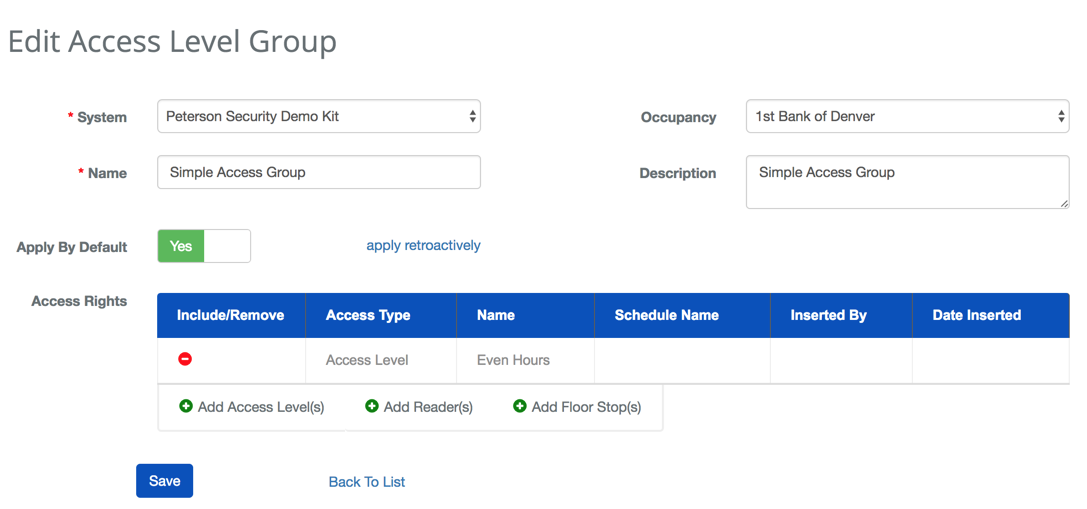
| Name | Description |
|---|---|
| System | The System that created the Access Level Group |
| Occupancy | When specified this field will indicated the specific Occupancy that is able to use the Access Level Group. Access Level Groups that are not assigned to an Occupancy are available to the entire system. |
| Name | Name of the Access Level Group. |
| Description | The description fields provides additional information that may be helpful for identifying the purpose of the Access Level Group. |
| Apply By Default | This toggle idicated whether the Access Level Group should be applied to all new People of the Occupancy (if specified) or the System. |
| Accesses | These are the individual access rights that are used in the Access Level Group. |
| Include/Remove | When accesses are selected this column will allow you to delete and undelete access rights. |
| Access Type | This field inidcates if the access right is a single Reader, Floor Stop or Access Level. |
| Schedule Name | The name of the Access Schedule that is being used to control access to the Reader or Floor Stop. |
| Inserted By | The name of the login who created this entry in BluSKY. |
| Date Inserted | The date this entry was added to BluSky. |