Occupancy
BluSKY URL: https://blusky.blub0x.com/en-US/Occupant
Overview
This is an instance of a company that resides within a Facility that is controlled by a BluSKY system. An Occupancy will always belongs to an access control system because they are physically located within the facility. Occupancies never have a physical address that is different from the access control system's physical address
Addtl. Articles
- How-To
Occupancy Definitions
| Name | Description |
|---|---|
| City | The city the Occupancy is located in. |
| Company | Name of the Company. |
| Country | The country of the Occupancy. |
| Date Deleted | Date this entry was disabled or deleted from BluSKY. BluSKY never fully deletes these records but deleting them does make them unaccessible. |
| Date Inserted | Date this entry was added to BluSKY. |
| Date Updated | Date this entry was last updated. |
| Default Badge Template | Badge Design most commonly used by the customer. |
| Deleted | If checked, entry is deleted from BluSKY |
| Deleted By | Who disabled this entry. |
| Facility | Name of the Facility the Occupancy is associated with. |
| Inserted By | Who added this entry into BluSKY. |
| Map | Geographical Location of the Occupancy. |
| Occupancy | Name of the Occupancy. |
| Phone | Phone Number of the Occupancy. |
| Region | Region, ie.e State, Provence, County, etc. |
| Street Address 1 | Address of the Integrator, User, or Company. |
| Street Address 2 | Sub address. |
| System | Name of the BluSKY access control system. |
| Website | Website of the Occupancy. |
Occupancy Setup Actions
 | Will bring you to the create screen. Use this if the entity does not exist in the BluSKY database. Be extremely careful not to create duplicates with slightly different names. |
 | View will bring you to the view screen. Use this to look up information on existing entities and access Audit Info. |
 | Edit will enable you to edit the selection you chose. |
 | Delete allows for removal of the entity from the BluSKY database. |
 | Export will save the information from the view list into one of three file formats, a printable form or copying to your computers clipboard. Read more here. |
Search Criteria
| Name | Description |
|---|---|
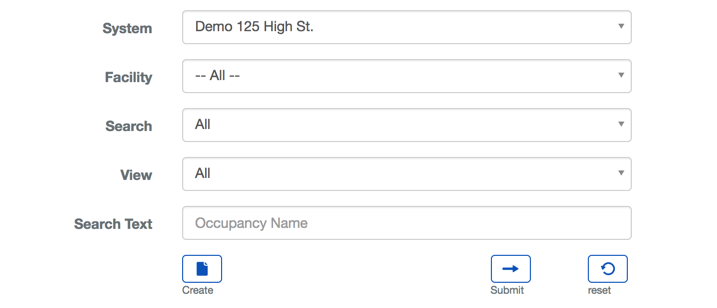
| System | Choosing a System will filter the results in the list to only the selected System. |
| Facility | Choosing a Facility will filter the results in the list to only the selected Facility. |
| Search | This field indicated whether to search only active records, deleted records or both. |
| View | The view setting allows you to select different ways to view the list. For the Occupancy List there are five options, All, Standard, Extended, Security and Custom. |
| Search Text | This field is used to limit the number of rows listed in the list box below. To use simply type a string of characters or words. Please note you will only see those items you have the permission and access rights for. It is a good idea to search first, even when you are creating a new entry. |
| Submit | Starts search based on the criteria selected in the two prior steps. |
| Reset | Clears all fields in order to start a new search. |