On this page
Otis DDE Configuration/Testing Checklist Server Applications
Server Role
Installed Applications
MS SQL
LocalSync
ServerManager
OtisInterface
BluSKY Verification
In Setup>Facility>Banks
Elevator banks are setup as Otis destination
Elevator banks have unique numbers corresponding to Otis documentation
Elevator banks have cars according to Otis documentation
In Setup>Facility>Cars
Each car has a unique number corresponding to Otis documentation. You must configure all cars, even when they are not needed for the function of the system
The first car in the bank has correct floors served by its bank
Each floor has the correct landing number according to the Otis documentation
If there are global keypads create a global bank(s)
Create a fictitious car in the global bank
Assign ALL floors of other banks with correct landing numbers to that car
In Setup>Destination Keypads
Each keypad has an IP address according to Otis documentation
Each keypad assigned to a correct floor
Each keypad has a name that clearly associates it with the bank, floor and unique keypad number
In Setup>Interfloor Matrix
Each keypad has a floor/schedule pair for each floor in its bank
Each global keypad has a floor schedule pair for every floor across all the bunk in the building
For the commission, all floors in every keypad have "Always Off" schedule. This makes floors public and will not lock the building when connecting to Otis
Test Cards
At least two cards are ready for testing
At least two persons have assigned above cards and access levels that have assigned floor schedules
One person has all the floors in the building. Another person has some floors in the building
In Setup>Server
Server is created in BluSKY
Elevator banks are assigned to the server
Server role is correctly assigned to the server
Sync status and data upload are enabled
Data download batch size is set to 500
In Setup>DDE Diagnostics
The system name is visible in DDE Diagnostics screen
Remote server name is visible in DDE Diagnostics screen
Elevator banks and elevator manufacturer are visible in DDE Diagnostics screen
Elevator keypads are visible in DDE Diagnostics screen
Bank floor stops are visible in DDE diagnostics screen
Each floor stop has a correct landing number in parenthesis
In Control>Elevators
Elevator banks are visible in RTC elevators screen
All floors are visible per each bank
All floors have correct names
All floors are "On Schedule"
Server Verification
Server
Operating system has all the latest updates
Windows MSMQ and Telnet features are enabled
Both NIC Cards are clearly named. One to BluBØX network, another to Otis Elevator
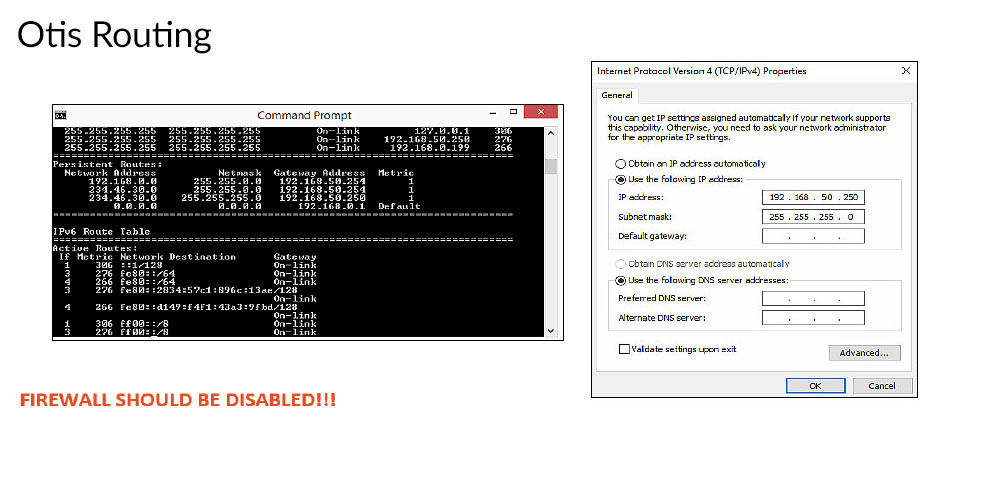
Persisting routing to NIC card is applied (See DDE Routing)
SQL Server
The latest version of SQL Server (from OPS folder) is installed with dual login mode
LocalSYNC
The latest version of Local Sync is installed with the administrator account
Correct RemoteServerId is specified in LocalSync.exe.config file
Start Local Sync in Console and verify that there are no errors
Verify that Local Sync created BluB0X and BluB0XLogs databases in the SQL Server
Stop ServerManager in the console and start in service mode
ServerManager
The latest version of the server manager is installed
Correct RemoteServerId is specified in ServerManager.exe.config file
Start ServerManager in the console mode and verify there are no errors
Stop ServerManager in the console and start in service mode
OtisInterface
The latest version of Otis interface is installed
Correct RemoteServerId is specified in OtisInterface.exe.config file
Correct SignalRUrl is specified in OtisInterface.exe.config file: <add key="SignalRUrl" value="https://signalrhub.blub0x.com/signalr"/>
Bench Testing
Prepare a test simulator computer. Set the IP address of it corresponding to the subnet of the Otis controller
Create all IP addresses on the test simulator computer that correspond to IP addresses of all devices on Otis side
Connect a NIC card of the test simulator computer to the OTIS side NIC card of the server
Start the Otis simulator on the test simulator computer
Start the OtisInterface in console mode
No red line errors in the console
Verify that you can see the startup dialog in DDE diagnostics screen
Verify that all matrixes are coming down from the server to the test simulator
Click on the heartbeats checkbox in DDE diagnostics screen. Verify that you can see the heartbeats from and to the server
Uncheck the heartbeats checkbox. Verify that heartbeats stop showing in DDE Diagnostics screen
Change one of the matrixes in the BluSKY and verify that the change came down to the test simulator
Simulate a card swipe on the test simulator and verify that the Otis interface replies correctly
Check "Show" Person Floors" checkbox. Swipe the card and verify that the allowed floor matrix sent to the test simulator is correct
Disconnect the cable between the test simulator and server. Wait until Otis interface reports that Otis Group(s) is offline
Verify that this message is visible in the console and also in DDE diagnostics screen
Reconnect the cable back. Verify that applications reconnected, keypad matrixes were resent, heartbeats started and card swipes are working properly
Stop the Otis interface in the console mode
Restart Otis interface in service mode
Verify all communication again including matrixes, heartbeats and card swipes
Verify that card swipes are showing up in the events and event history screens
Building Commissioning
The remote server is connected and reachable from the internet through TeamViewer
Local Sync, ServerManager, and OtisInterface services are running with automatic startup
Start DDE Diagnostics screen in BluSKY and navigate to the system/server/elevator bank
Stop and restart OtisInterface service. Verify that you see the startup communications in DDE diagnostics screen
Swipe a card at each keypad on every floor and in every elevator bank. Verify that the correct keypad number is reported in the DDE diagnostic screen
Connect Otis side NIC Card of the server to the Otis Layer 3 switch
Verify that Otis interface connected to Otis bank controllers
Verify that heartbeats are coming and going
Verify that the keypad matrixes where sent and you can change them
Verify that the floors open
Verify that card swipes open the correct floors for that card
Open Elevators RTC screen. Verify that you can open a floor and place it back to schedule
Do all other verification required by Otis and the building management
Change the keypads FloorMatrix to the schedules required by the building
Verify that floors are open or secure according to the applied schedules
DDE Routing