Vendor Services
Edit Person Screen
Screen Overview
The Edit Person screen is used to maintain a person’s operational profile in BluSKY. From this screen you can manage roles, credentials, access level assignments, photos, vehicles, personal preferences, registered mobile devices, and historical entries. The screen is organized into tabs (Roles, Credentials, Access, UDFs, Suspend, Vehicles, Person Photos, Badge, Person Preference, Mobile Devices, History) and provides list actions and record-level edits.
Field Definitions
| Field Label | Definition | Notes |
|---|---|---|
| View | Drop-down filter that determines which records are shown in the current tab. | Seen on Credentials and Access tabs; common values include Assigned. Options may vary by tenant/configuration. |
| Allow BluID | Toggle to permit or deny issuance/use of BluID mobile credentials for the person. | Changes take effect after Save; requires BluID feature enabled for the system. |
| Allow HIDMobile | Toggle to permit or deny HID Mobile Access credentials. | Requires HID Mobile integration and licensing. |
| Allow Apple Wallet | Toggle to permit or deny Apple Wallet-based credentials. | Availability depends on system configuration and reader support. |
| Allow Google Wallet | Toggle to permit or deny Google Wallet-based credentials. | Availability depends on system configuration and reader support. |
| Available Photos | Displays the list of photos already stored for the person. | Shows “None” when no photos exist. |
| Upload New Photo | Selects the method to add a new photo (Upload via File or Upload via Camera). | Choose one method before uploading. |
| File | File selector used when Upload via File is chosen. | Acceptable formats and size limits are system-defined. |
| Auto ID | Read-only identifier associated with the uploaded person photo. | Populates after a successful upload. |
| MFA ID | Read-only identifier associated with multi-factor enrollment tied to the photo/identity. | Populates when applicable; may show “None.” |
| Include/Remove | Indicator/command in lists for marking a record to include or remove. | Commonly shows a red dot for remove; finalized on Save. |
| BluREMOTE | Quick-action selector (All, None, Default) for remote control rights related to the access item. | Affects BluREMOTE access to points within the Access Type. |
| Access Type | Type of assignment in the Access tab. | Example shown: Access Level. |
| Name | The name of the access item assigned to the person. | Clickable when linking to the source record (if allowed). |
| Schedule Name | The schedule tied to the access assignment. | Blank if none is applied. |
| Access Rights Granted Start | Start date/time of the access assignment. | Optional; may be blank. |
| Access Rights Granted End | End date/time of the access assignment. | Optional; may be blank. |
| Inserted By | User who created the access assignment. | Read-only audit value. |
| Date Inserted | Timestamp when the access assignment was created. | Read-only audit value. |
| Role | The BluSKY role assigned to the person. | Listed on the Roles tab. |
| Role Scope | Scope for the selected role (e.g., System). | Use to constrain or broaden the role’s effect. |
| System | The system the role or assignment applies to. | Appears as a link in some lists. |
| History Entry Type | Filter used to restrict which history rows are shown. | Appears on the History tab. |
| Preferences | Container for person-level preferences. | Fields vary by implementation; may appear empty. |
| Vehicle Records | Grid that lists vehicles registered to the person. | Empty until vehicles are added. |
| Mobile Device Records | Grid that lists the person’s enrolled mobile devices. | Use with Delete to revoke devices. |
| User Defined Fields (UDFs) | Custom attributes defined by the tenant or site. | Content varies; Save and Cancel available. |
Screen Actions and Functions
- Add – Context-sensitive; adds a new item in the active tab (e.g., Add Role, Add vehicle, Add credential).
- Add Access Level(s) – Opens selection to assign one or more access levels to the person.
- Add Access Level Group(s) – Assigns a group of access levels in one action.
- Upload – Submits the selected photo to the person record.
- Save – Commits all pending changes on the current tab.
- Cancel – Discards unsaved changes on the current tab.
- Delete – Removes the selected record (e.g., a mobile device or history row). Action is permanent after Save when applicable.
- Create – Creates a new history entry (History tab).
- Edit – Modifies a selected history entry (History tab).
- Back To List – Returns to the parent list of people.
- Back To Filter – Returns to the previous filtered result set.
- BluREMOTE quick set (All/None/Default) – Applies remote-control rights to the access item.
Usage Instructions & Examples
How to assign an Access Level to a person
- Open the person and select the Access tab.
- Click Add Access Level(s).
- Choose the access level(s) to assign and confirm.
- Optionally set Start/End dates and BluREMOTE value.
- Click Save.
How to enable mobile credentials for a person
- Go to the Credentials tab.
- Toggle Allow BluID, Allow HIDMobile, Allow Apple Wallet, and/or Allow Google Wallet to Yes as needed.
- Click Add if you need to issue a new credential.
- Click Save.
How to upload a person photo
- Open the Person Photos tab.
- Choose Upload via File or Upload via Camera.
- If uploading a file, click the File selector and choose the image.
- Click Upload, then verify the new photo appears and Auto ID/MFA ID values populate.
- Navigate away or continue editing other tabs as needed.
How to assign a Role and scope
- Open the Roles tab.
- Click Add Role and select the appropriate role.
- Set Role Scope (e.g., System).
- Click Save.
How to revoke a registered mobile device
- Open the Mobile Devices tab.
- Select the device row to remove.
- Click Delete.
- Confirm and Save if prompted.
System Behaviors and Edge Cases
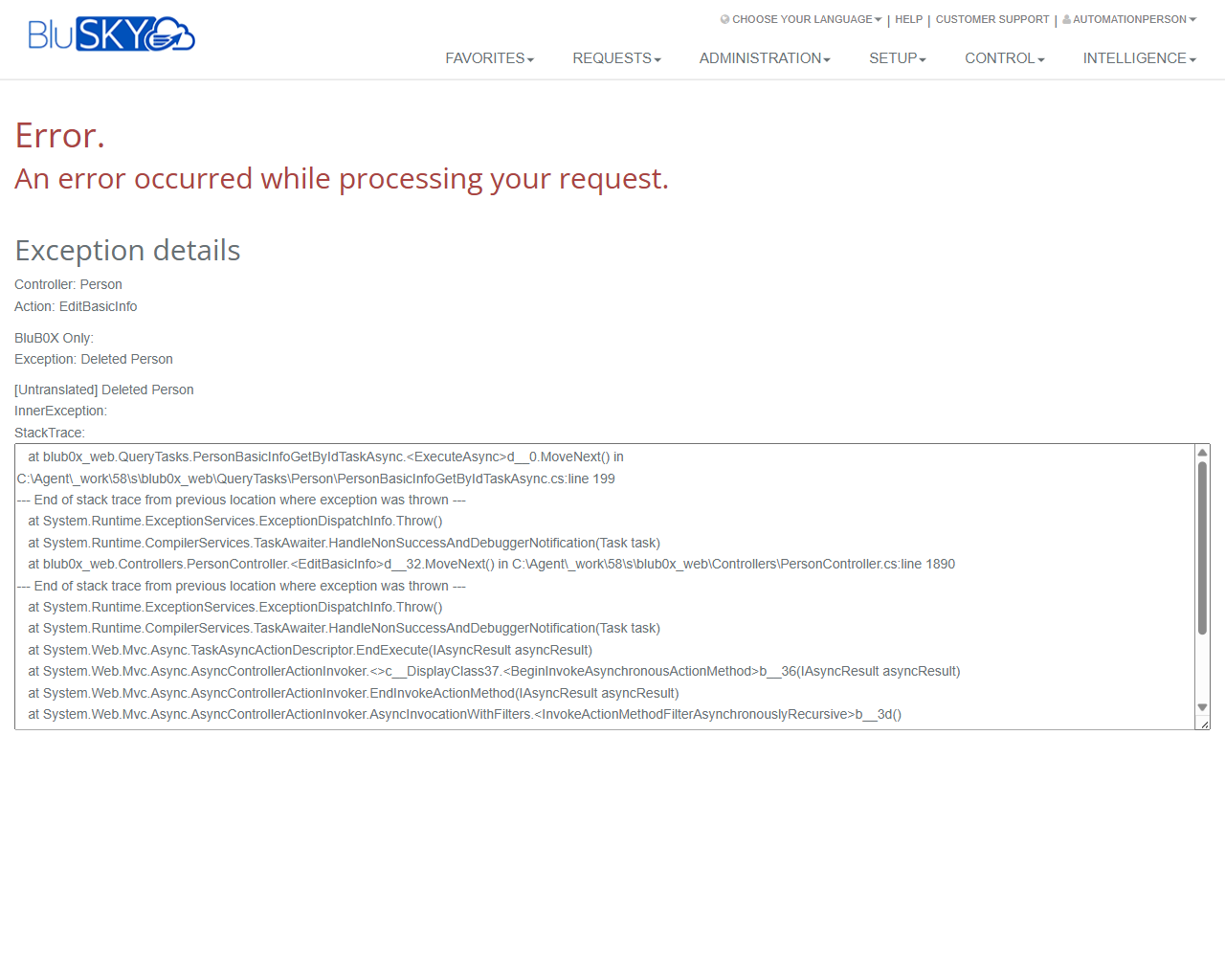
- Editing a person marked as Deleted blocks certain edits; attempting to edit Basic Info can raise an error “Deleted Person.” Use View to confirm deletion status.
- Opening the Suspend tab can return “Sequence contains no elements” when required data is missing.
- Opening the Badge tab can raise “Not Found” if the person does not have a corresponding badge record or configuration is incomplete.
- The History tab may show a “Web Request – An Error Occurred” toast if the history service is unavailable; retry or contact support.
- Items marked for removal (e.g., roles or access) are not actually removed until you click Save.
- Mobile credential toggles only take effect after Save and require the respective integrations to be licensed and enabled.
- Photo upload creates or updates the person’s photo; if none exists the photo list shows “None.”
- The View selector is tab-specific; changing it on one tab does not change other tabs.
- Audit fields (Inserted By, Date Inserted) are read-only and generated by the system.
Permissions
- Access to Edit Person is typically restricted to Global Administrators, Tenant Administrators, and delegated Role/People Managers with Person.Write.
- Managing Access assignments requires AccessAssignment.Manage (or equivalent).
- Issuing or modifying credentials requires Credential.Manage; mobile toggles may also require MobileCredential.Admin and an enabled integration.
- Uploading person photos requires PersonPhoto.Manage.
- Viewing without modification requires Person.Read.
- Deleting mobile devices or history entries requires appropriate Delete permissions on those modules.
Linked Workflows
- After assigning Access Levels, verify reader/door permissions under Access Levels and Schedules.
- After enabling mobile credentials, complete mobile provisioning via the credential Add flow or the Mobile Devices/Wallet enrollment workflow.
- After uploading a photo, proceed to the Badge tab to print or encode a badge (if enabled).
- Vehicle records can be used by Parking or Visitor workflows for gate access.
- Use History and Audit views for compliance checks and troubleshooting.
Reference Image Links