How to Install SmartCard Manager V2.0 (formerly pcProx Plus Card Reader)
Overview
Configuring the RFIdeas RDR-80081AKU Mifare reader to read the Mifare CSN Numbers
Instructions
Configuring the RFIdeas RDR-80081AKU Mifare reader to read the Mifare CSN Number
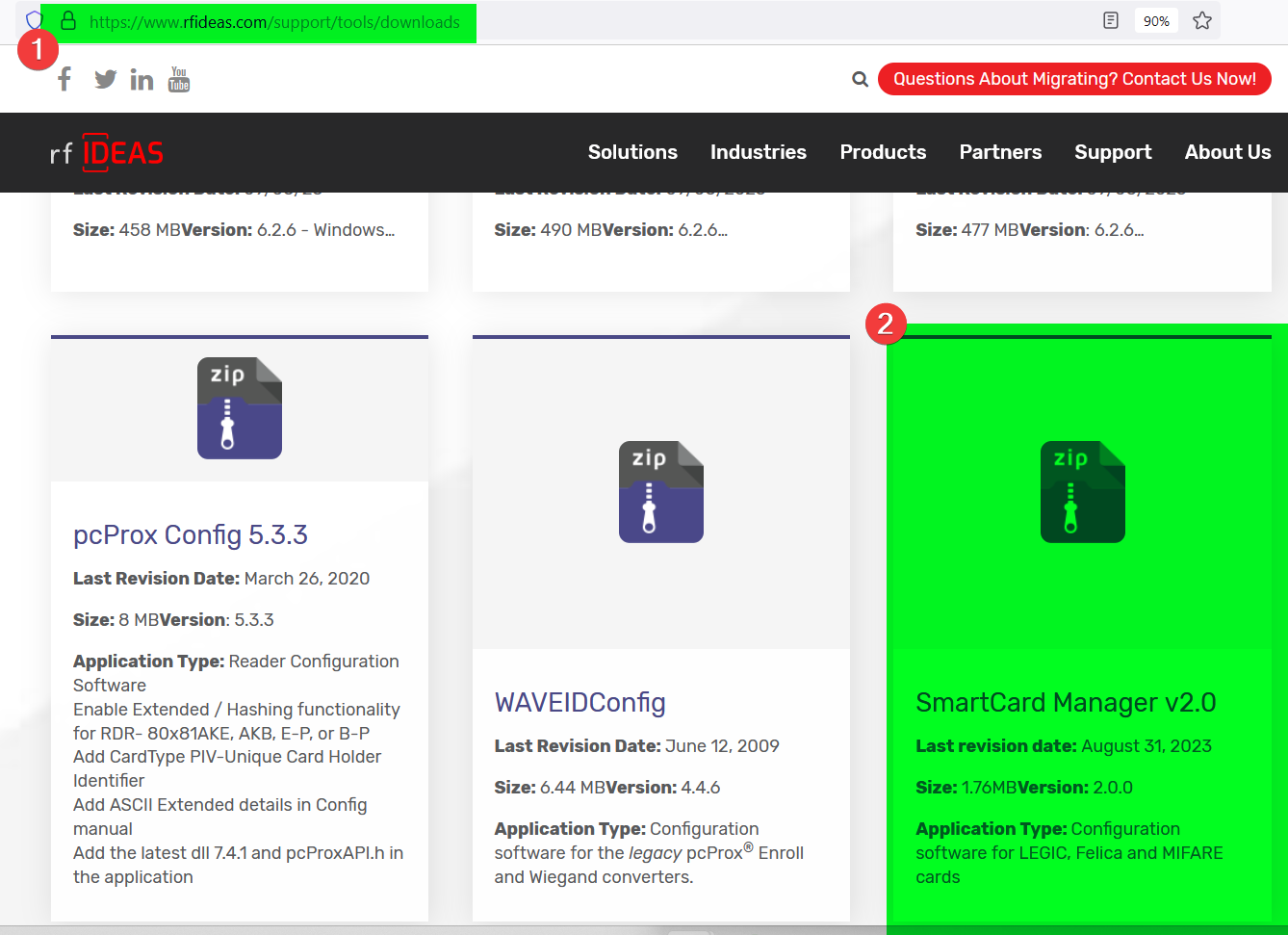
- Go download the “SmartCard Manager V2.0” zip file from the RFIdeas website - http://www.rfideas.com/support/downloads
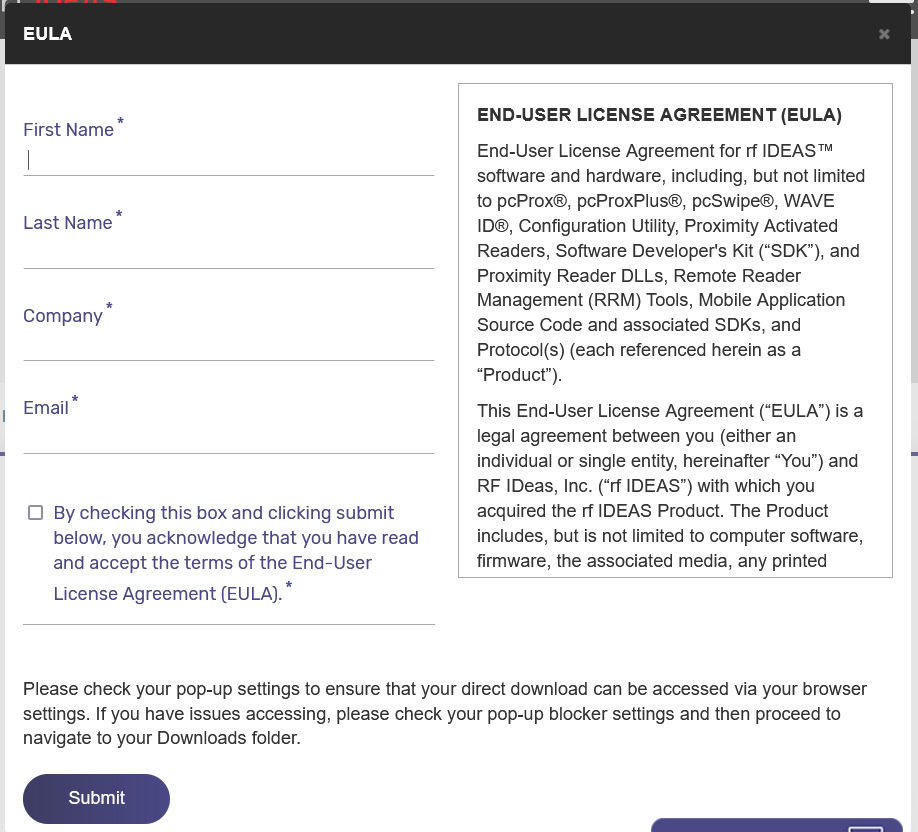
- Enter the requested information for RFIDeas' EULA, then click Submit.:
Click the red "Download Now" button.

In your Downloads folder, unzip the "Smartcard_Manager_v2.0" zip file. Inside the zip file should be the following two files: Smartcard_Manager_v2.0.exe, and Smartcard_Manager_v2.0_User_Guide.pdf.
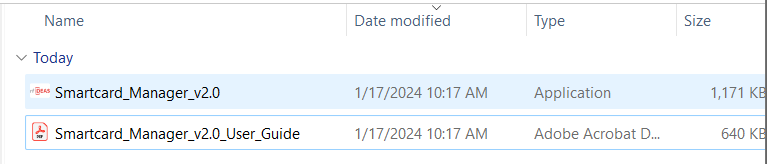
The Smartcard_Manager_v2.0.exe is the application you will be using, so double-click on that file. In Windows, this application should just launch as a standalone without the need for an installation process. However, if this is the first time you are launching it, Windows Defender may throw an error. If this happens, opt to run the program anyway. You should see the window below:

-
Plug your reader (in this case, the RFIdeas RDR-80081AKU Mifare reader) into a USB port on the PC.
-
Now, run the Smartcard_Manager_v2.0.exe program (if you don't have it open already), and click the "Connect/Reconnect" button (highlighted below in green):
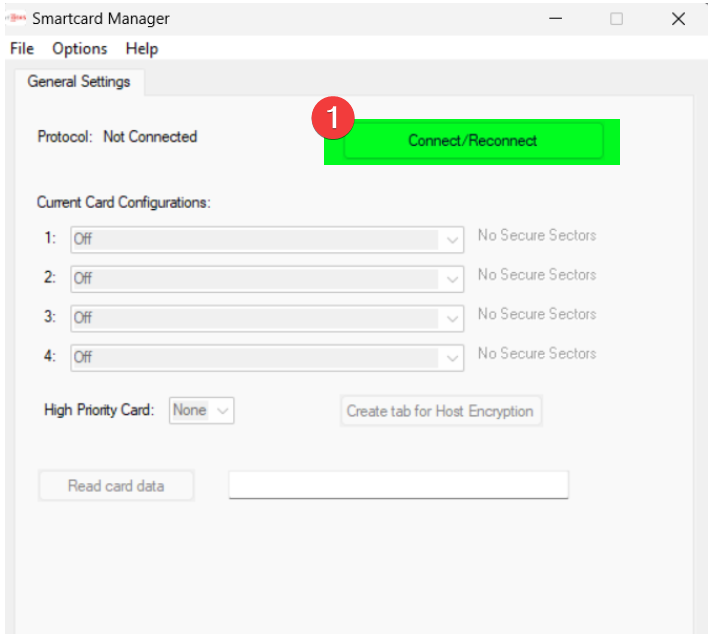
- Once connected, the device should show up and green text stating "Connected to reader" should appear at the bottom of the application's window. Your reader may have pre-existing configurations or it may have all "Current Card Configurations" slots cleared. In this case, our reader has all slots cleared, so the application window appears as below.:

- We now have to tell the reader what type of card we are going to read. In this case, we are looking to read the Mifaire CNS. From the list of card types under the "Current Card Configurations" heading, select "Mifare CSN (Philips, NXP)" from the dropdown.:
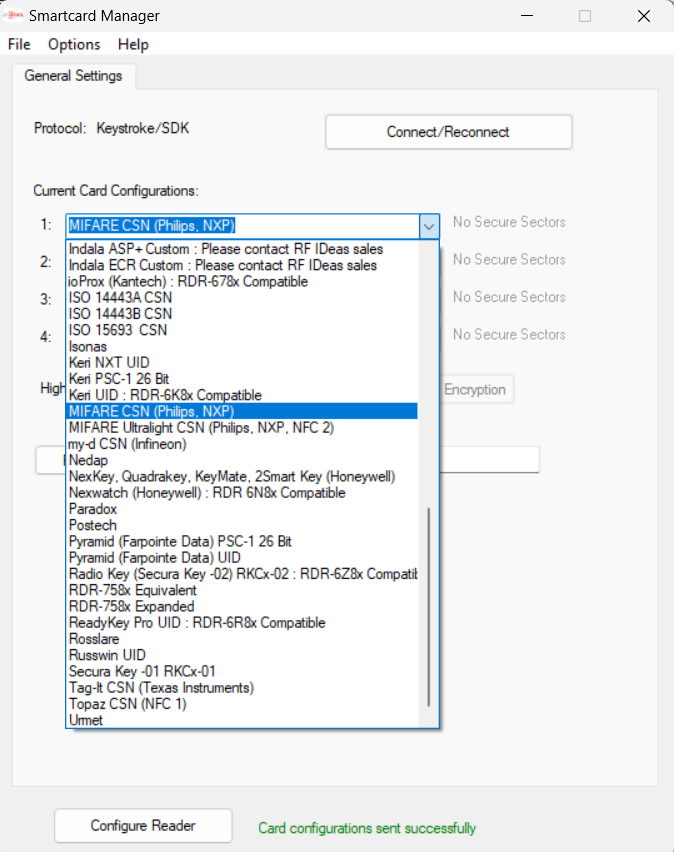
Then, click on the "Configure Reader" button:
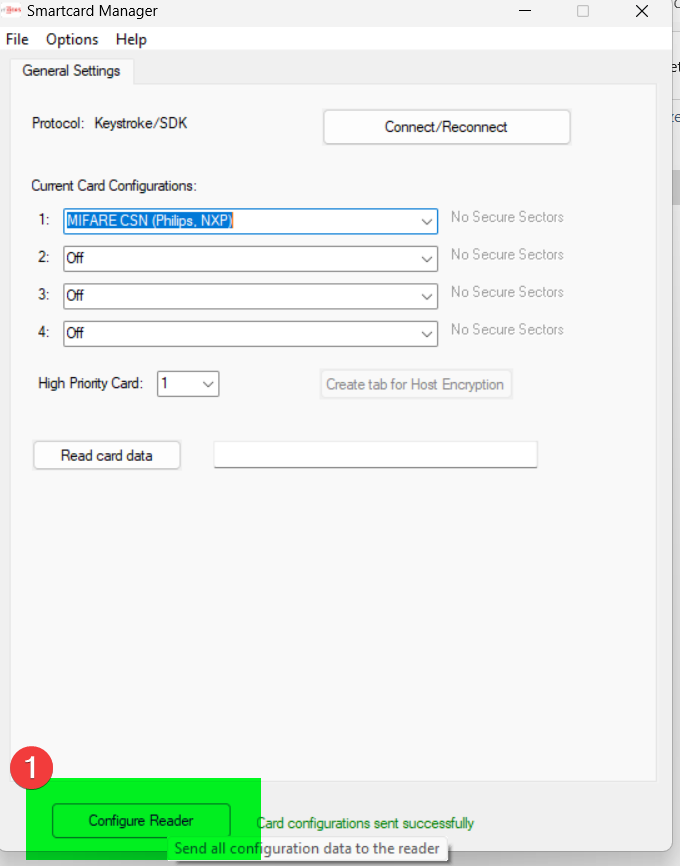
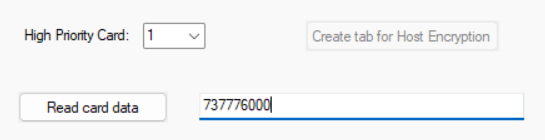
- Now it is time to test the reader with your card. Give focus/Insert cursor in the textbox to the right of the "Read Card Data" button and present the card to your reader. The CSN# should appear in the textbox.