Avigilon
Avigilon NVR Configuration and usage with BluSKY.
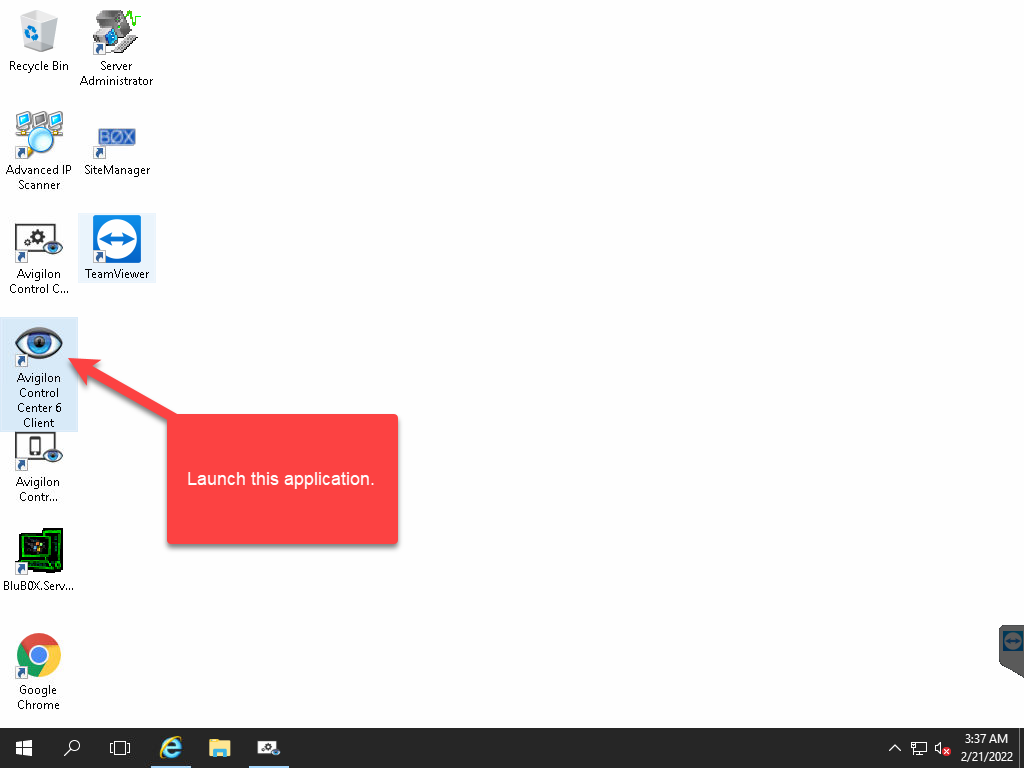
- Launch the Avigilon Control Center Application.
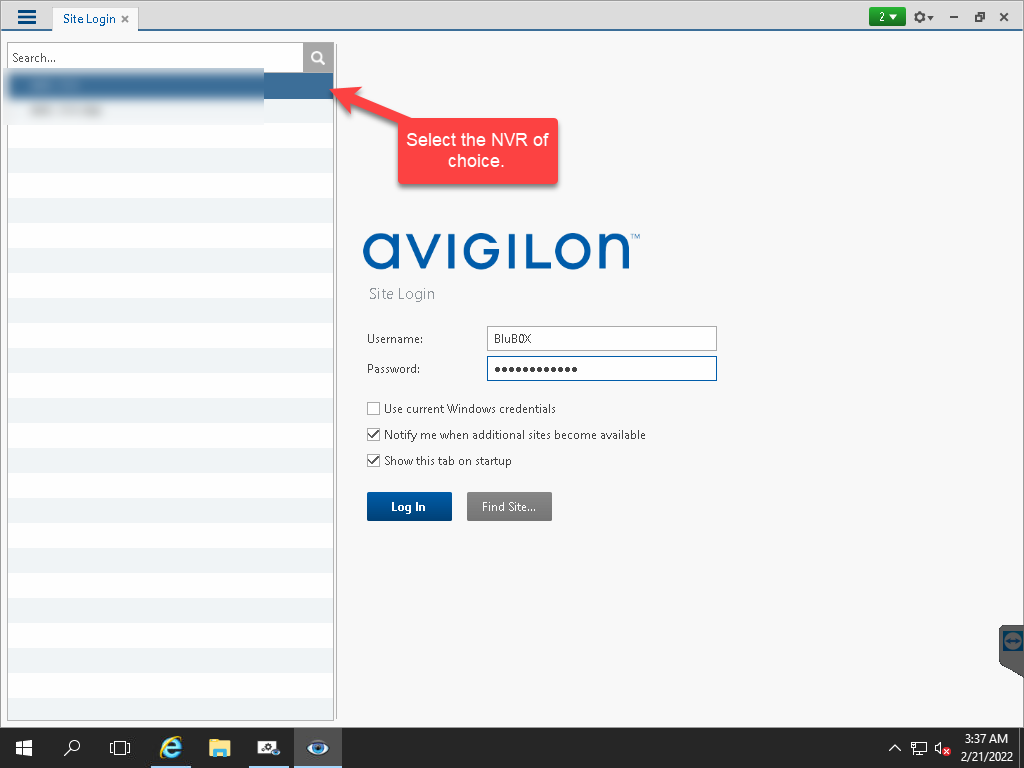
- Login to the NVR that is being configured.
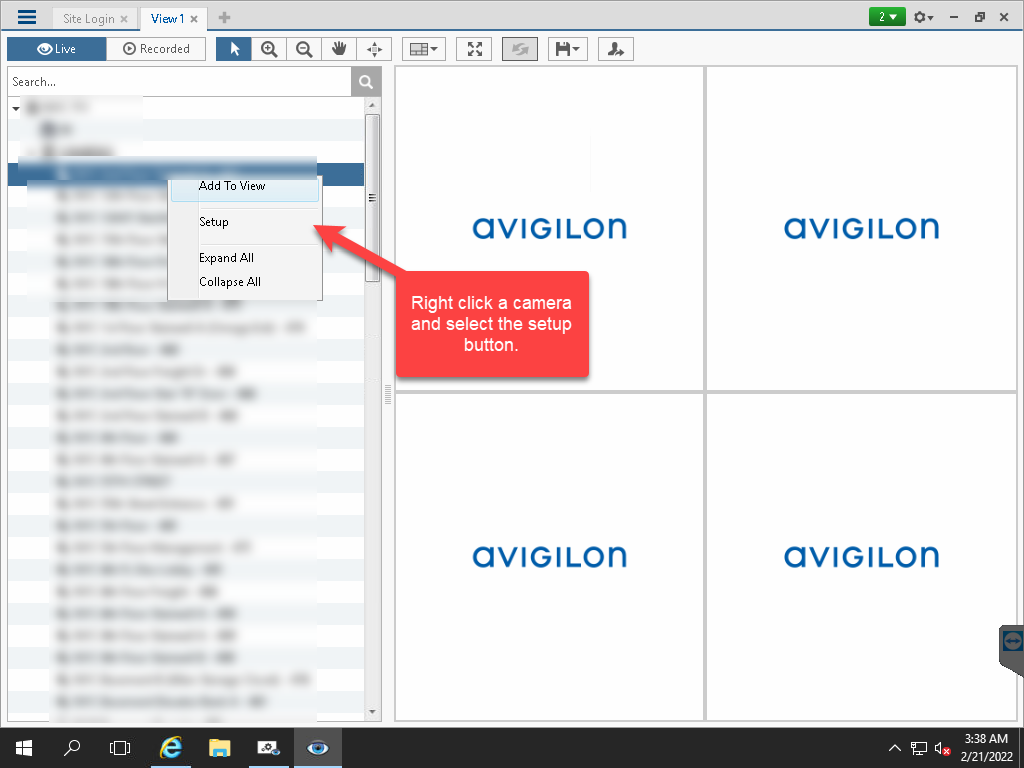
- Right Click a camera to configure.
- Select the compression and image rate
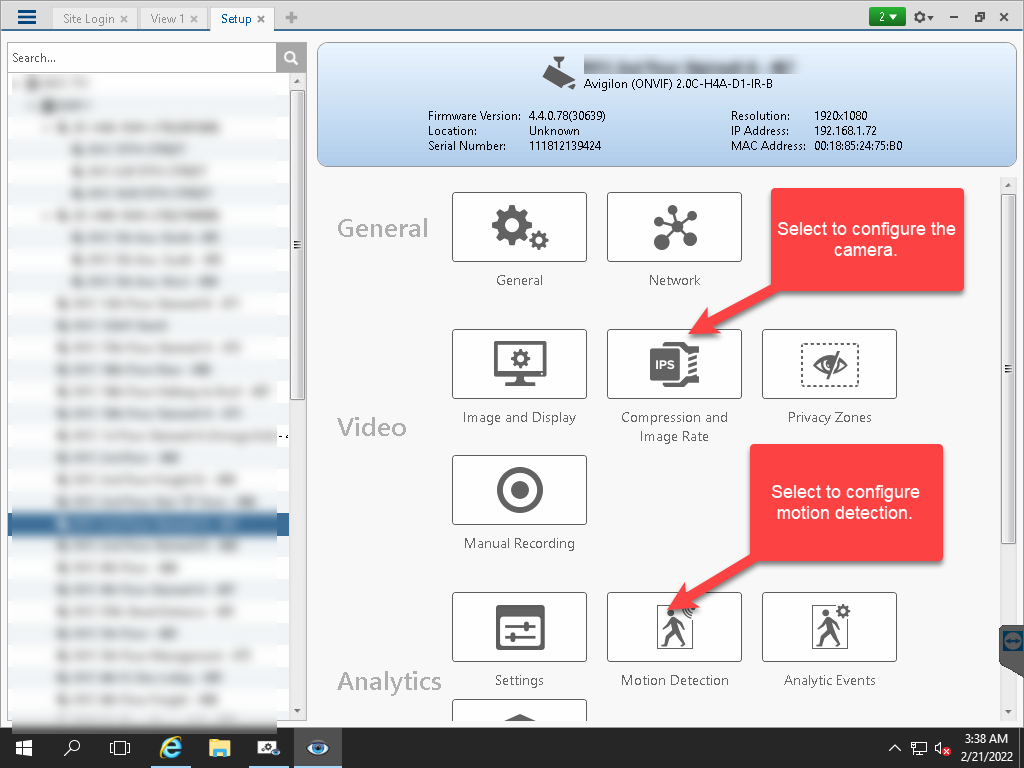
- For configuring the high end stream, set the resolution to 1920x1080 as high end and 1280x720 to mid end. After configuring, select the OK button to apply the changes.

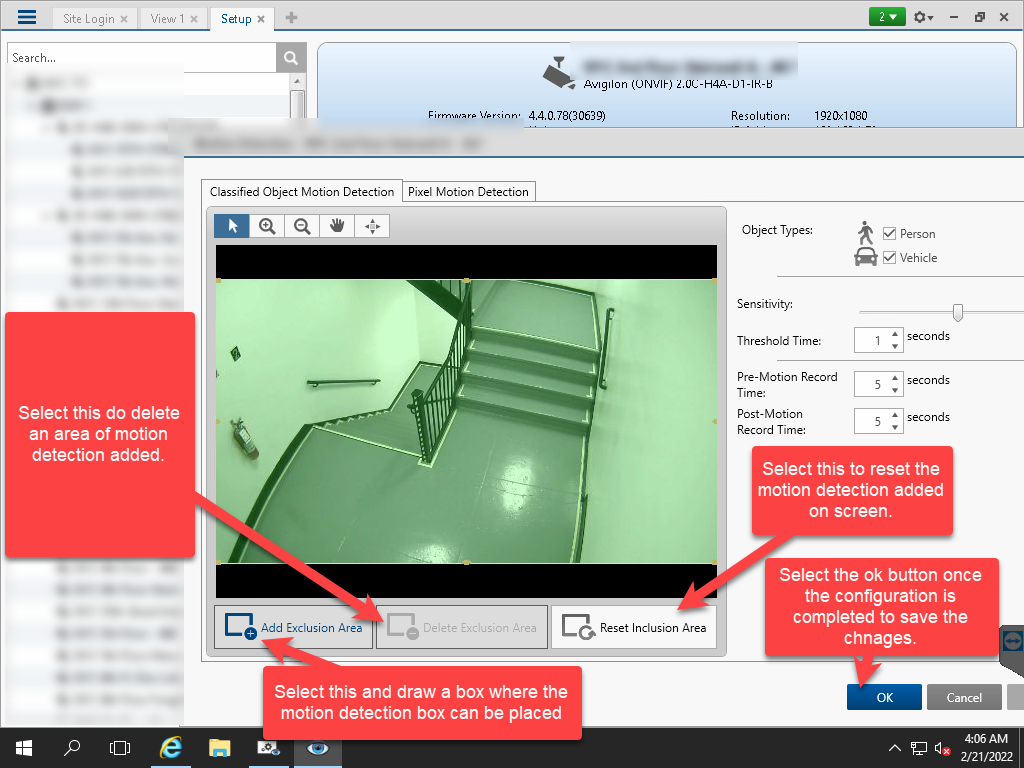
- Select the motion detection to configure the settings.
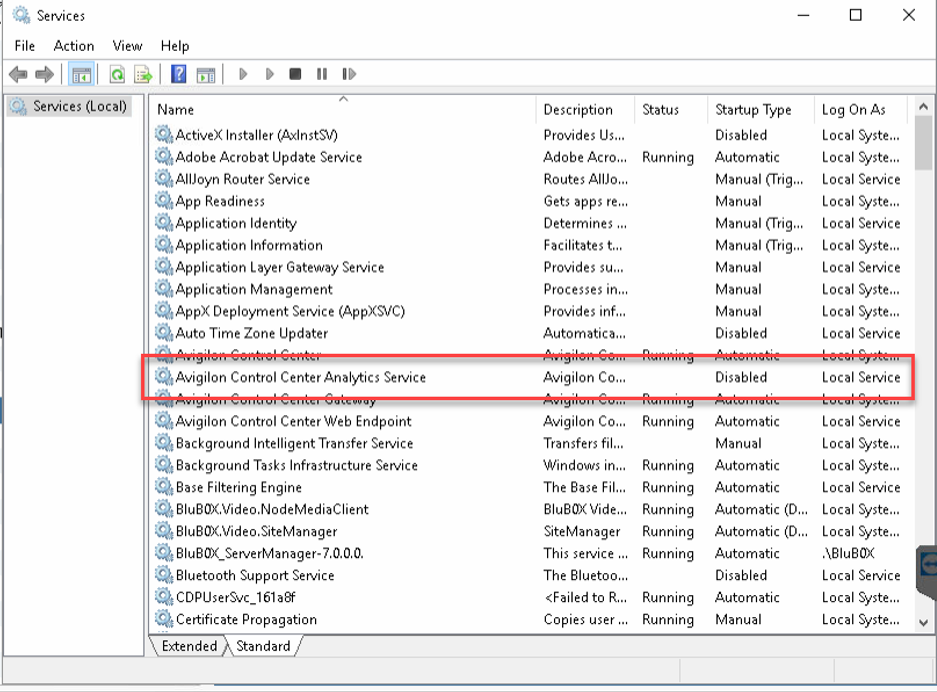
Note: It is adviced to shutdown and disable the Avigilon Control Center Analytics Service. This is done as it interferes with the cameras loading in BluSKY.
Click to download - Avigilon Control Center 7 Software Datasheet - offered in three editions: Core, Standard and Enterprise > Avigilon_CC_Core_Standard_Enterprise_Datasheet.pdf