Create a Command
BluSKY URL: https://blusky.blub0x.com/en-US/MercuryCommand/Create
Overview
A Command is an instruction to a relay. Within a Command you can configure how the relay is controlled. This article provides instructions on How to Create a Command.
Instructions
- Log in and navigate to Commands. Main Menu-> Setup-> System Setup-> Commands-> Create
- Use the
 icon in the lower left side to create a new Command.
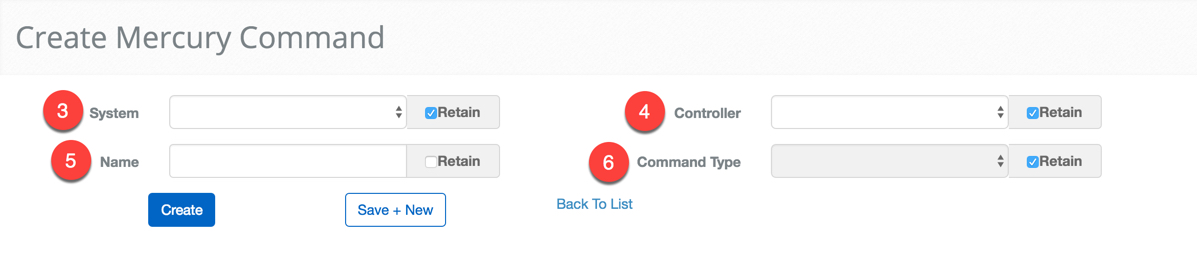
- First, use the drop down menu to select the System.
- Select the Controller that will store the Command. If you are configuring many similar Commands use the retain feature to preserve certain portions of the configuration.
- Enter a Description to be used as the name for the Command.
- Note: Good naming conventions will help to avoid mistakes and make maintaining the system easier.
- Use the Command Type drop down menu to select the Command Type.
- ***Note:***Depending on you selection the following option will be very different.

Select the corresponding Command Type to continue the setup
- Control Point Command
- ACR Mode Control
- Access Area Control Command
- Momentary Unlock
-
Select the Control Point you want to control.
-
Next, select the behavior of the Control Point - Turn Control Point ON/OFF , Single Pulse, Repeating Pulse.
-
Next, use the Pulse ON, Pulse OFF and Repeat Count to specify the behavior of the Control Point.
-
When finished use the
 or
or  button to finish or move onto the next configuration.
 -
Select the Portal the Command will interact with.

- Next, use the Portal Mode to select the behavior of the portal.

-
When finished use the
or button to finish or move onto the next configuration. -
Select the IPS Group from the drop down menu.
-
Select what the Command should do.
-
Specify the IPS Point, if applicable.
-
Specify the Portal, if applicable.
-
When finished use the
or button to finish or move onto the next configuration. -
Select the Reader or the Floor Stop the Command will control
-
Strike time - TBD
-
Held open time - TBD
-
Held open Time Pre-Alarm - TBD
-
When finished use the
or button to finish or move onto the next configuration.