How to change a floor Schedule for a DDE
Overview
Instructions
-
Log in and navigate to Main Menu-> Administration -> Schedules

-
Select Create Schedule button.

- For the Schedule type, set it to device schedule. (DDE systems do not recognize access schedules) Set the name and add the start and end date for the device schedule. Once created, select the save button.

- Go to Setup -> DDE Floor Matrix.

-
In the search filter:
-
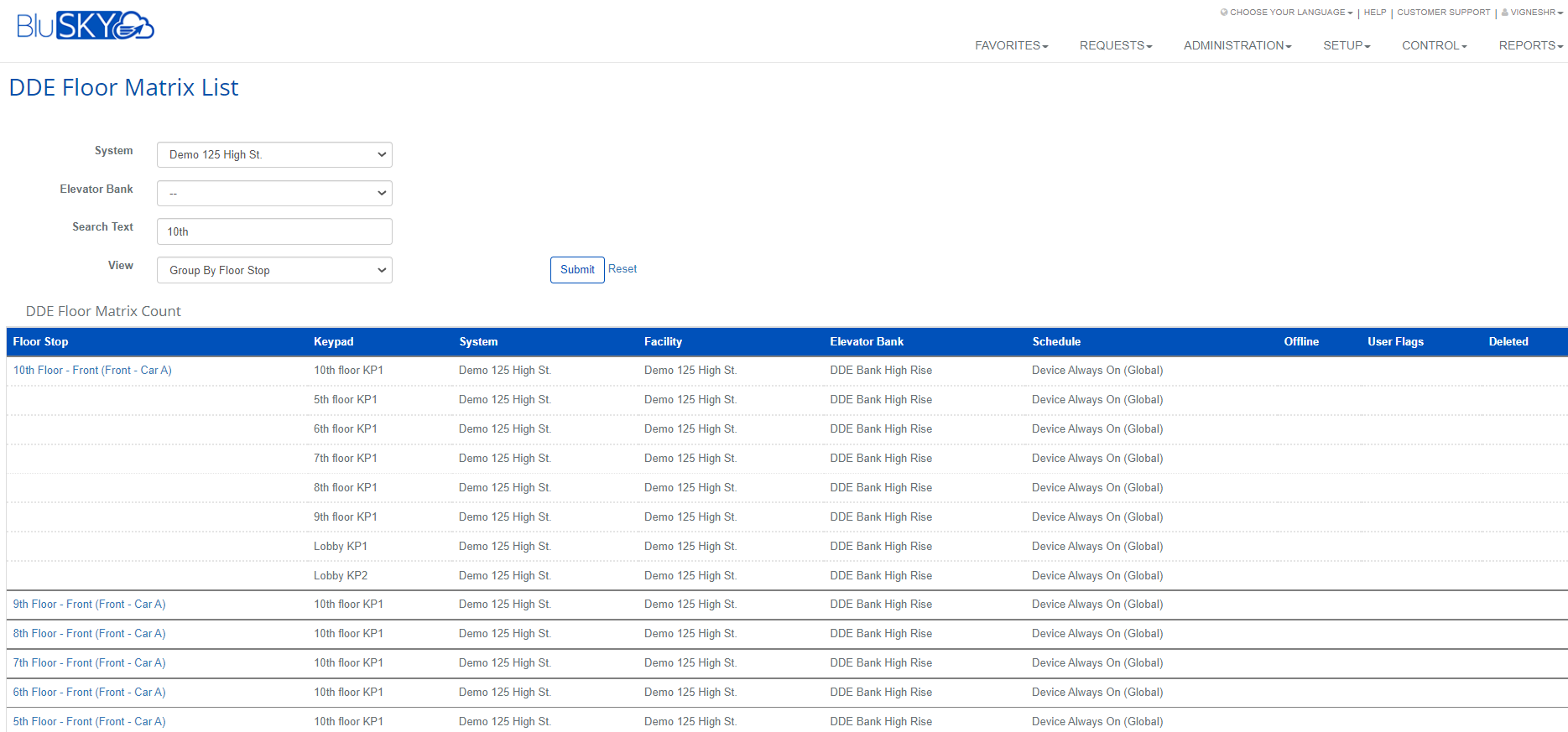
Select the system.
-
To narrow down the floor, search for it in the "Search Text" field.
-
In the view filter, select "Group By Floor Stop".
-
Select "Submit" button to generate the your list.
-
Select the preferred floor stop to open the DDE floor stop.
-
In the selected floor stop:
-
Select the preferred schedule.
-
If the same schedule is needed for other floor stops (Ex. additional banks, kiosks, or elevator cars), select "Add Additional Floorstops".
-
Select the save button once the changes have been made.
