How to Update Firmware Remotely from BluSKY for BluPOINT Devices
Overview
This guide provides a streamlined process for updating the firmware of BluPOINT devices already deployed in the field using the BluSKY app. This Over-the-Air (OTA) method is ideal for remote updates and maintenance without requiring physical access to the device.
Prerequisites
- BluSKY Mobile App: Ensure the BluSKY app is installed on your device and that you have a registered account with the necessary permissions.
- Device Connectivity: Confirm the device is powered on and connected to the network.
- Firmware Version: Identify the firmware version required for the update.
- For the BPN-E (latest model of BPN-1), the latest firmware version is 00.01.13
- For the BPN-1 (older models), the latest firmware version is 00.00.45
- For the AIC-2 BPN, the latest firmware version is 00.10.42
Step-by-Step Instructions for OTA Update
Step 1: Log In to BluSKY
- Open the BluSKY app and log in with your credentials.
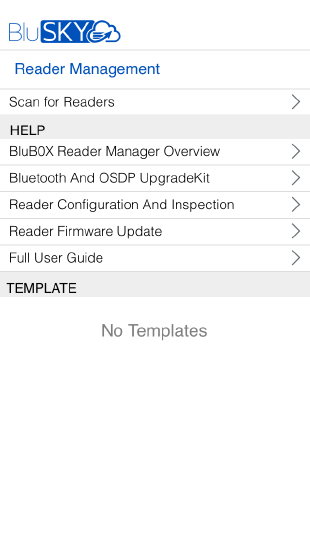
- Navigate to Reader Management to access connected BluPOINT devices.

Step 2: Select the Device for Update
- Use Scan for Readers in the BluSKY app to locate your BluPOINT device.
- Verify that the device is accurately identified by checking its serial number or assigned name.
- Select the device to proceed with the update.

Step 3: Initiate Firmware Update
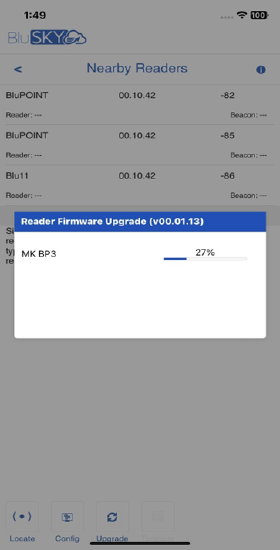
- At the bottom of the Nearby Readers page, tap the Upgrade button.
- A list of available firmware versions will be available under the dropdown Available versions field. Choose the desired version, then confirm by tapping Ok.

- The update will start, and a progress bar will display the real-time status of the update.
Step 4: Confirmation and Final Check
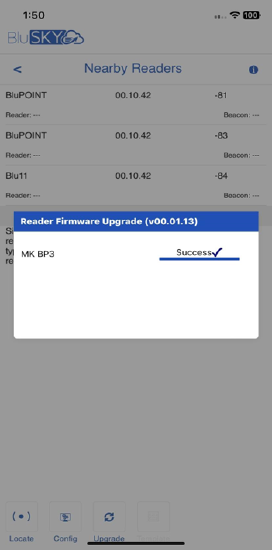
- Once the update completes, the device will emit three beeps and a blue LED will blink three times, indicating a successful update.
- Confirm the updated firmware version in the device details within BluSKY.
Troubleshooting Common Issues
- Device Not Detected: Ensure that the device is powered on and within network range. Restart the BluSKY app and re-scan for devices if needed.
- Firmware Update Failure: Check network stability and retry the update. If issues persist, contact BluCARE for additional support.
Conclusion
Using the BluSKY app for OTA updates simplifies the process of keeping your BluPOINT devices up-to-date in the field. This approach ensures that firmware maintenance is accessible and straightforward, minimizing the need for on-site technical support.