Alarms
Alarms Screen
Screen Overview
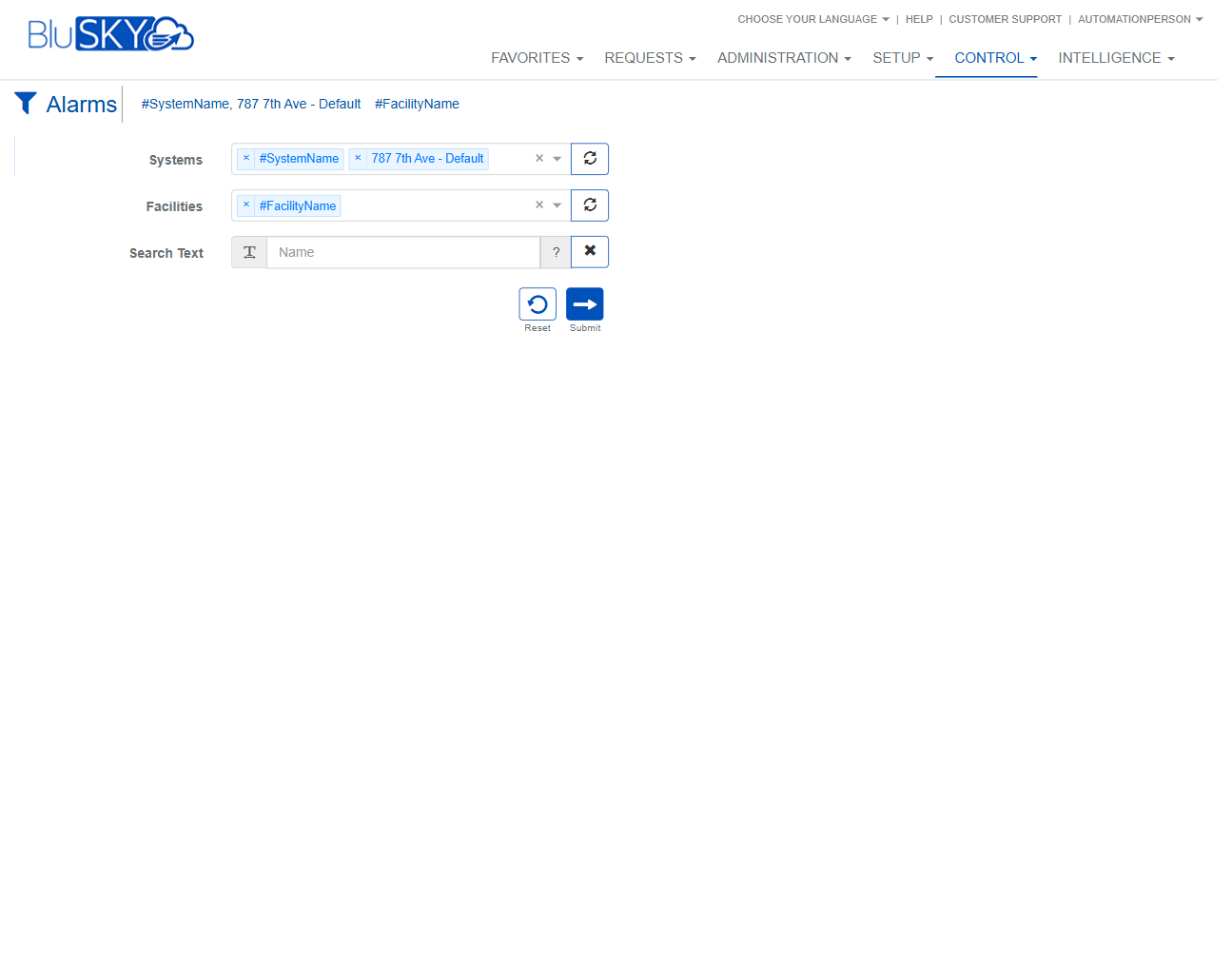
The Alarms screen provides a live view of alarm events in BluSKY. Operators can filter alarms by System and Facility, review key details (source, type, description, event date), and take immediate actions such as silencing audible alerts or clearing acknowledged alarms. This screen is accessed under Control in the main navigation.
Field Definitions
| Field Label | Definition | Notes |
|---|---|---|
| Systems | Filter to include one or more systems. Tokens show selected systems. | Use the refresh icon to reload available systems; multi-select supported. |
| Facilities | Filter to include one or more facilities within the selected systems. | Use the refresh icon to reload facility options; multi-select supported. |
| Search Text | Keyword filter applied to alarm records. | Placeholder shows “Name”; click X to clear the search term. |
| Event Date | Date and time the alarm occurred. | Sortable column; displayed in the grid header with a count badge when applicable. |
| Meta View | Compact metadata view for an event. | Opens a contextual view of the selected alarm’s metadata when available. |
| Source | Origin of the alarm (e.g., device, point, or rule). | Read-only in the grid. |
| Facility | Facility/site associated with the alarm. | Populated from the selected System/Facility context. |
| Type | Classification of the alarm event. | Examples include alarm, trouble, or supervisory types as configured. |
| Description | Human-readable description of the event. | May be truncated in the grid; open the event to view the full text. |
| Filter Summary Bar | Chip-style summary of the active filters shown below the page title (e.g., #SystemName, FacilityName). | Click the funnel icon to open the filter panel and adjust filters. |
Screen Actions and Functions
- Open Filters (funnel icon) – Expand/collapse the filter panel to adjust Systems, Facilities, and Search Text.
- Submit – Apply the current filter selections to refresh the grid.
- Reset – Clear filters back to defaults.
- Clear – Acknowledge and clear selected alarms from the active list.
- Enabled – Toggle audible notifications for alarms on/off.
- Silence Alarm – Mute audible alert for the selected alarm.
- Silence All – Mute audible alerts for all currently active alarms.
- Raise Events – Manually initiate configured raise-event actions for testing or manual activation.
- Column Sort – Click a column header (e.g., Event Date) to sort ascending/descending.
Usage Instructions & Examples
How to filter to a specific facility
- Click the funnel icon to open the filter panel.
- In Systems, select the desired system(s).
- In Facilities, select the relevant facility(ies).
- Optionally enter keywords in Search Text.
- Click Submit to update the grid.
How to silence a single audible alarm
- Select the alarm row you want to mute.
- Click Silence Alarm.
- Verify the alarm remains listed but no longer plays sound.
How to acknowledge (clear) alarms
- Select one or more alarm rows requiring acknowledgment.
- Click Clear.
- Confirm if prompted. The selected alarms are removed from the active list and retained in system history.
How to temporarily disable all audible alerts
- Click Enabled to toggle sound off or click Silence All to mute currently active alarms.
- Click Enabled again to re-enable audio when ready.
System Behaviors and Edge Cases
- If no records match the filters, the grid displays no rows.
- Clear is disabled if no alarm rows are selected.
- Silence Alarm is disabled if no alarm is selected; Silence All does not require a selection.
- The Enabled control governs whether new audible alerts will sound; when disabled, sound is suppressed but events still appear in the grid.
- Reset immediately reverts the filter panel to default values; Submit is required to refresh the grid with those defaults.
- Meta View content is only available when metadata exists for the event.
Permissions
- Access requires a role with rights to Control > Alarms.
- Clearing/acknowledging alarms typically requires an Alarms Acknowledge/Clear permission.
- Silencing alarms and toggling audible notifications may require Alarms Silence permission.
- Raise Events may be restricted to administrator or operator roles with testing/trigger permissions.
Linked Workflows
- Event History/Reports – Review acknowledged and historical alarms.
- Device/Point Management – Investigate or adjust the source device or point associated with an alarm.
- Rules and Notifications – Modify alarm rules, priorities, and notification routing.
- Facility and System Administration – Adjust site/scoping settings that affect which alarms appear.
Reference Image Links