Elevators
Elevators Screen
Screen Overview
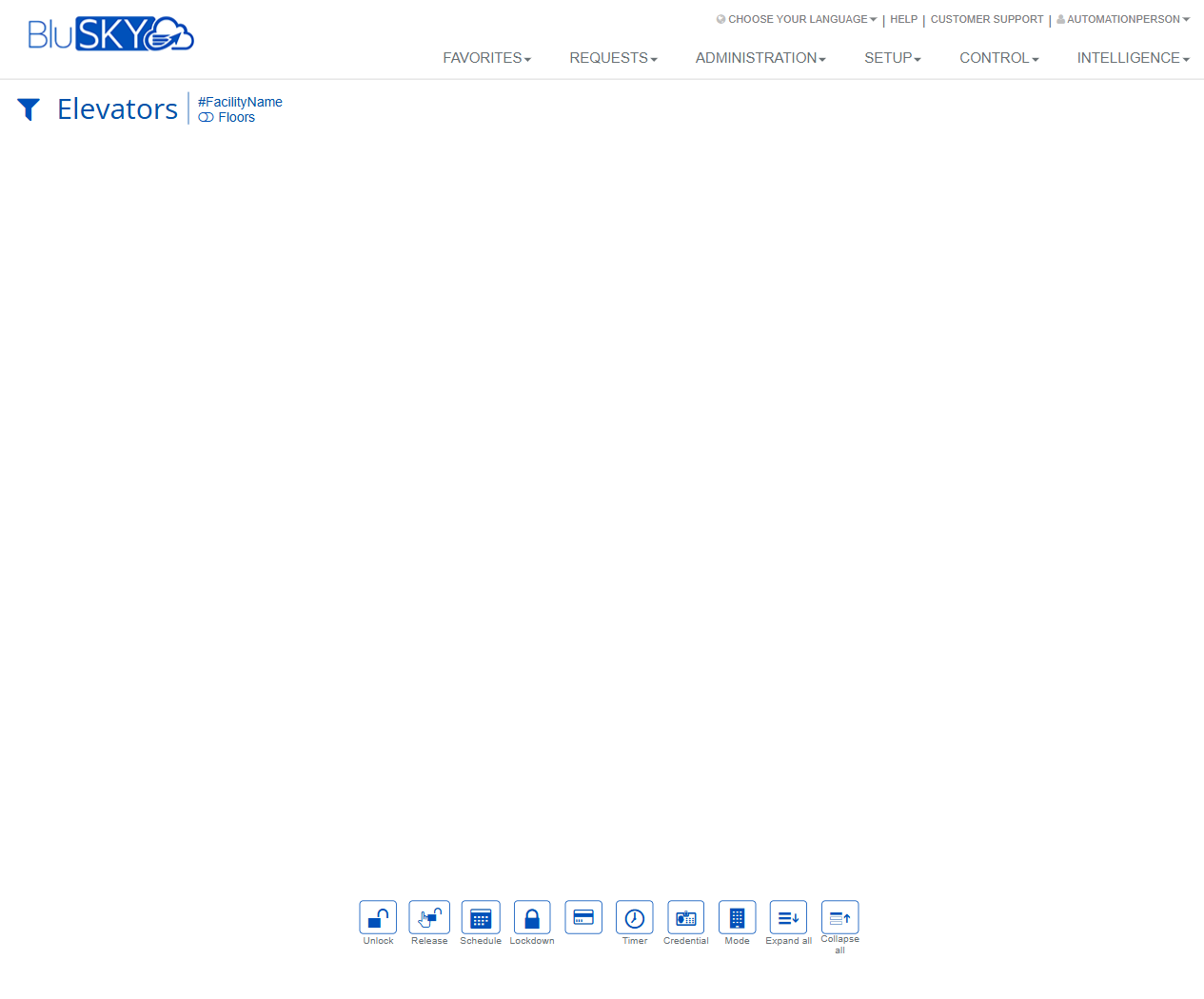
The Elevators screen provides real-time control and monitoring of elevator banks, cars, and (optionally) floors within a selected facility. Operators can filter what is displayed, expand or collapse the elevator tree, and perform control actions such as unlock, release, schedule, lockdown, timed overrides, credential-based overrides, and mode changes.
Field Definitions
| Field Label | Definition | Notes |
|---|---|---|
| Filter (funnel icon) | Opens the filter panel to narrow the elevator list. | Common criteria include Facility and display options. Filters affect which items can be selected for actions. |
| Facility Name | Displays the currently scoped facility for elevator control. | Click to change facility (only facilities you are permitted to control are available). |
| Floors | Toggle to show floors within the elevator hierarchy. | When enabled, the tree expands to show floors under each bank/car for granular selection. |
| Elevators Tree/List | Main content area that lists elevator banks, cars, and (if enabled) floors. | Select one or multiple items to apply actions from the action bar. |
| Action Bar (bottom) | Persistent bar containing control buttons: Unlock, Release, Schedule, Lockdown, Timer, Credential, Mode, Expand all, Collapse all. | Buttons enable when a valid selection is made and you have permission. |
Screen Actions and Functions
- Unlock – Temporarily unlocks access for the selected elevator elements (e.g., floors or cars) until released or a timer expires.
- Release – Clears active overrides on the selected items and returns them to their prior state (normal operation or schedule).
- Schedule – Opens scheduling to apply or edit schedules for selected elevators/floors.
- Lockdown – Immediately places selected items into a restricted state; only explicitly authorized users/credentials may operate.
- Timer – Starts a time-bound override (e.g., unlock for N minutes) on the selection.
- Credential – Applies a credential-based override to grant access/operation via a specified credential.
- Mode – Changes the operating mode for selected items (for example, Normal or Secured). Available modes depend on the installed system.
- Expand all – Expands the elevator tree to show all levels.
- Collapse all – Collapses the elevator tree to top-level items.
Usage Instructions & Examples
How to view and filter elevators
- Click the Filter icon.
- Choose the Facility Name you want to control.
- Enable the Floors option if you need per-floor control.
- Click Apply. Use Expand all to view all banks, cars, and floors.
How to temporarily unlock specific floors (timed)
- Use filters to scope the Facility and enable Floors.
- Expand to the desired bank/car and select the target floors.
- Click Timer.
- Enter the duration (e.g., 30 minutes) and confirm. The selected floors are unlocked for the specified time.
How to place elevators in lockdown
- Select the relevant bank(s), car(s), or floors from the list.
- Click Lockdown.
- Confirm the prompt. The selected items enter lockdown mode.
- To clear, select the same items and click Release.
How to schedule an operating mode for business hours
- Select the bank(s) or car(s) to be scheduled.
- Click Schedule.
- Choose or create the desired schedule (e.g., Normal mode 8:00–18:00 on weekdays).
- Save. The schedule will drive mode changes at the configured times.
How to use a credential override
- Select the items requiring a credential-based override.
- Click Credential.
- Choose or enter the credential to authorize.
- Confirm. The credential will control access per the override settings.
System Behaviors and Edge Cases
- Actions require a valid selection; buttons remain disabled if nothing is selected or you lack permission.
- Manual overrides (Unlock, Timer, Credential, Mode) temporarily supersede schedules until Release or expiration.
- Lockdown generally has the highest precedence; other overrides may be blocked while lockdown is active.
- Timer overrides automatically end at expiration and revert to the prior mode or schedule.
- If a controller is offline, commands queue or fail based on system configuration; status may show pending until connectivity is restored.
- Filters limit both what is displayed and what can be acted on—items not in view will not be affected.
- Expand all and Collapse all affect visibility only; they do not change the current state of elevators/floors.
Permissions
- Access typically granted to Global Administrators, Building/Facility Administrators, and Security Operators.
- Specific privileges control each action:
- ElevatorControl (general control, Unlock/Release/Mode)
- ElevatorLockdown (Lockdown)
- ElevatorScheduling (Schedule)
- ElevatorTimedOverride (Timer)
- ElevatorCredentialOverride (Credential)
- Users without control permissions can view the elevator list but cannot invoke actions.
Linked Workflows
- Schedules – Define and manage schedules used by the Schedule action.
- People/Credentials – Create and manage credentials that can be used for Credential overrides.
- Access Levels – Configure floor access rights associated with people/tenants.
- Reports/Activity Logs – Review elevator events, overrides, and operator actions for auditing.
Reference Image Links