Control Points
Workspace Console
Screen Overview
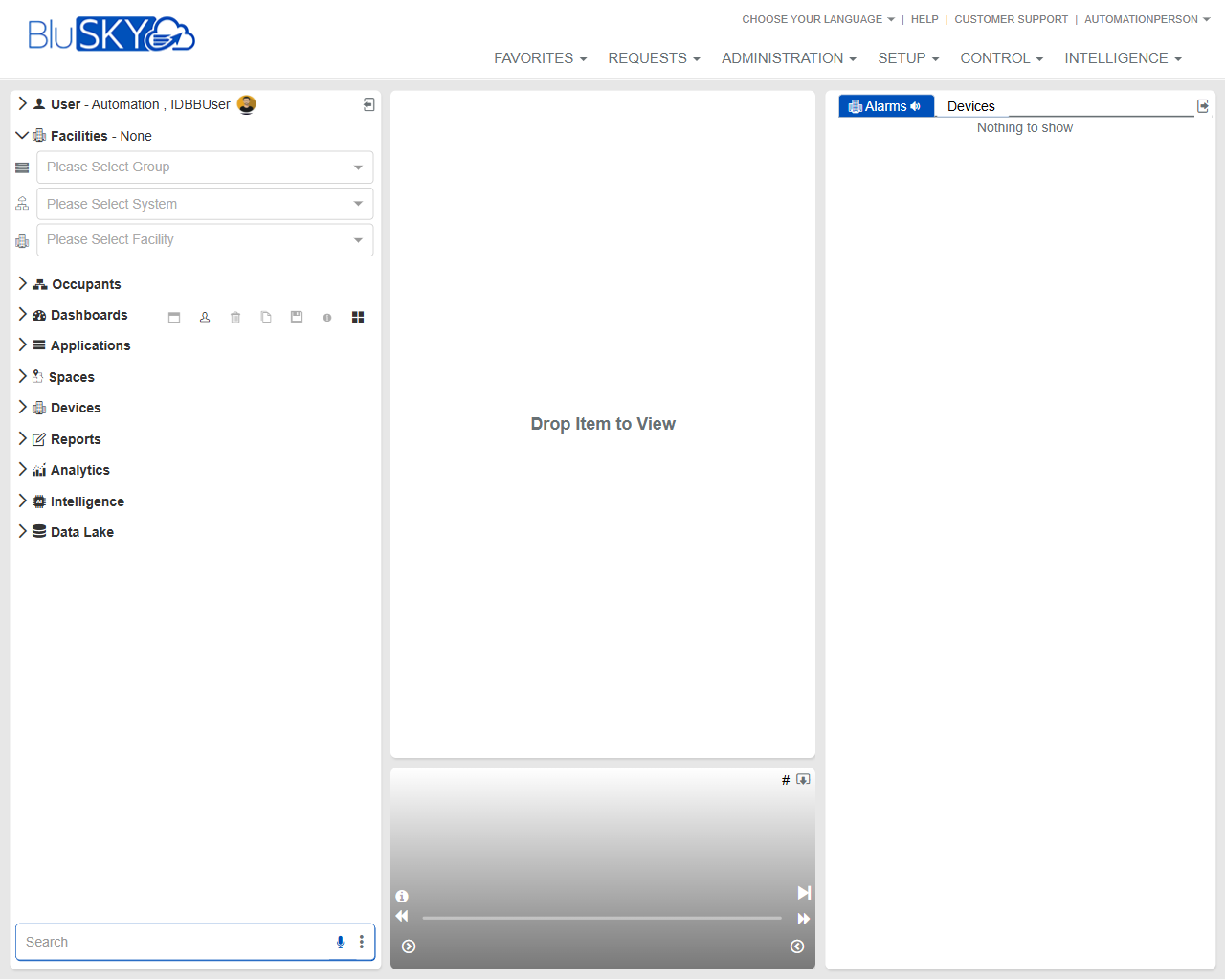
The Workspace Console is the primary landing page for BluSKY. It provides global navigation, facility scoping, and a drag-and-drop workspace for viewing operational items. A right-side panel displays live operational feeds such as Alarms and Devices. Use this screen to quickly scope by facility, open modules from the left navigation, and monitor activity.
Field Definitions
| Field Label | Definition | Notes |
|---|---|---|
| User | Displays the signed-in user context. | Shown at the top-left (e.g., “User – …”). Read-only. |
| Facilities | Indicates the currently selected facility scope. | Shows “None” until a facility is selected. |
| Please Select Group | Dropdown to scope data by Facility Group. | Selecting a Group filters the System and Facility lists. |
| Please Select System | Dropdown to choose a System within the selected Group. | Optional; narrows available Facilities. |
| Please Select Facility | Dropdown to select a specific Facility. | Determines which items appear in navigation and feeds. |
| Occupants | Navigation entry to open occupant- and identity-related modules. | Expand to drag items into the workspace. |
| Dashboards | Navigation entry to access dashboard views. | Items can be opened or dragged to the workspace. |
| Applications | Navigation entry for application modules. | Availability depends on licensing and permissions. |
| Spaces | Navigation entry for space and location modules. | Drag-and-drop supported for compatible items. |
| Devices | Navigation entry for device-related modules. | Use to browse, select, or drag devices to the workspace. |
| Reports | Navigation entry for reporting tools. | Opens reports in the workspace or a new view. |
| Analytics | Navigation entry for analytic modules. | Content depends on enabled analytics packages. |
| Intelligence | Navigation entry for intelligence modules. | Availability may vary by tenant. |
| Data Lake | Navigation entry for data lake tools. | Read-only for most users unless granted write permissions. |
| Search | Search box at the bottom-left to find items within navigation. | Supports keyword search; scope respects selected facility. |
| Workspace (Drop Item to View) | Central panel where items are displayed. | Drag items from the left navigation to load them here. |
| Alarms (right panel) | Live feed of current alarms and events. | Shows “Nothing to show” when there are no active items. |
| Devices (right panel) | Live list of devices or device states. | Context is limited by selected facility and permissions. |
| Viewer Controls (bottom of workspace) | Contextual controls shown when a loaded item supports playback or media. | Hidden until a compatible item is loaded. |
| Favorites (top menu) | Quick access to user-saved links and items. | Managed per user. |
| Requests (top menu) | Entry point for request workflows. | Content varies by enabled modules. |
| Administration (top menu) | Administrative tools for users, roles, and tenant management. | Visibility depends on role. |
| Setup (top menu) | System configuration and setup utilities. | Typically restricted to administrators. |
| Control (top menu) | Operational control views for live systems. | Often used by operators. |
| Intelligence (top menu) | Access to intelligence features at the top level. | Separate from the left navigation entry of the same name. |
| Choose Your Language | Link to change UI language. | Applies to current session and user preferences. |
| Help | Link to product help resources. | Opens documentation or help center. |
| Customer Support | Link to support contact and resources. | May open a new tab/window. |
| User Menu (top-right) | Access profile, preferences, and session options. | Includes sign-out. |
Screen Actions and Functions
- Select a Group, System, and Facility to scope data visible across navigation and feeds.
- Expand any left navigation entry (e.g., Devices, Dashboards) to browse items.
- Drag items from the left navigation into the central Workspace to open them.
- Resize panels by dragging the vertical splitters between the left, center, and right panes.
- Use the Search box to quickly locate items within the left navigation tree.
- Open top menu links (Favorites, Requests, Administration, Setup, Control, Intelligence) to navigate to corresponding modules.
- Monitor the Alarms panel for live events; click an item (when present) to open details in the Workspace.
- Change UI language via Choose Your Language.
- Access Help and Customer Support for documentation and assistance.
- Use the User Menu to adjust preferences or sign out.
Usage Instructions & Examples
How to scope the console to a facility
- In the left panel, open the Facilities controls.
- Select a Group from the “Please Select Group” dropdown.
- Select a System (optional) to further narrow the list.
- Select a Facility from “Please Select Facility.” The navigation and right-side feeds refresh to this scope.
How to open an item in the Workspace
- In the left navigation, expand the relevant category (e.g., Devices or Dashboards).
- Drag the desired item onto the center panel labeled “Drop Item to View.”
- Release the item; the Workspace loads the selected view. If the item supports media, the viewer controls appear at the bottom.
How to monitor alarms
- Confirm the correct Facility is selected.
- Observe the Alarms panel on the right for active entries.
- Click an alarm (when present) to open details in the Workspace.
- Follow any available on-screen options to investigate or acknowledge (options depend on permissions and item type).
How to quickly find an item
- Click the Search box at the bottom-left.
- Type a keyword (e.g., device name or dashboard title).
- Select a result and either press Enter to open it or drag it into the Workspace.
How to change the interface language
- Click “Choose Your Language” at the top-right.
- Select the desired language.
- The UI reloads in the selected language for your session.
System Behaviors and Edge Cases
- If no Facility is selected, many lists may appear empty or limited, and the right panel may show “Nothing to show.”
- Items that do not support drag-and-drop will not load into the Workspace; the cursor indicates when a drop is not permitted.
- Alarms and Devices panels reflect only data within the selected scope and user permissions.
- Viewer controls appear only when the loaded content supports playback or media; otherwise the controls remain hidden.
- Panel sizes persist during the session but may reset on full page reload or sign-out, depending on tenant settings.
- Some top menu entries or navigation categories may be hidden if the tenant lacks licensing or the user lacks permission.
- Language changes affect UI text but do not alter underlying data labels provided by integrated systems.
Permissions
- Access to Administration, Setup, and certain Control functions requires administrator or operator roles.
- Viewing Alarms typically requires an AlarmsView or equivalent permission; acknowledging or clearing alarms may require elevated permissions.
- Device lists and device control actions require DeviceView and, where applicable, DeviceControl permissions.
- Facility, Group, and System dropdowns are filtered by the user’s scope; users only see entities they are authorized to access.
- Favorites management is per-user; creating or editing Favorites may be restricted by policy.
Linked Workflows
- From the Workspace, open device details to perform diagnostics or navigate to Control views.
- Use Administration to manage users, roles, and scoping that determine what appears on this console.
- Use Setup to configure Facilities, Systems, and Groups that drive the scoping dropdowns.
- Launch Reports or Analytics from the left navigation to analyze operational data for the selected scope.
- Save commonly used items to Favorites for faster access from the top menu.
Reference Image Links