July 10, 2026
BluCARE Intelligence
a. Module Rename
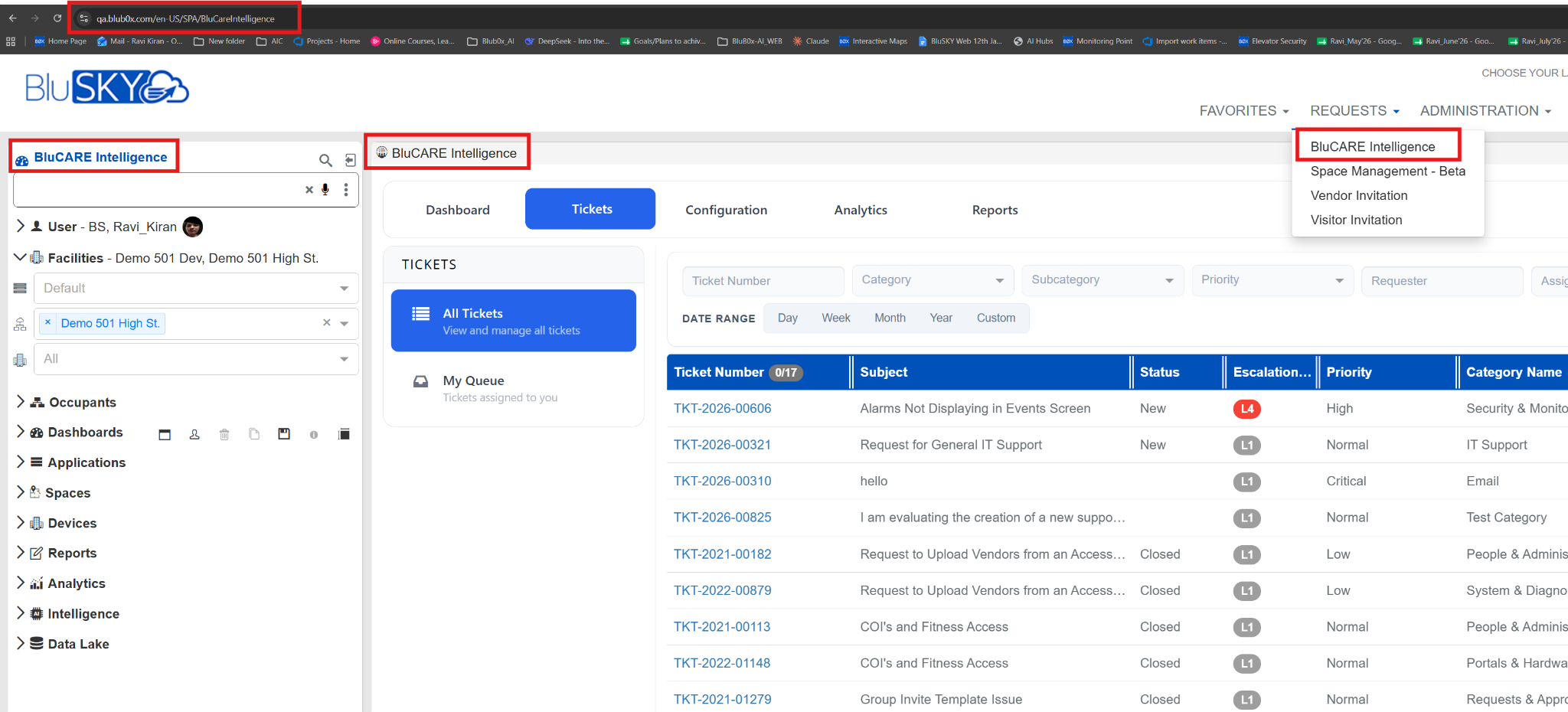
The AI Ticketing module has been renamed to BluCARE Intelligence, reflecting its expanded capabilities while maintaining the same functionality.
b. My Queue
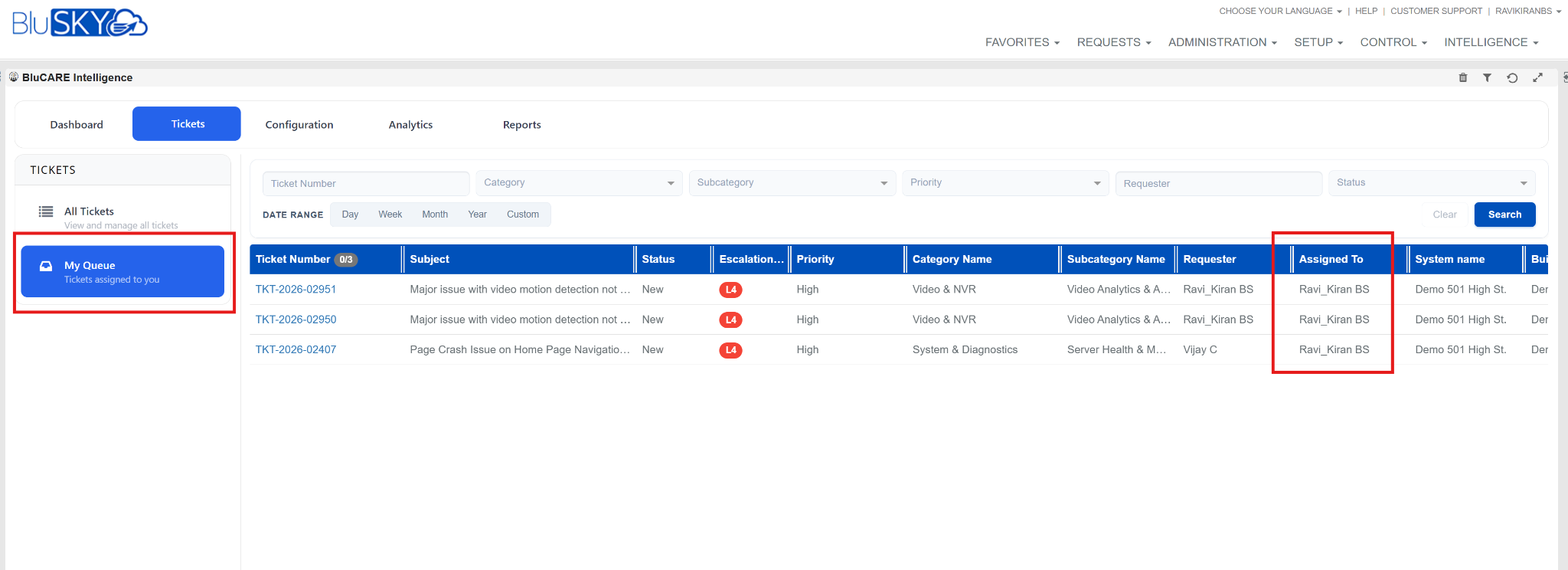
Introduced a new My Queue section that displays all tickets currently assigned to the logged-in user for easier tracking and management.
Interactive Maps
a. Regenerate BluSKY Regions for Existing Maps
-
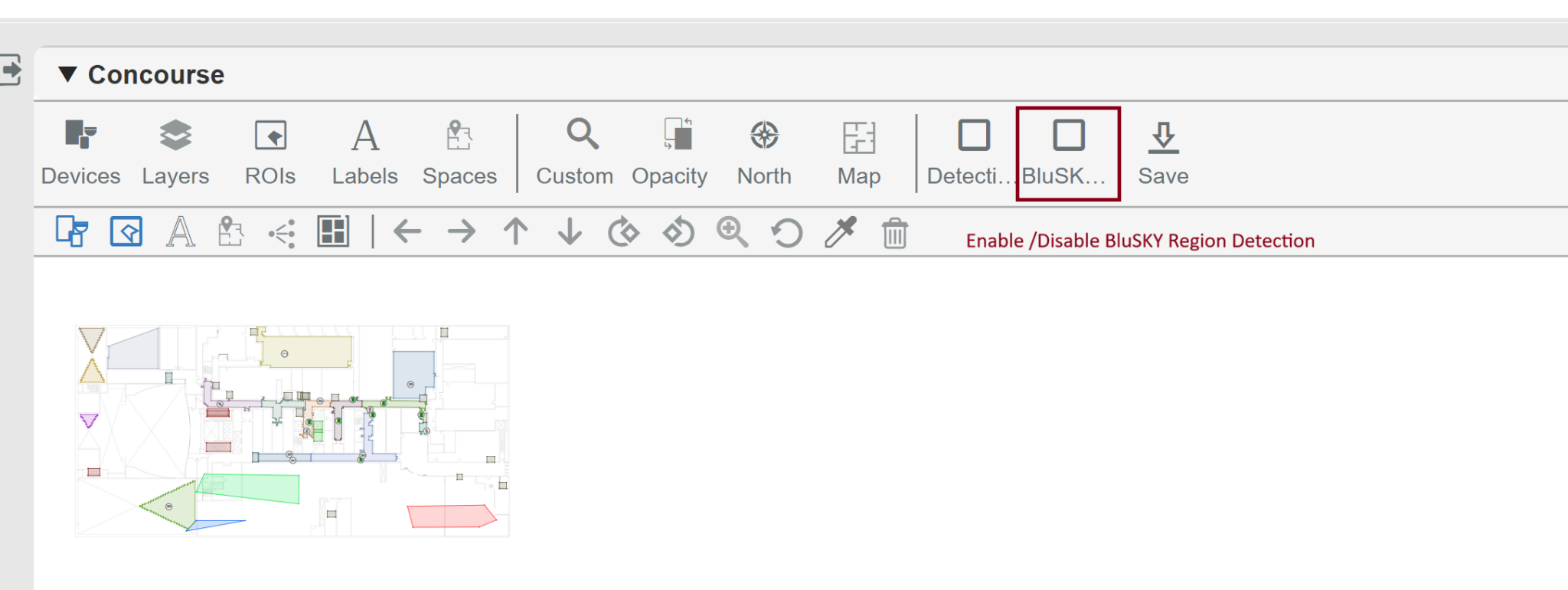
Added a new BluSKY Regions option in Interactive Maps Edit Mode, allowing users to regenerate auto-generated BluSKY Regions for existing maps without recreating the map.
-
By default, the BluSKY Regions option is disabled, and existing auto-generated regions remain unchanged when saving the map.
-
Users can enable the BluSKY Regions option to regenerate auto-generated region polygons independently of the Generate Detections option.
-
Any manually created or edited ROIs are preserved during the regeneration process; only auto-generated BluSKY Regions are updated.
-
The BluSKY Regions option automatically resets to its default (disabled) state after each successful map save.
b. ROI Label Readability & Vertex Selection Improvements
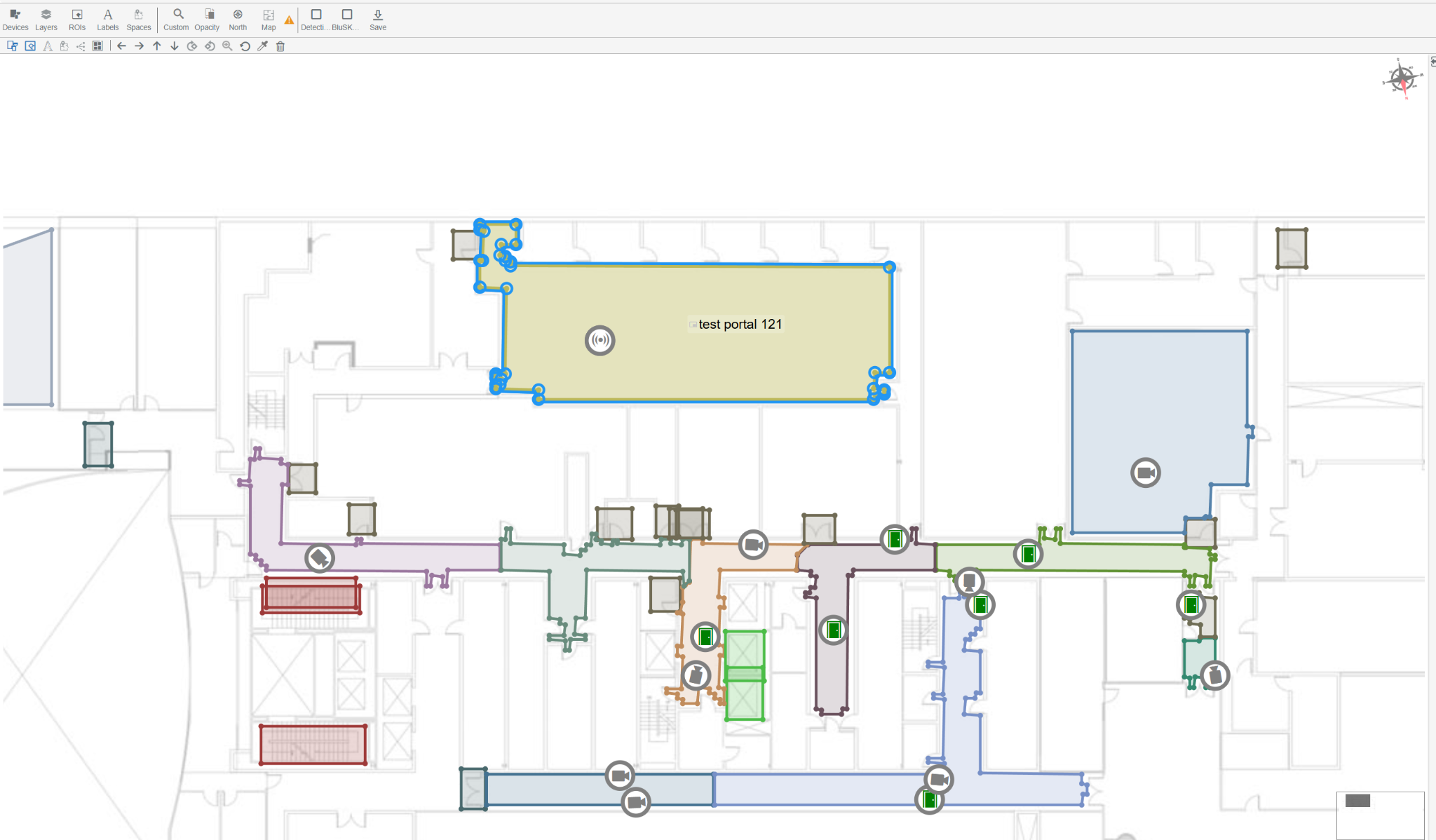
Improved ROI editing by making ROI labels scale dynamically with the zoom level for better readability. Reduced the selected vertex indicator to a smaller fixed-size ring and removed the redundant hover ring, resulting in a cleaner and less intrusive editing experience.
c. Detection Labels Now Stay in Sync with Region Changes
-
Detection labels are automatically updated when BluSKY Regions are regenerated.
-
Renaming a region updates the corresponding detection label (e.g., "Door in Reception").
-
Deleting a region resets the label to its base class (e.g., "Door").
-
Region polygons are automatically cleaned up when a device is moved out of a region.
-
User-edited detection labels are preserved and are never overwritten during regeneration.
-
If no region changes are detected, existing detection labels remain unchanged.
LogBook Reports
a. Log Book Reports
i. A new Reports tab has been added to the LogBook UI, alongside Log & Summaries. It provides a single place to generate all LogBook reports.
ii. Six new report types are available. Every report supports a required date range, System Group/System/Building scope, and export to Excel.
b. Log Book Entry List Report
i. Key Filters:
- Log book Type & Entry Type -- narrow to a specific kind of type & entry (Incident, Check-In, Observation, etc.).
- Status Type -- show only Pending, Needs Review, Review Done, and so on.
- Person, Min/Max Risk Score -- focus on specific staff or/and on severity.
- Include Weather / Temperature / Amendments toggles -- control how much detail shows per entry.
- Has Amendments, Has Attachments toggles -- filter to entries that were changed or that have evidence attached.
ii. Value:
- One filterable view of all logging activity. Set Entry Type to "Incident Report" for an incident-only view, or raise Min Risk Score to surface only high-severity entries -- no separate report needed.
c. Log Book Review Status Report
i. Key Filters:
- Status Type -- focus on what's still open or what's been signed off.
- Aging Threshold (Days) -- required, default 30; defines how many days is "too long" to wait.
ii. Value:
- Keeps the review process on track: surfaces entries still awaiting review and flags any sitting open longer than your tolerance, turning a static list into an SLA trigger.
d. Log Book AI Summary Report
i. Key Filters:
- Summary Time Period -- choose the summarization window (Baseline, MultiScene, MultiReader, MultiAlarm, etc.).
- Min/Max Risk Score -- read summaries covering higher-risk periods first.
ii. Value:
- Read AI-generated summaries of a period instead of every individual entry -- a faster way to stay across activity without losing the context that matters.
e. Log Book Amendment Audit Report
i. Key Filters:
- Original Author -- find changes made to entries originally written by specific people.
- Amendment Author -- find changes made by specific people.
- Has Attachments -- restrict to amendments that added supporting files.
ii. Value:
- A clear, defensible trail of who changed which entries and when -- separating who wrote an entry from who amended it is exactly what compliance and audit reviews need.
f. LogBook Personnel Activity Report
i. Key Filters:
- Entry Type -- measure a specific kind of activity, e.g. check-ins vs. incidents.
- Person -- focus on specific staff members rather than the whole roster.
ii. Value:
- Shows who is logging, how much, and where -- useful for reviewing workload and coverage across a team.
g. Log Book Building Overview Report
i. Key Filters:
- Date range, System/Building, and Log Book Type -- kept deliberately simple, with no additional filters.
ii. Value:
- A one-line health snapshot per building, giving management a clean building-by-building comparison across the portfolio.
Analytics: Visitor Management Analytics
Added 11 new Visitor management analytics.
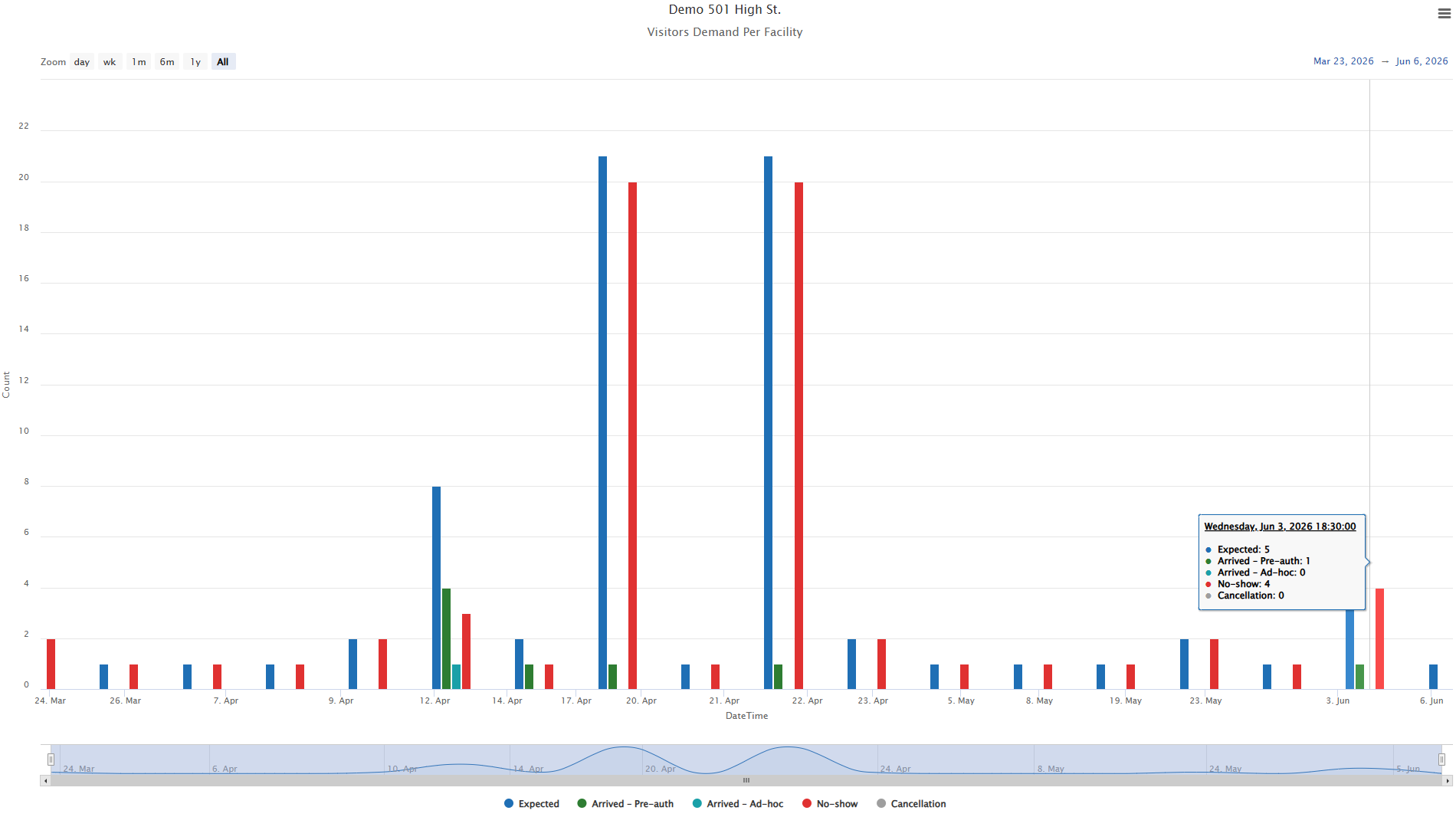
a. Visitor Demand per Facility
i. Provides a per-facility view of visitor demand and how that demand was fulfilled.
ii. Metrics Displayed:
- Expected visitors
- Arrived pre-authorized visitors
- Arrived ad-hoc visitors
- No-show visitors
- Cancelled visitors
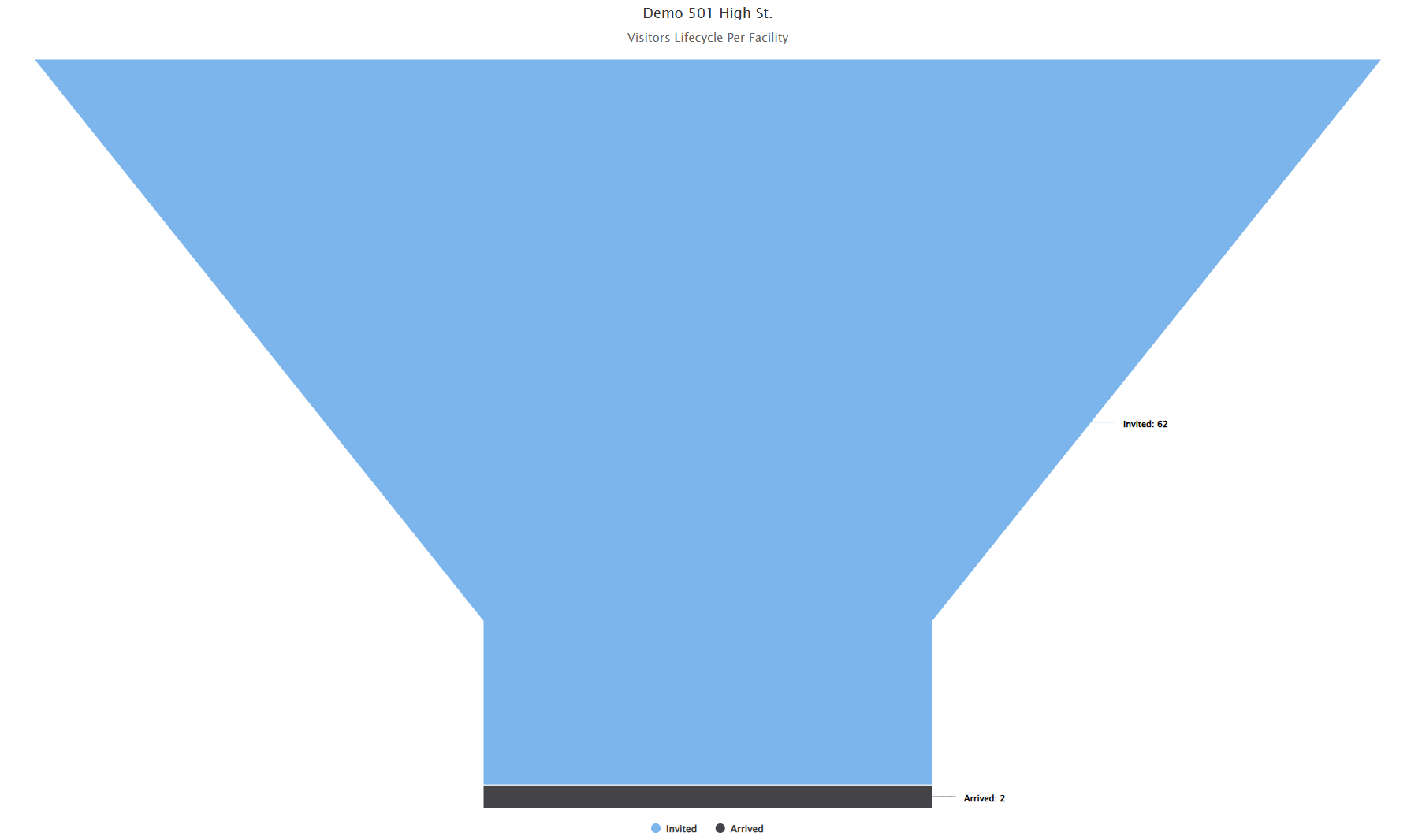
b. Visitor Lifecycle per Facility
i. New funnel-style graph showing the visitor journey through each stage of a visit.
ii. Stages tracked: visitors expected, visitors arrived, visitors credentialed, first access, and visitors checked out.
iii. Behavior by Facility:
- Not all facilities support every stage; buildings without full onboarding will only show a subset (e.g. expected, arrived, credentialed, and first access).
- If a visitor is checked in manually by a guard, the "first access" stage may not appear for that visitor.
c. Visitor Pre-Authorization Adoption per Facility
i. Shows the pre-authorization adoption rate for each occupancy within a building.
ii. A higher pre-auth adoption rate means more advance information is known about visitors, reducing manual work for guards and improving building security.
iii. Pre-Authorized vs. Ad-Hoc Visitors:
- Pre-authorized: the host creates the visitor invitation in advance, so both the host and the building know the visitor is coming.
- Ad-hoc: no invitation is created in advance -- the guard creates one on the spot when the visitor arrives, with no prior screening and no count toward "expected" visitors.
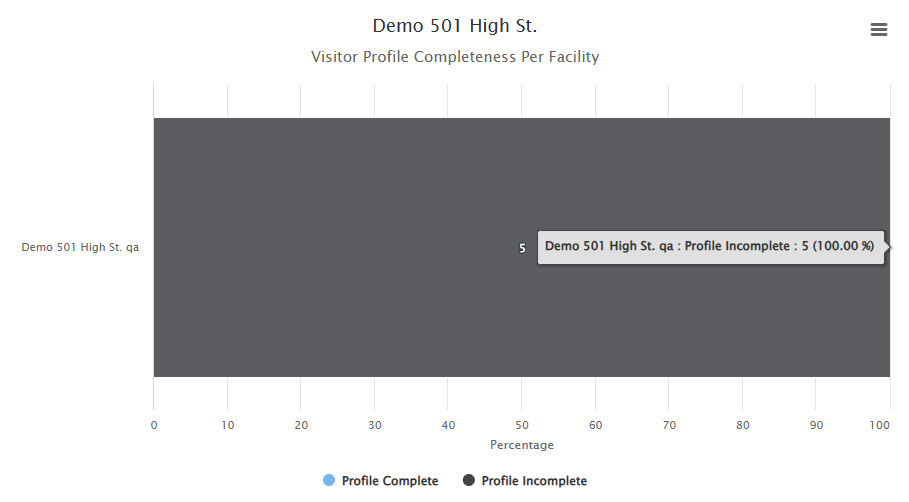
d. Profile Completeness per Facility
i. Shows which occupancies do a good or poor job completing required visitor profile fields at the time of invitation.
ii. Incomplete profile fields make it harder for guards to evaluate visitors at check-in and harder to assess risk overall.
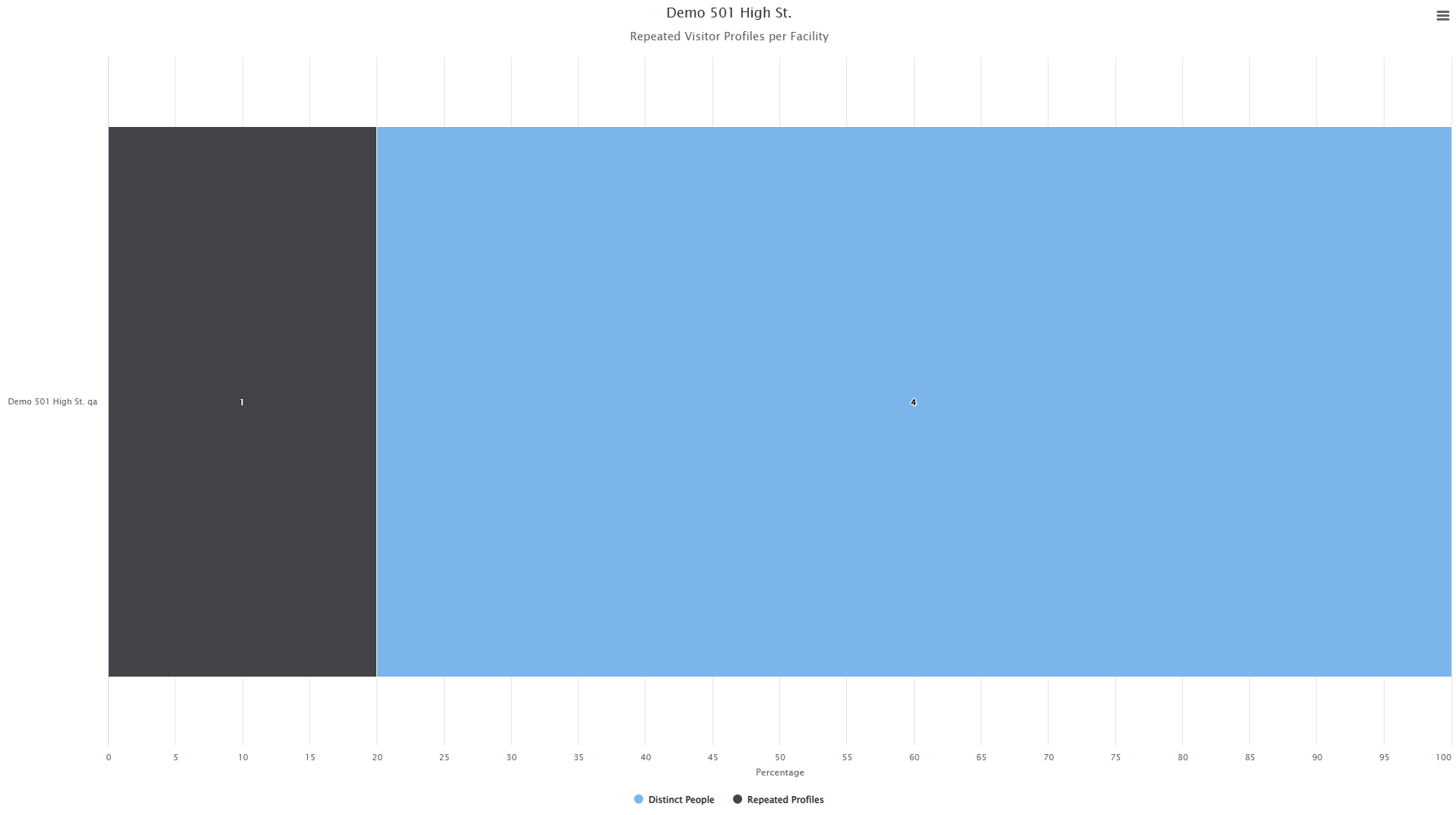
e. Repeated Visitor Profile per Facility
i. Identifies visitors who appear at a facility repeatedly and should therefore have a single recurring visitor profile rather than a new profile created for every visit.
ii. When hosts create a new invitation each time instead of reusing a recurring profile, the system cannot recognize the visitor's pattern, which weakens risk analysis.
f. Duplicate Entries per Facility
i. Measures how well guards/front desk identify existing visitor profiles instead of creating duplicate invitations for the same person.
g. Visitor Access Denials per Facility
i. Tracks access denial patterns for visitors at building readers, showing where denials occur most.
ii. A high concentration of denials at a specific reader or location may indicate incorrect access provisioning or that visitors were given incorrect instructions.
h. Visitor Floor Access per Facility
i. Shows which floors visitors from each occupancy access most frequently.
ii. Identifies the floors with the highest overall visitor traffic.
i. Visitor Reader Usage per Facility
i. Shows which reader is used most by visitors from each occupancy.
ii. Displays the number of swipes recorded on each reader.
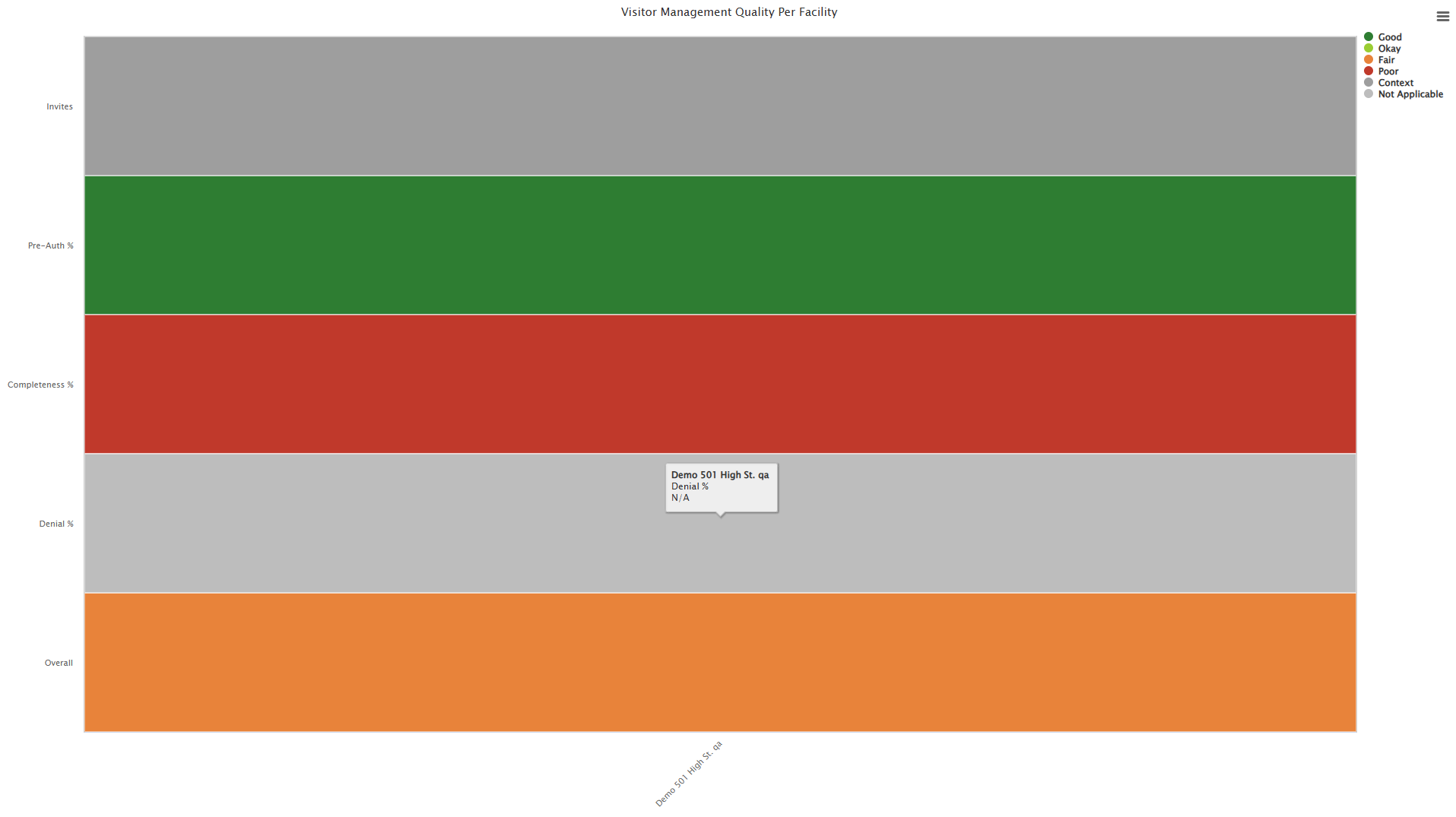
j. Visitor Management Quality per Facility
i. Rates the overall visitor management performance of each occupancy.
ii. Produces a score classifying each occupancy's performance as good, okay, fair, or poor.
iii. Scoring Criteria:
- Number of invites
- Pre-authorization rate
- Profile completeness
- Access denials
iv. Enables the team to provide targeted guidance to occupancies on how to use BluSKY more effectively.
k. Visitor Check-in Channel per Facility
i. Identifies exactly which account checked in each visitor at a facility (e.g. which guard performed the check-in).
ii. Displays the checking-in account together with the occupancy name.
iii. Details Captured:
- If multiple accounts check visitors in at the same facility, each account's name appears individually.
- Check-ins performed through the Web API are attributed to a dedicated Web API account, which also appears in this view.