BluBØX AI iOS App v1.1.0
Reader Management
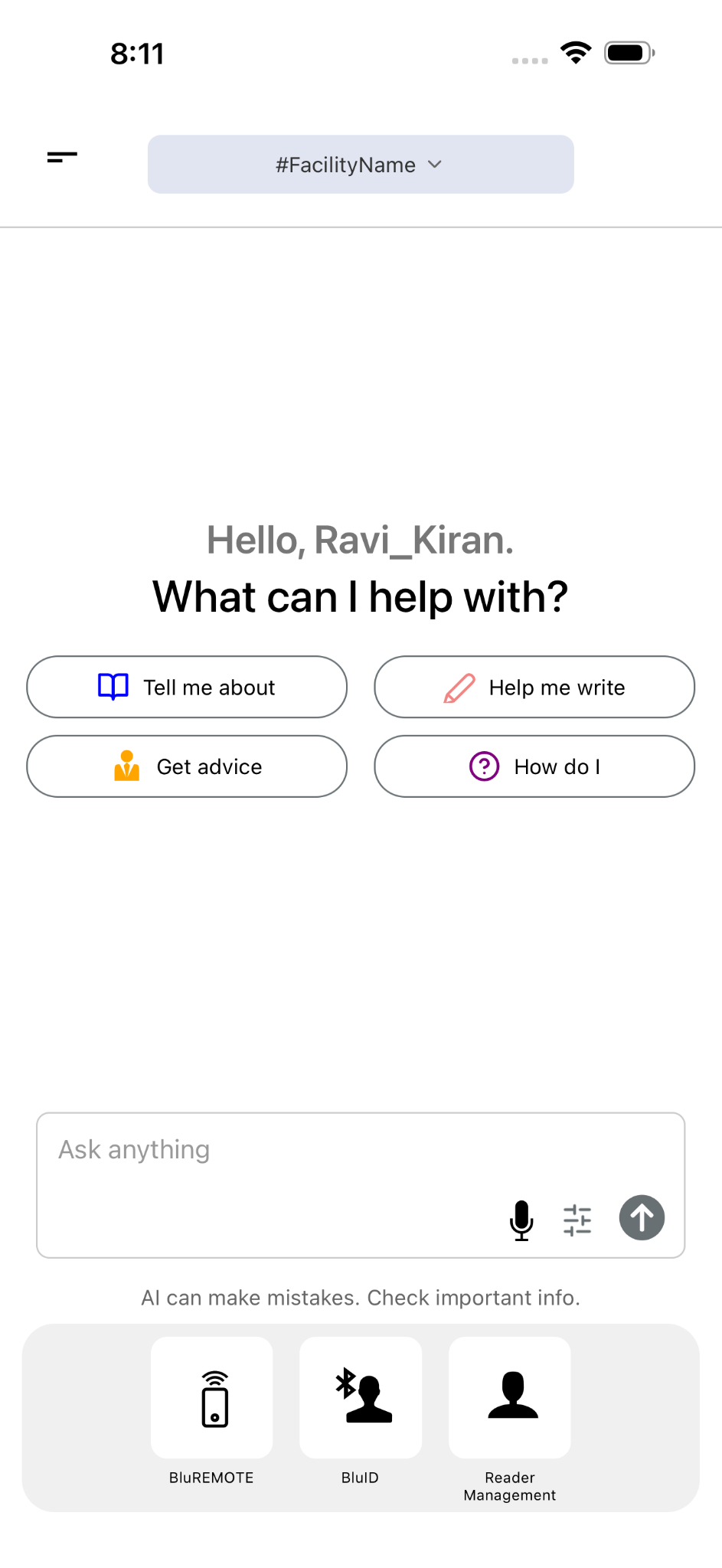
The new Reader Management experience provides a centralized way to discover, configure, map, and maintain BluPOINT readers directly from the mobile app.
1. Reader Management Access from Home
A new Reader Management option is available directly from the Home screen, providing quick access to reader discovery and management tools. From here, users can scan for nearby readers, configure device settings, manage reader and beacon mappings, and perform firmware updates.
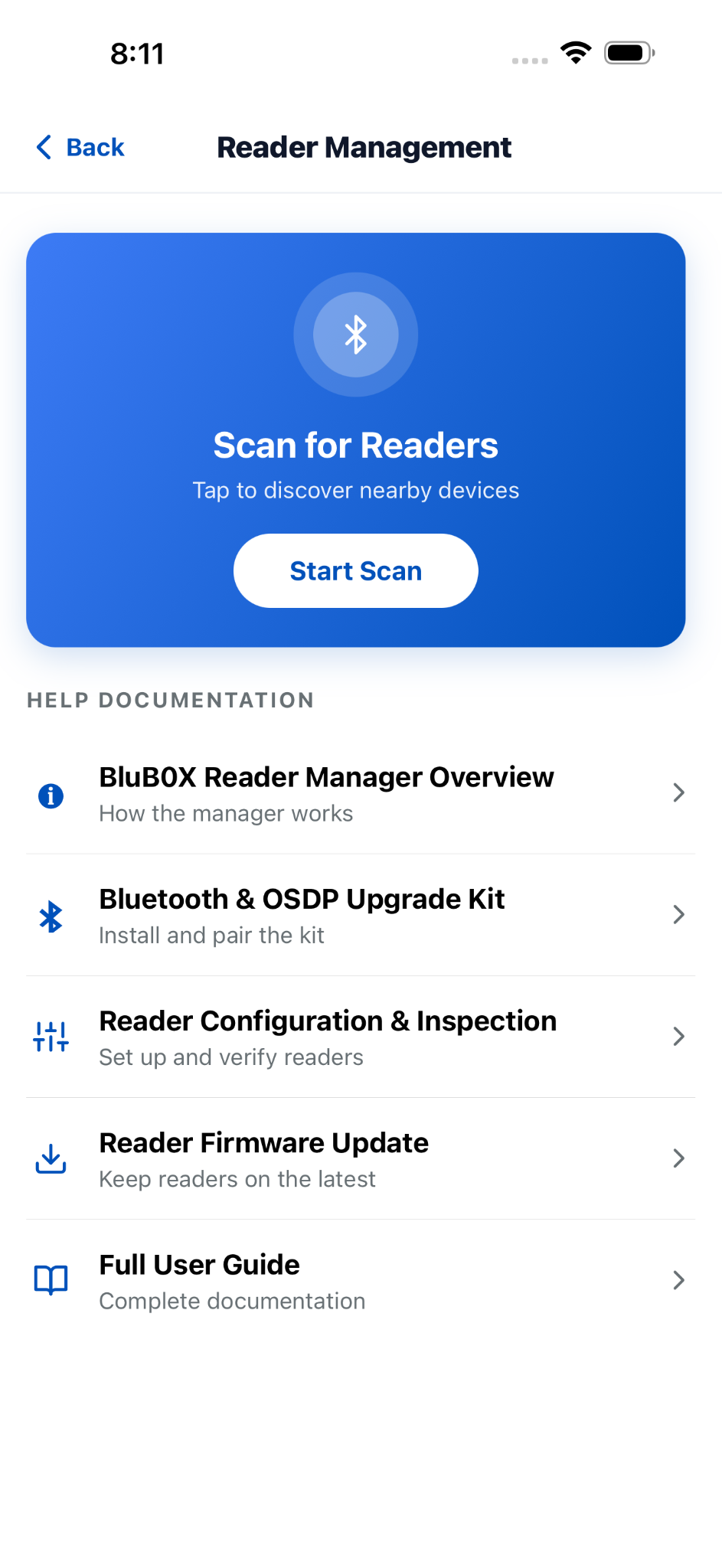
2. Reader Management Landing Screen
The Reader Management landing screen provides a dedicated starting point for managing BluPOINT readers. The Scan for Readers card allows users to quickly start discovering nearby devices, while the Help Documentation section provides direct access to reader-management guidance. Help includes:
- BluBOX Reader Manager Overview
- Bluetooth & OSDP Upgrade Kit
- Reader Configuration & Inspection
- Reader Firmware Update
- Full User Guide
3. Nearby Readers -- Automatic Device Discovery
-
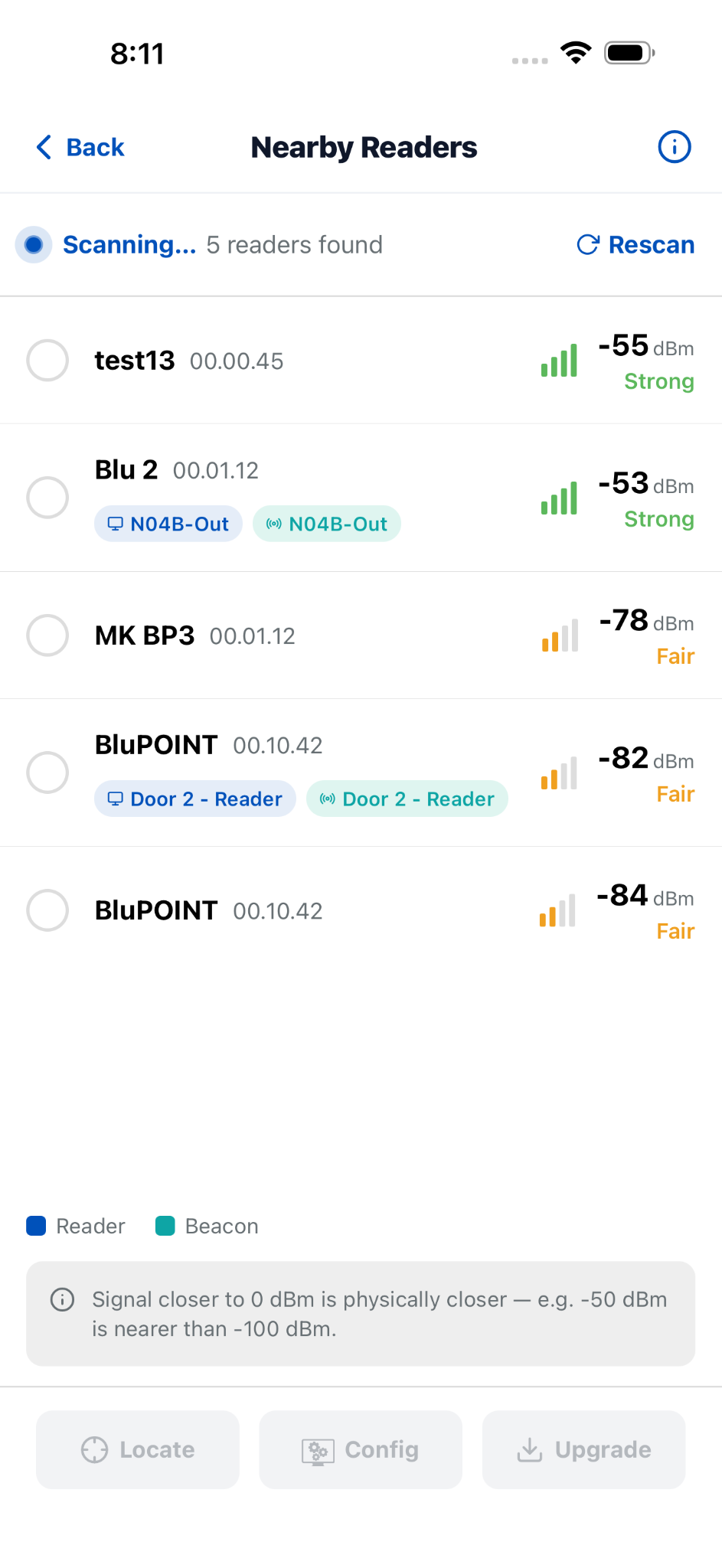
Automatic Scanning: Bluetooth discovery starts automatically when the Nearby Readers screen is opened, allowing users to quickly discover BluPOINT readers within range.
-
Reader Information: Each discovered reader displays its name or device ID, firmware version, signal strength, dBm value, and signal quality to help identify nearby devices.
-
Reader & Beacon Mapping: Associated Reader and Beacon tags are displayed for mapped devices, making it easier to identify and manage existing mappings.
-
Signal-Based Sorting: Readers are displayed with a visual signal indicator and Strong, Good, Fair, or Weak status. The list can be refreshed using Rescan, with readers reordered based on signal strength.
-
Reader Actions: Select a reader to perform key actions such as Locate the physical device, open Configuration, or start a Firmware Upgrade.
-
Multiple Reader Management: Multiple readers can be selected when performing supported actions such as firmware upgrades.
-
Out-of-Range Handling: Readers that move out of Bluetooth range are automatically removed from the list and deselected.
-
Live Discovery Status: The screen shows the active scanning status and the number of readers discovered, providing real-time visibility during device discovery.
4. Reader Configuration -- Device Information & Firmware
-
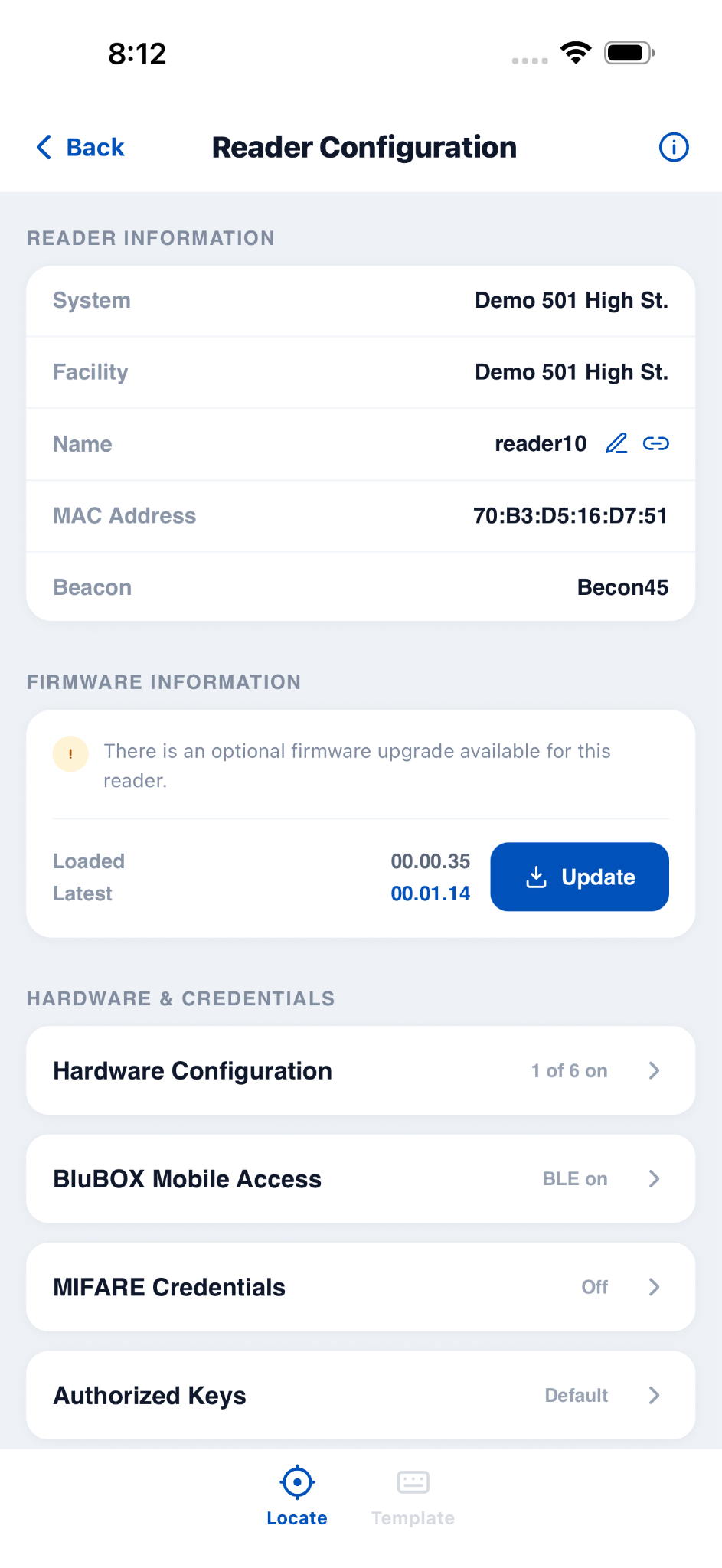
Reader Information: View key details including the associated System, Facility, Reader Name, MAC Address, and Beacon mapping.
-
Firmware Information: View both the currently Loaded firmware version and the Latest available firmware version.
-
Firmware Availability: When a newer firmware version is available, the app clearly indicates that an optional firmware upgrade is available.
-
Quick Firmware Update: Start the firmware upgrade directly from the Update button without leaving the Reader Configuration screen.
-
Up-to-Date Status: The firmware information provides a quick comparison between the loaded and latest versions, making it easy to determine whether an update is available.
5. Reader Configuration -- Gestures & Proximity Settings
-
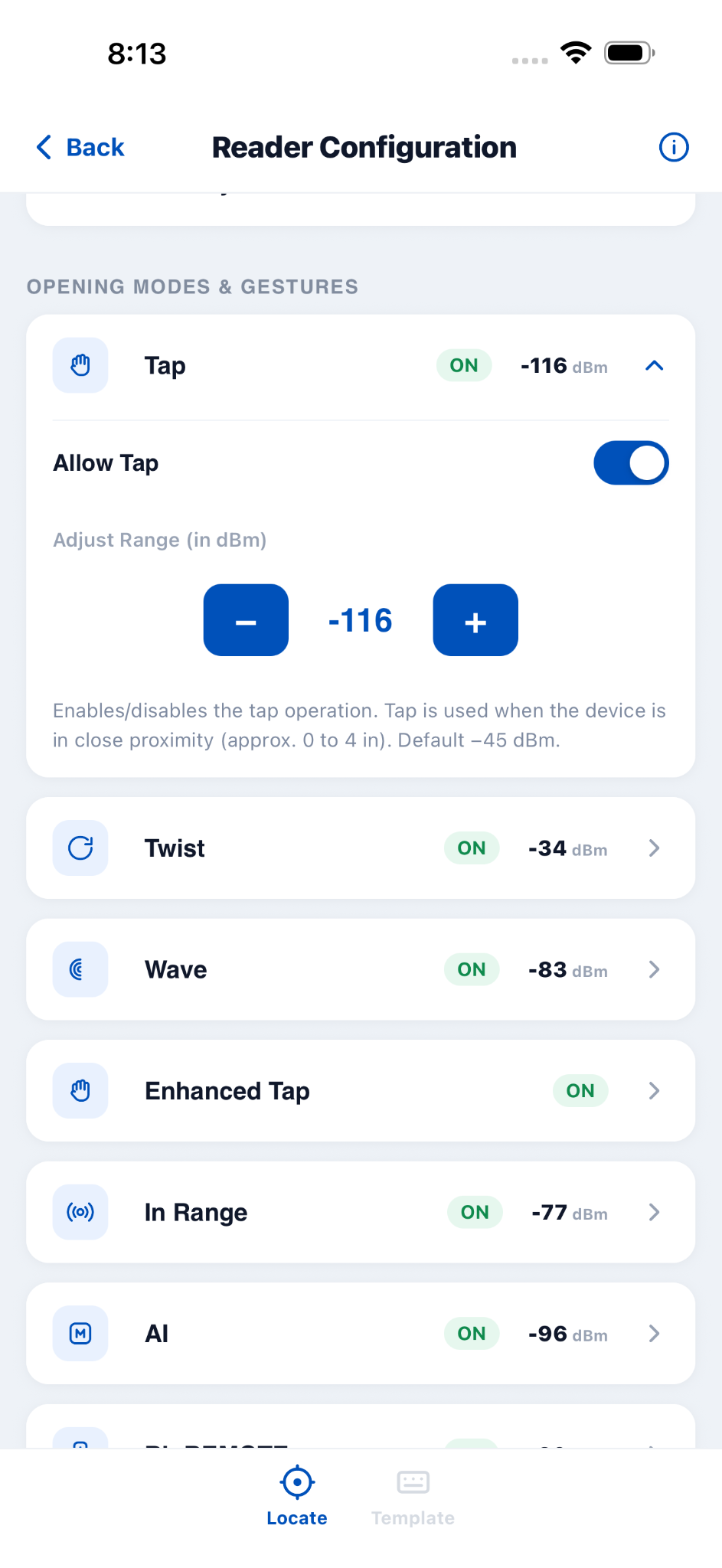
Reader Management now provides detailed control over reader gestures and proximity-based behavior. Users can enable or disable supported gestures such as Tap, Twist, Wave, Enhanced Tap, In Range, AI, BluREMOTE, and Apple Watch Tap.
-
For supported gestures, users can adjust the detection range in dBm using the available controls. Changes are applied directly to the connected reader, allowing configuration updates to take effect without requiring a separate save operation.
-
Enhanced Tap provides additional range controls for supported iOS and Android scenarios while remaining managed through a single enable/disable setting.
6. Reader Configuration -- Communication & Appearance
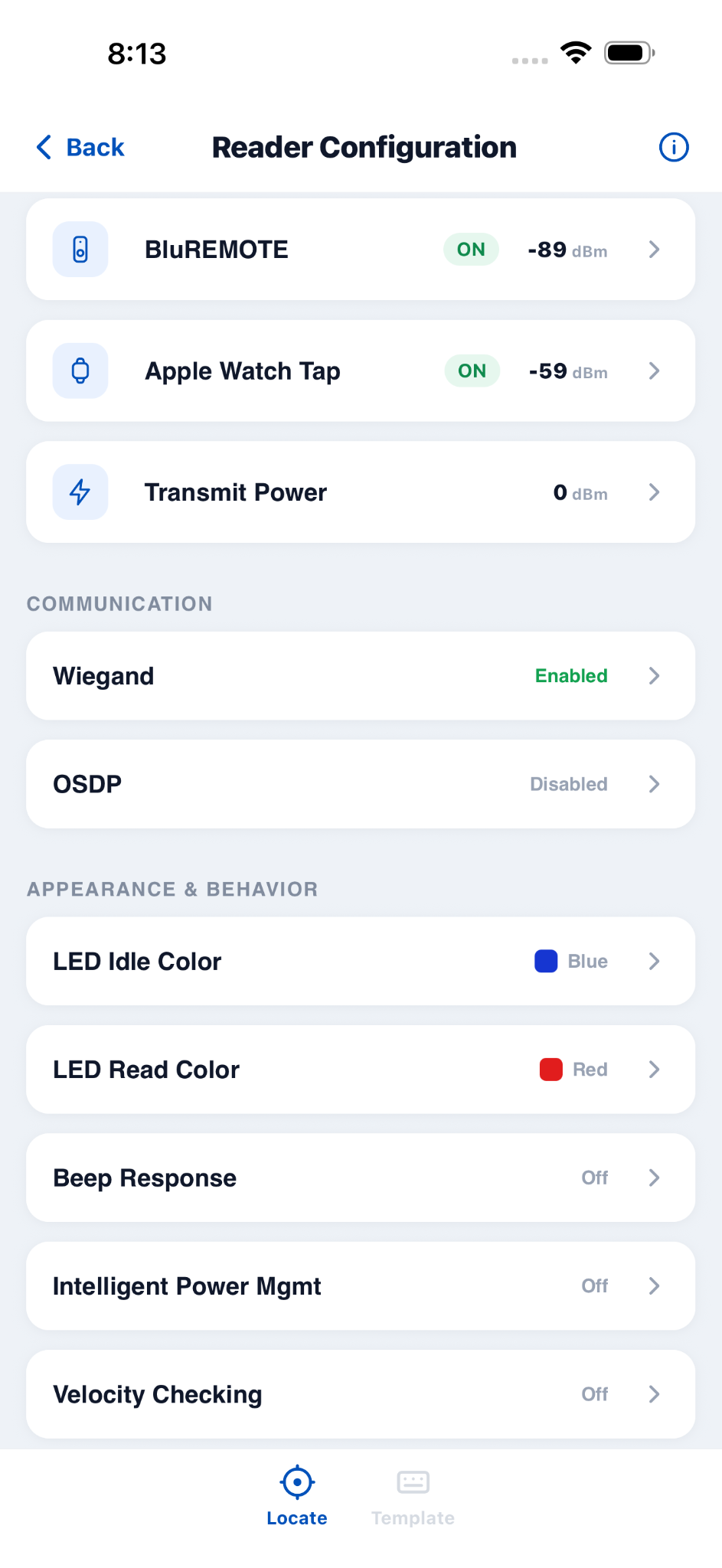
Additional reader configuration options are available for communication and device behavior. Users can manage communication settings such as Wiegand and OSDP, along with appearance and operational settings.
The Appearance & Behavior section allows users to configure:
- LED Idle Color
- LED Read Color
- Beep Response
- Intelligent Power Management
- Velocity Checking
7. Reader Mapping -- Tag Reader
-
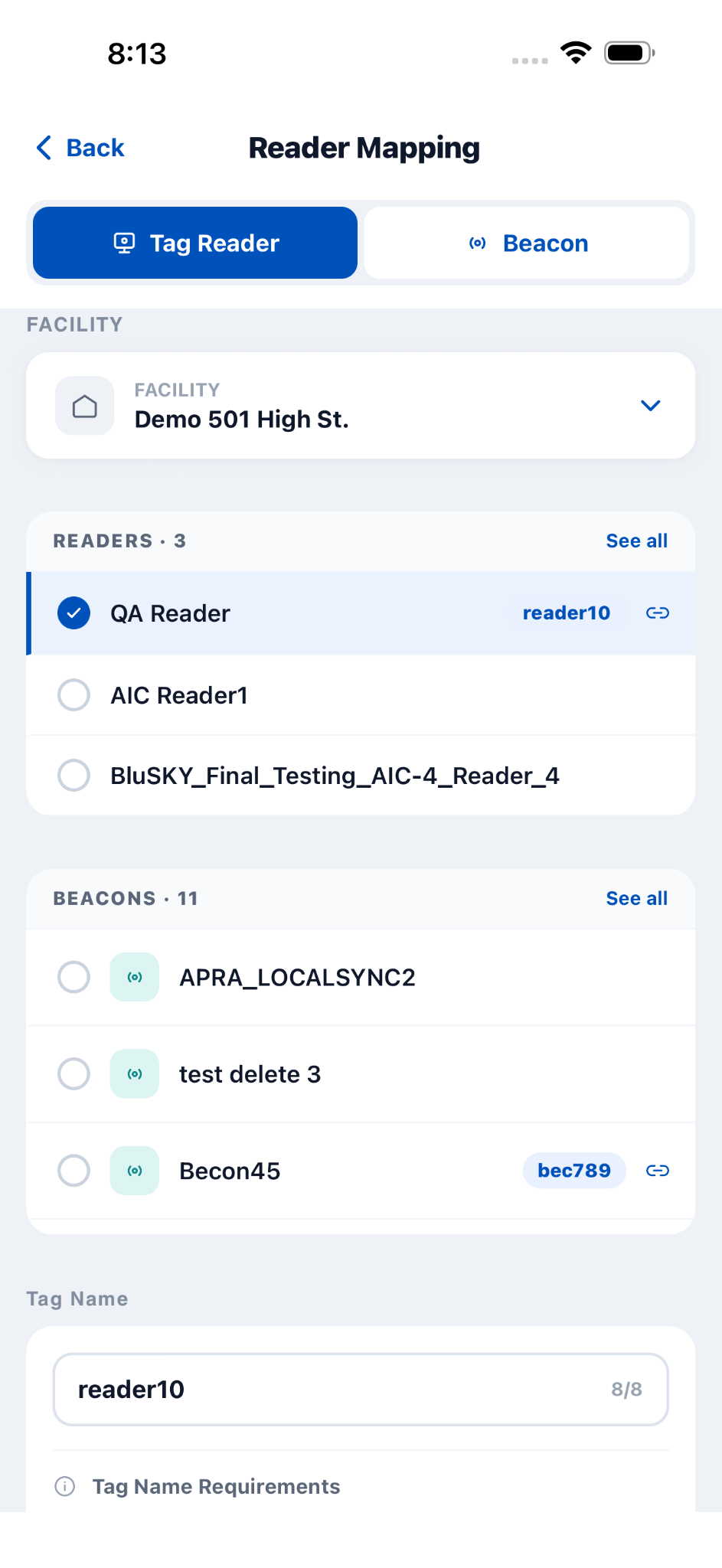
The new Reader Mapping screen allows users to select a facility and associate a reader with a tag name.
-
Existing reader tag information is automatically populated when available, making it easier to update existing mappings.
-
When a reader is selected, the screen displays the available beacons for the selected facility for easy association.
-
Users can switch between Tag Reader and Beacon mapping to manage the required device mapping.
-
Reader and beacon names are validated to follow the supported 8-character alphanumeric and space naming requirements.
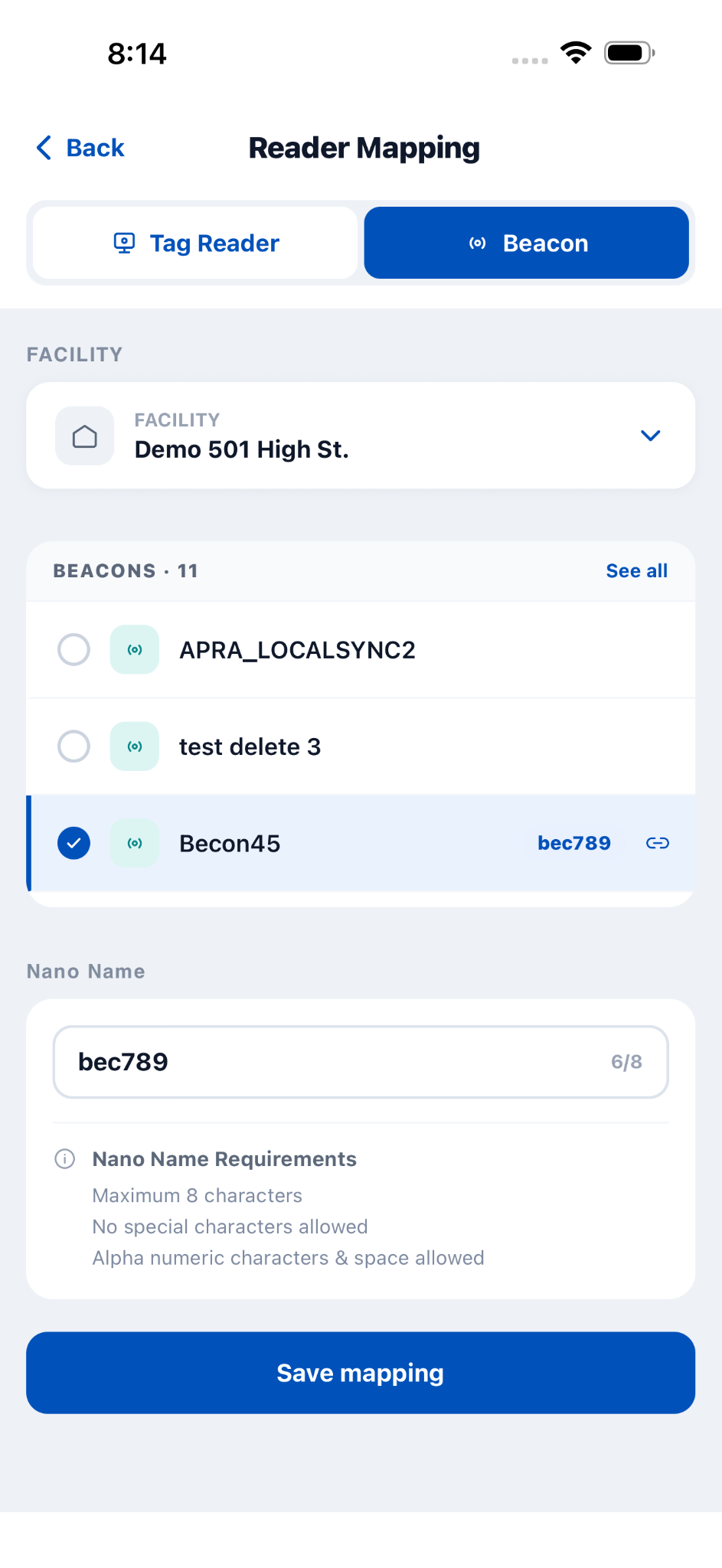
8. Reader Mapping -- Tag Beacon
-
The Beacon mapping option allows users to select a facility and view the beacons available at that location.
-
Users can select a beacon to view and update its existing Nano Name information.
-
The selected beacon can be associated with the appropriate reader mapping, helping maintain the Reader and Beacon relationship.
-
The Nano Name field supports a maximum of 8 characters, with only alphanumeric characters and spaces allowed.
-
A live character counter and input validation help users enter a valid Nano Name before saving the mapping.
9. Firmware Upgrade
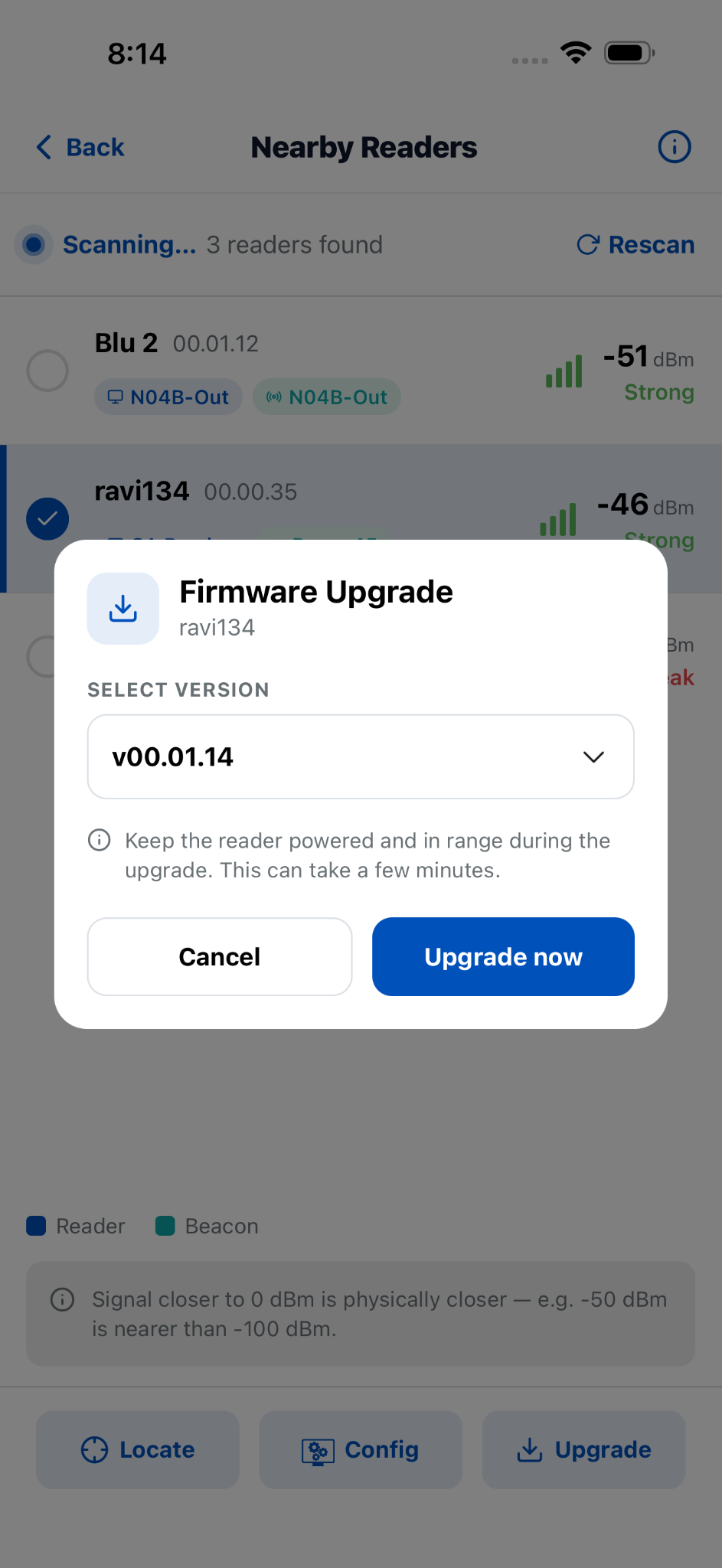
Firmware upgrades can now be initiated directly from Reader Management for either a single reader or multiple selected readers.
The Firmware Upgrade workflow allows users to:
- View the available firmware versions.
- Select the firmware version to install.
- Monitor live upgrade progress.
- View individual progress when upgrading multiple readers.
- Receive clear success or failure status for each device.