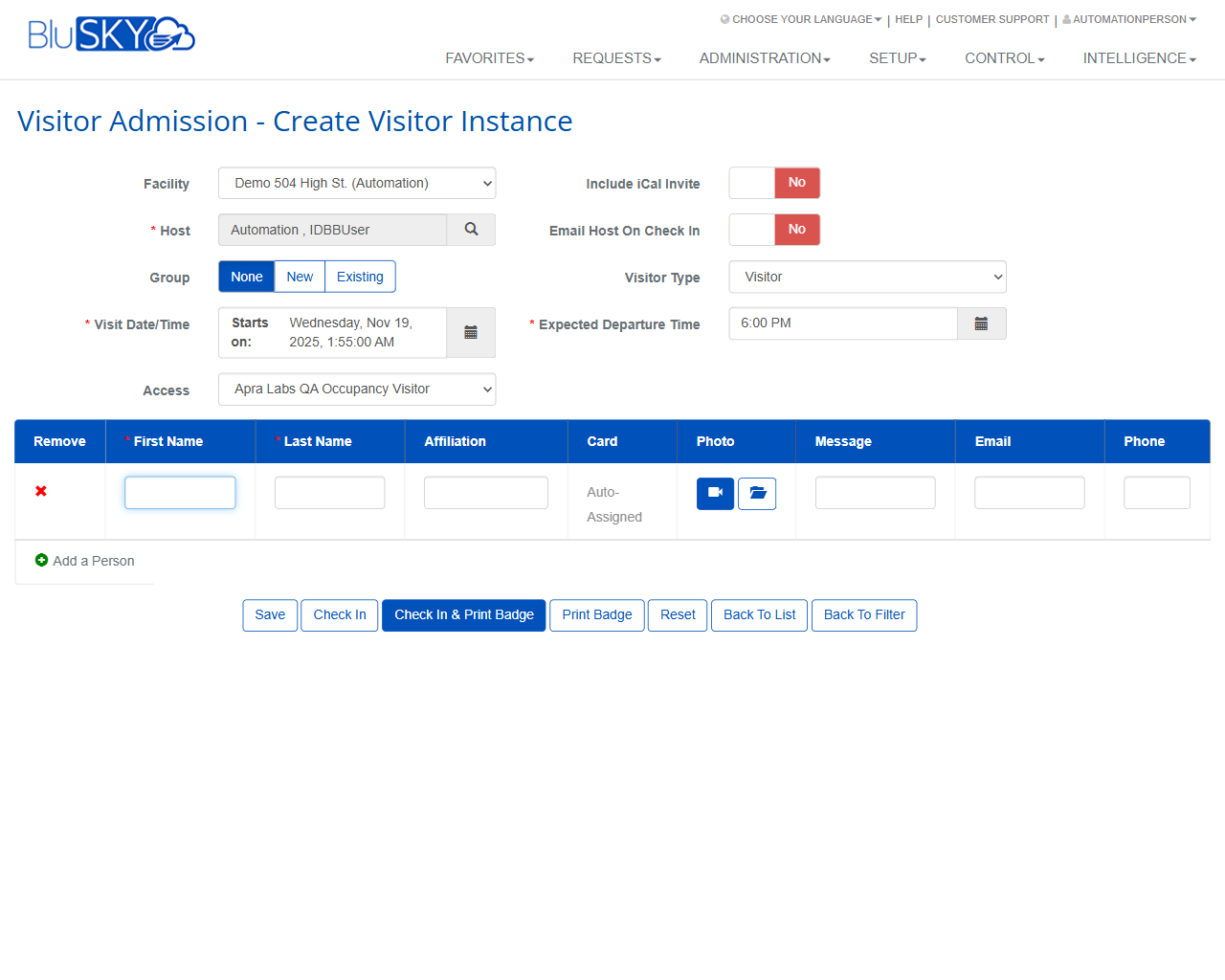
Check In A Visitor
Visitor Admission
Screen Overview
The Visitor Admission pages allow front-desk and administrator users to find, create, and manage visitor admissions for a facility or tenant. The List view provides filter-based searching and sortable result columns. The Create Visitor Instance view captures visit details, assigns access, and supports check-in and badge printing for one or more visitors.
Field Definitions
| Field Label | Definition | Notes |
|---|---|---|
| Facilities | One or more facilities against which to search visitor admissions. | Multi-select. Defaults to the user’s current facility/tenant context. |
| Occupancy (Filter) | Filters results to a specific occupancy/tenant. | Optional. Applies to the List filters only. |
| Visitor Type (Filter) | Filters results by visitor type. | Matches the Visitor Type chosen at creation. |
| From (Midnight) | Start date (00:00) for the List search window. | Defaults to Today. Uses facility time zone. |
| To (Midnight) | End date (24:00) for the List search window. | Defaults to Today. Must be on/after From date. |
| Group Name (Filter) | Filters admissions by group name. | Supports partial text match. |
| Search | High-level status filter (e.g., Active). | Values vary by configuration. |
| View | Controls List layout density (e.g., Simple). | Impacts which columns are shown. |
| Search Text | Free-text search across common fields (e.g., Name). | Case-insensitive; applies within the date range and other filters. |
| Search Card | Searches by internal or external card number. | Exact match recommended. |
| Guest Name (Column) | Visitor’s full name in List results. | Click a row (where enabled) to open details. |
| Group (Column) | The group associated with the admission. | Blank for non-group visits. |
| Host (Column) | The person hosting the visitor. | Derived from the Host selected at creation. |
| Occupancy (Column) | Occupancy/tenant associated with the admission. | Sortable in the List. |
| Message (Column) | Visitor-specific note or instruction. | Optional. |
| Status (Column) | Current state of the admission (e.g., Active, Checked In). | Read-only in the List. |
| Type (Column) | Visitor type for the admission. | Read-only in the List. |
| Facility | Facility where the visit occurs. | Required on Create. |
| Include iCal Invite | Sends an iCalendar invite for the visit. | Toggle Yes/No. Requires email addresses to deliver. |
| Host | Person or employee hosting the visitor. | Required. Select via lookup. |
| Email Host On Check In | Sends an email to the host when the visitor is checked in. | Toggle Yes/No. Requires host email. |
| Group | Assigns the visit to a group: None, New, or Existing. | Additional fields may appear when New/Existing is chosen. |
| Visitor Type | Classifies the visitor (e.g., Visitor). | Drives reporting and, in some setups, access rules. |
| Visit Date/Time – Starts on | Start date and time of the visit. | Required. Date/time picker. |
| Expected Departure Time | Target end time for the visit. | Must be after the start time. |
| Access | Access level/definition granted to the visitor(s). | Required. Determines doors/areas and duration. |
| Remove (Row) | Deletes a person row from the visitor list prior to saving. | Available per visitor row. |
| First Name | Visitor’s first name. | Required per visitor. |
| Last Name | Visitor’s last name. | Required per visitor. |
| Affiliation | Company or affiliation of the visitor. | Optional; appears on badges if configured. |
| Card | Badge/credential assignment. | Often Auto-Assigned; behavior depends on site setup. |
| Photo | Capture or upload a visitor photo. | Camera capture and file upload supported. |
| Message (Row) | Visitor-specific note or instruction. | Optional; printable on badge in some layouts. |
| Email (Row) | Visitor’s email address. | Required if sending iCal or notifications to the visitor. |
| Phone (Row) | Visitor’s phone number. | Optional; useful for contact on arrival. |
Screen Actions and Functions
- Open Filters (funnel icon) – Show/hide the List search panel.
- Submit – Runs the List search with the selected filters.
- Reset – Clears all List filters to their defaults.
- Create – Opens the Create Visitor Instance form.
- Employee One Day Pass – Shortcut to issue a same-day pass to an employee (where enabled).
- Sort Columns – Click a List column header to sort results.
- Add a Person – Adds an additional visitor row on the Create form.
- Capture Photo – Opens the device camera to capture a visitor photo.
- Upload Photo – Uploads a photo file from the device.
- Save – Saves the admission without checking in.
- Check In – Marks selected visitors as arrived.
- Check In & Print Badge – Checks in and prints badges in one step.
- Print Badge – Prints a badge for selected/eligible visitors.
- Back To List – Returns to the List results.
- Back To Filter – Returns to the filter panel.
Usage Instructions & Examples
- Find today’s scheduled visitors
- Click the filter icon to open the List filters.
- Ensure From (Midnight) and To (Midnight) are set to Today.
- Optionally set Facilities, Occupancy, or Search Text (e.g., a guest name).
- Click Submit to view results; sort by Host or Status as needed.
- Create and check in a walk-in visitor
- Click Create on the List page.
- Select Facility and Host. Set Visitor Type as needed.
- Confirm Visit Date/Time – Starts on is correct and set Expected Departure Time.
- Select an appropriate Access.
- In the visitor row, enter First Name and Last Name; add Affiliation and Photo if desired.
- Optionally enable Email Host On Check In.
- Click Check In & Print Badge to finalize and print the badge.
- Schedule a group visit for later today
- Click Create.
- Choose Facility, Host, and set Group = New (name the group if prompted).
- Set the Starts on date/time and Expected Departure Time for the event.
- Select Access that matches the event’s required areas.
- Click Add a Person to add multiple visitor rows and complete their details.
- Set Include iCal Invite = Yes if you captured visitor emails and want calendar invites sent.
- Click Save. Use the List later to locate the group and Check In attendees upon arrival.
- Search by badge/card number
- Open the List filters.
- Enter the number in Search Card.
- Adjust the date range to include the expected visit period.
- Click Submit to view the matching admission.
System Behaviors and Edge Cases
- Date defaults: From/To default to Today (midnight to midnight) in the facility’s time zone.
- Validation: First Name, Last Name, Host, Facility, Starts on, and Access are required to Save.
- Time validation: Expected Departure Time must be after the Starts on value; otherwise the system blocks Save/Check In.
- Group selection: Choosing New or Existing may prompt for additional fields; None creates a single, non-grouped admission.
- Auto-assigned cards: Card may show Auto-Assigned; issuance and printing depend on site configuration and available badge templates/printers.
- Notifications:
- Include iCal Invite requires a valid recipient email. If missing, the invite is not sent.
- Email Host On Check In requires a host email; if absent, no email is sent even if enabled.
- Photo capture: Browser permissions are required to use the camera; if denied, only file upload is available.
- Printing: Print Badge and Check In & Print Badge require a configured badge printer and template; otherwise printing is skipped or fails gracefully.
- Search Card: Works best with exact numbers; results are additionally constrained by the current date range filters.
- Unsaved changes: Navigating Back To List or Back To Filter without saving discards changes on the Create form.
Permissions
- Screen access typically granted to Global Administrators, Tenant/Occupancy Administrators, and Front Desk/Reception roles.
- Creating or editing admissions requires visitor-admission create/edit permissions.
- Check In and Print Badge actions require corresponding check-in and badge printing permissions.
- Access selection is limited to access levels the user is authorized to assign.
Linked Workflows
- Visitor Groups: Use Group = New/Existing to manage event or multi-visitor admissions.
- Badge Printing: Integrates with on-premise or cloud-connected badge printers and templates.
- Host Notifications: Optional email alerts and calendar invites to hosts and/or visitors.
- Access Control: Selected Access determines doors/areas and time validity during the visit; check-in events appear in monitoring/live event views.
Reference Image Links