Event History
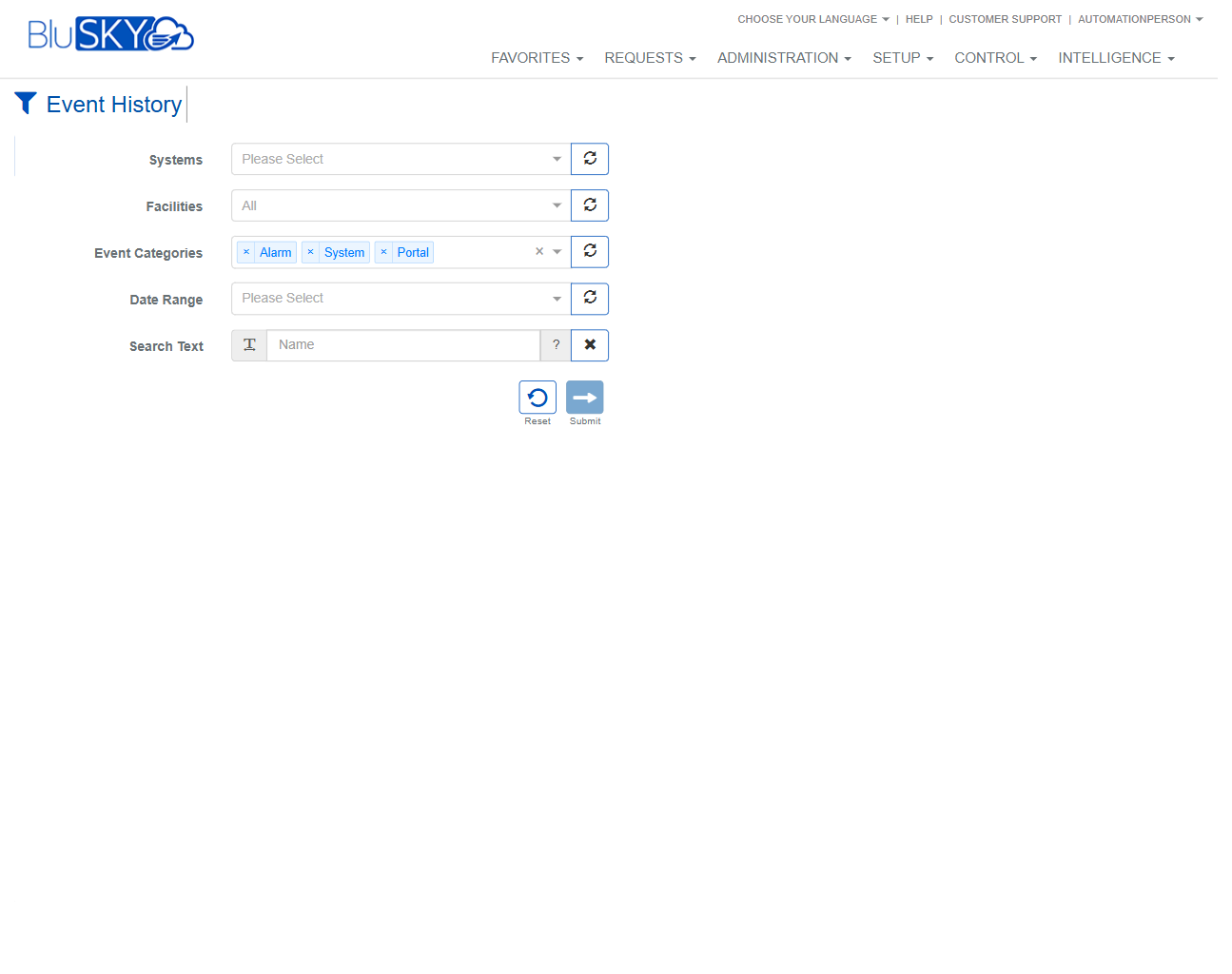
Event History Screen
Screen Overview
The Event History screen lets operators and administrators query historical system activity across connected systems and facilities. Use the filters to narrow events by system, facility, category, time window, or keyword, then run the search to review results for incident investigation and auditing.
Field Definitions
| Field Label | Definition | Notes |
|---|---|---|
| Systems | Dropdown to select the system whose events you want to query. | Optional. Click the refresh icon to reload available systems from the server. |
| Facilities | Dropdown to limit results to a specific facility or All facilities. | Defaults to All. Use the refresh icon to sync the facility list. |
| Event Categories | Multi-select chips that determine which event types are included. | Click the small x on a chip to remove it from the filter. A refresh icon reloads available categories. Default chips shown: Alarm, System, Portal. |
| Date Range | Selector for the time window of events to return. | Choose a preset or custom range (availability depends on configuration). Use the refresh icon to reload presets. |
| Search Text | Free-text filter that matches across common event fields (e.g., names, portals, devices). | Optional. Click ? for search tips (syntax/fields). Click the x to clear the text. Placeholder shown: “Name”. |
Screen Actions and Functions
- Submit – Executes the search using the selected filters.
- Reset – Clears all filters back to their default values.
- Field Refresh (circular arrows) – Reloads the options for the adjacent field (Systems, Facilities, Event Categories, Date Range) from the server.
- Remove Category Chip (x) – Excludes that category from the search.
- Search Help (?) – Opens inline guidance for Search Text usage.
- Clear Search (x in Search Text) – Empties the Search Text field.
Usage Instructions & Examples
-
Filter by facility and category
- In Facilities, select the desired facility.
- In Event Categories, keep or remove chips as needed (e.g., keep Alarm only).
- Choose a Date Range (e.g., Last 24 Hours).
- Click Submit to view matching events.
-
Search for events related to a specific door/portal
- In Event Categories, include Portal events.
- Enter the portal name (or partial name) in Search Text.
- Pick an appropriate Date Range.
- Click Submit.
-
Refresh field options
- If a newly added system/facility/category is missing, click the refresh icon next to the relevant field.
- Re-open the dropdown to select the updated option(s).
-
Start over
- Click Reset to return all filters to defaults (Facilities = All; default event categories restored; cleared date/search).
- Reconfigure filters and click Submit.
System Behaviors and Edge Cases
- Default filters display commonly used categories (Alarm, System, Portal) and Facilities = All until changed.
- Removing a category chip immediately updates the pending filter; the change takes effect on the next Submit.
- Refresh icons reload list options without altering current selections.
- If Search Text is cleared, only the remaining filters are applied when you click Submit.
- Very broad searches (e.g., wide Date Range with All facilities) may take longer to return results depending on data volume.
Permissions
- Page visibility requires the ability to view event history.
- Typical roles with access include Global Administrators, Tenant Administrators, and Security/Operations users granted event viewing rights.
- Users without permission may not see the page or will receive an access-denied message.
Linked Workflows
- After running a search, operators typically review event details from the results list and may drill down to related records (e.g., portal/door or device) for investigation.
- Events may be used to support incident reports or compliance audits in downstream processes.
Reference Image Links