Interactive Maps
BluSKY Operator Workspace
Screen Overview
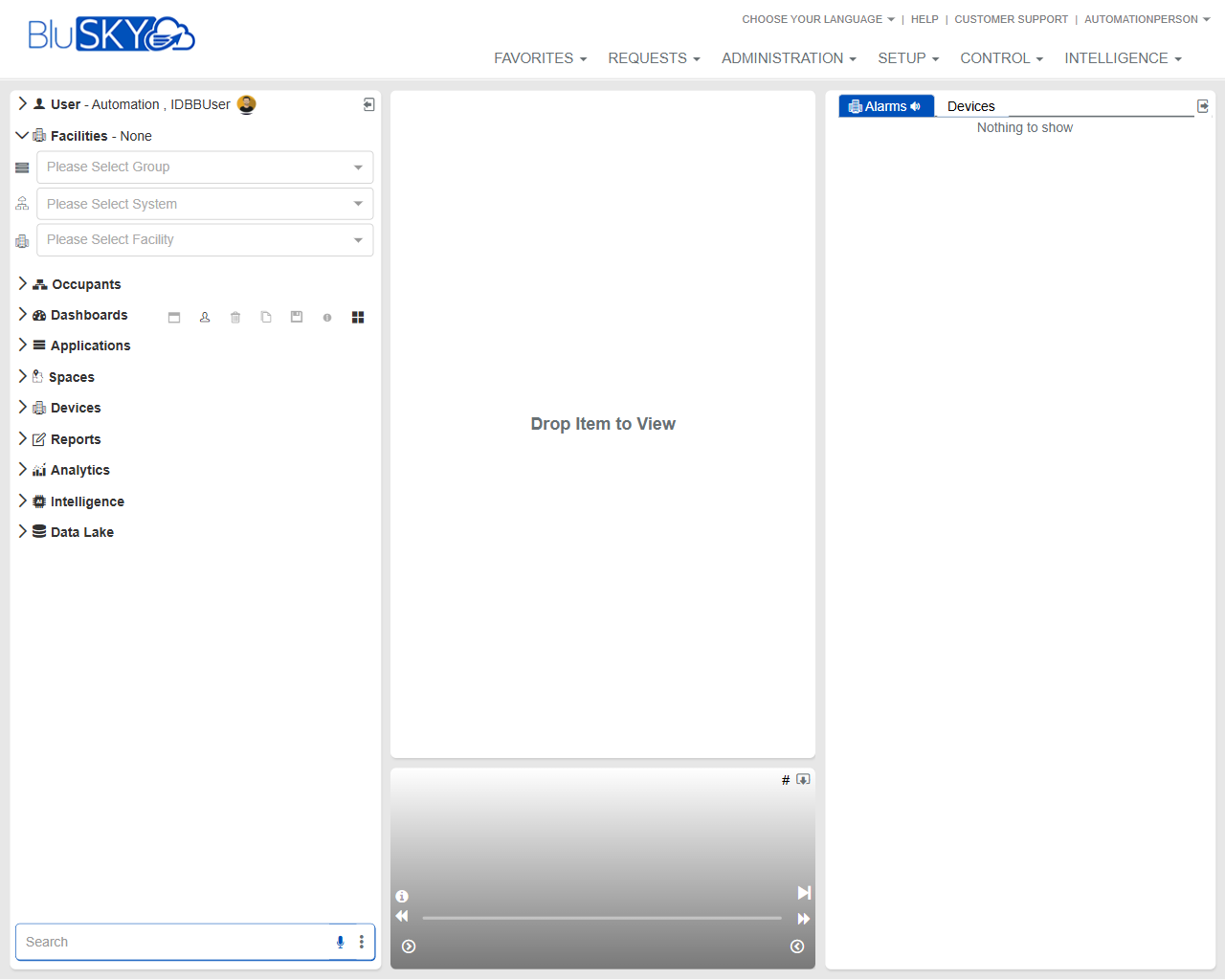
The Operator Workspace is a drag‑and‑drop console for real‑time operations. Use the left navigation to locate people, devices, spaces, dashboards, and data resources; then drag items into the central canvas to view or control them. The right panel provides quick visibility into active Alarms and pinned Devices. Context selectors at the top of the left pane filter all content by Group, System, and Facility.
Field Definitions
| Field Label | Definition | Notes |
|---|---|---|
| Current User | Displays the signed‑in user’s name and avatar. | Read-only; opens user options when clicked (profile/sign out). |
| Facilities Context | Summary of the current facility context (e.g., “Facilities – None”). | “None” indicates no facility is selected. |
| Group | Drop-down to choose the organizational Group for context. | Filters available Systems and Facilities. |
| System | Drop-down to select the system/integration to work with. | Further narrows Facilities and device lists. |
| Facility | Drop-down to select the site/building. | Required for alarm/device lists to populate. |
| Navigation: Occupants | Expandable section listing people/tenants. | Drag records to the canvas to view details. |
| Navigation: Dashboards | Saved dashboards available to the user. | Drag to open a dashboard in the canvas. |
| Navigation: Applications | Application modules accessible in the tenant. | Availability depends on permissions. |
| Navigation: Spaces | Sites, buildings, floors, and rooms. | Drag a space to view related maps/devices. |
| Navigation: Devices | Doors, readers, cameras, intercoms, etc. | Drag to open live view or device controls. |
| Navigation: Reports | Ad hoc and saved reports. | Opens report viewers; may launch in a new tab. |
| Navigation: Analytics | Analytics widgets and charts. | License- and role-controlled. |
| Navigation: Intelligence | Intelligence/insight views. | Availability varies by subscription. |
| Navigation: Data Lake | Data extraction objects and datasets. | Enterprise feature; may be hidden. |
| Search | Search box in the lower-left navigation pane. | Press Enter to run; options menu opens advanced filters (if available). |
| Workspace Canvas | Central area labeled “Drop Item to View.” | Target for drag‑and‑drop items. |
| Media/Playback Bar | Controls beneath the canvas (info, volume, timeline, play/pause). | Appears when a media-capable item (e.g., camera) is loaded. |
| Right Panel: Alarms tab | List of active alarms for the current context. | Speaker icon toggles audible alarm notifications. |
| Right Panel: Devices tab | Pinned/selected devices for quick monitoring. | Drag devices here to pin for persistent view. |
| Top Navigation: Favorites | Access to favorited items and views. | Global menu. |
| Top Navigation: Requests | Requests/tickets and approvals. | Opens request management. |
| Top Navigation: Administration | Identity and administrative tools. | Permission-based access. |
| Top Navigation: Setup | System, hardware, and site configuration. | Permission-based access. |
| Top Navigation: Control | Real-time operations (alarms, video, doors). | Primary area for operators. |
| Top Navigation: Intelligence | Advanced intelligence features. | License- and role-controlled. |
| Language Selector | “Choose Your Language” link. | Changes UI language after selection. |
| Help | Link to online help resources. | Opens in a new tab/window. |
| Customer Support | Link to support portal/contact options. | Availability depends on contract. |
| User Menu (top-right) | Account menu for profile and sign out. | Session actions and preferences. |
Screen Actions and Functions
- Select Group, System, and Facility to set the working context for navigation, alarms, and devices.
- Expand any left navigation section and drag items onto the Workspace Canvas to open them.
- Use the Search field to quickly locate people, devices, spaces, or dashboards.
- Monitor the Alarms tab; toggle the speaker icon to enable/disable audible alerts.
- Switch to the Devices tab to pin frequently monitored devices.
- Use the Media/Playback Bar for camera/live video items: play/pause, scrub timeline, adjust volume, or view item info.
- Access top navigation (Favorites, Requests, Administration, Setup, Control, Intelligence) to open full module pages.
Usage Instructions & Examples
-
Set your operational context
- In the left pane, choose a Group.
- Select the appropriate System.
- Select the Facility you are operating.
- Confirm the header shows the selected Facility (no longer “None”).
-
Open a device for live monitoring
- Expand Devices.
- Drag a camera or door onto the Workspace Canvas.
- If a camera is selected, use the Media/Playback Bar to start/stop and adjust volume.
-
Pin devices for quick access
- Drag devices from the left pane to the Right Panel’s Devices tab.
- Use the list to switch focus between pinned devices without re-searching.
-
Triage alarms
- Ensure the Facility is set.
- Open the Alarms tab in the Right Panel.
- Click an alarm to view details in the canvas; handle according to your site’s procedure.
-
Find an occupant
- Type a name in the Search field and press Enter.
- From the results, drag the person to the canvas to view details or related actions.
System Behaviors and Edge Cases
- With no Facility selected, the Alarms panel may display “Nothing to show,” and some device lists may be empty.
- Items that are not supported in the canvas will not drop; the cursor indicates when a drop target is invalid.
- Audible alarm tones sound only when the Alarms tab is active and sound is enabled; tones mute when the speaker icon is disabled.
- Video/stream playback controls appear only for media-capable devices; offline devices will not display live video.
- Navigation sections and menu options are filtered by user permissions and licensing; unavailable modules are hidden.
- Language changes apply after selection and may require a brief interface refresh.
- Session timeouts sign out inactive users; unsaved canvas context may be lost.
Permissions
- Access to the Operator Workspace is available to authorized roles such as Global Administrators, Tenant Administrators, and Operators/Security Desk users.
- Viewing devices requires a View Devices/Video permission; playback and audio may require additional rights.
- Alarm visibility and actions require alarm-view/acknowledge permissions according to site policy.
- Access to Administration, Setup, Intelligence, Analytics, and Data Lake is permission- and license-controlled.
- Favorites and Requests visibility depends on tenant configuration and user role.
Linked Workflows
- From an alarm in the Right Panel, open the full Alarms/Control module for acknowledgment and incident handling.
- From a device opened in the canvas, navigate to Setup > Devices for configuration or maintenance.
- From Occupants, jump to Administration > People/Occupants to edit identity details.
- Use Reports and Analytics entries to launch reporting and analysis workflows; schedule or export as required.
- Save frequently used items and views to Favorites for rapid recall.
Reference Image Links