Me
Edit Person
Screen Overview
The Edit Person screen is the central workspace to view and maintain a person’s profile, access, credentials, roles, preferences, photos, mobile devices, badge printing, and suspension windows. The screen is organized into tabs (Basic Info, Roles, Credentials, Access, UDFs, Suspend, Vehicles, Person Photos, Badge, Person Preference, Mobile Devices, History) with common actions at the bottom of each tab.
Field Definitions
| Field Label | Definition | Notes |
|---|---|---|
| Photo | Current profile image shown on Basic Info. | Read-only preview; managed under Person Photos. |
| Person Type | Category of the person (Integrator, Customer, Vendor, Occupancy). | Controls available fields and defaults. |
| Occupancy | Organization/location the person is assigned to. | Drives available Floors and access scoping. |
| Floor | Default floor/stop associated to the person. | Used by elevator integrations; may be set manually. |
| Floor Mode | Manual/Auto selector for Floor assignment. | Apply saves the selected/default value. |
| Floor AI Suggestion | AI: Suggested floor value based on usage. | Display-only; click Apply to accept. |
| First Name | Person’s given name. | Required. |
| Last Name | Person’s family name. | Required. |
| Middle Initial | Middle initial/letter. | Optional. |
| Nick Name | Preferred display name. | Used in UI and intercom displays if enabled. |
| Gender | Gender selection list. | Optional. |
| Job Title | Person’s role/title. | Optional; appears in directories/badge if mapped. |
| Department Code | Department identifier/code. | Optional. |
| Pronoun | Preferred pronoun. | Optional. |
| Employment Term | Employment status/term. | Optional. |
| Office/Desk Location | Text location of desk/office. | Optional. |
| Start Date | Start date/time for the person’s association. | Time zone shown beside field. |
| End Date | End date/time for the person’s association. | Used for automated deactivation. |
| Appearance, Voice, Name Opt In | Consent for using appearance, voice, and name in system features. | Affects directories, intercom, video/voice features. |
| Location Exempt | Exempts the person from location-based restrictions. | Typically for roaming or multi-site users. |
| Employee # | Employee identifier. | Optional; searchable. |
| Department Name | Full department name. | Optional. |
| Work Environment | Employment environment selector. | Optional. |
| Worker Type | Worker classification selector. | Optional. |
| Emergency Contact Name | Emergency contact full name. | Optional. |
| Emergency Contact Relationship | Relationship to the person. | Optional. |
| Emergency Contact Home Phone | Home phone for emergency contact. | Optional. |
| Emergency Contact Work Phone | Work phone for emergency contact. | Optional. |
| Emergency Contact Mobile Phone | Mobile phone for emergency contact. | Optional. |
| Phone | Person phone contact(s). | May support multiple entries; indicator shows status. |
| Person email address(es). | A “Default” flag marks the primary address. | |
| Intercom | Intercom contact/extension settings. | Indicator shows configuration status. |
| BluB0X Login | Enables/disables the user’s BluSKY account. | Must be Yes for portal login. |
| Change Password | Forces password change at next login. | Available only when BluB0X Login is Yes. |
| User Name | Username used to sign in. | Must be unique. |
| Role | Security role name assigned on Roles tab. | Determines permissions within BluSKY. |
| Role Scope | Scope for the role (e.g., System). | Controls the extent of role permissions. |
| Role Location/Scope Detail | Site/organization where the role applies. | Read-only label beside Role Scope. |
| View (Credentials) | Filter for credential list (e.g., Assigned). | Affects the grid display only. |
| Allow BluID | Allows issuing BluID mobile credentials. | Toggle on Credentials tab. |
| Allow HIDMobile | Allows issuing HID Mobile Access credentials. | Toggle on Credentials tab. |
| Allow Apple Wallet | Allows Apple Wallet access credentials. | Requires system integration. |
| Allow Google Wallet | Allows Google Wallet access credentials. | Requires system integration. |
| View (Access) | Filter for access list (e.g., Assigned). | Affects the grid display only. |
| Include/Remove | Marker to include or remove an access row. | Red remove icon indicates pending removal. |
| BluREMOTE | Selection to include All/None/Default remote points. | Applies to BluREMOTE points tied to the Access Level. |
| Access Type | Type of access object (e.g., Access Level). | Read-only column. |
| Name | Name of the access object assigned. | Click-through may open the object (permissions permitting). |
| Schedule Name | Schedule governing the access. | Read-only; inherited from the access object. |
| Access Rights Granted Start | When the access became active for this person. | Read-only audit. |
| Access Rights Granted End | When the access ended for this person. | Read-only audit. |
| Inserted By | User who assigned the access. | Read-only audit. |
| Date Inserted | Timestamp when the access was assigned. | Read-only audit. |
| User Defined Field(s) | Custom attributes configured for the tenant. | Appears on UDFs tab when defined. |
| Suspend Access Rights - Start Date Time | Start of suspension window for physical access. | Only access rights are suspended. |
| Suspend Access Rights - End Date Time | End of suspension window for physical access. | Leave blank for indefinite suspension. |
| Suspend Website Access - Start Date Time | Start of suspension for BluSKY portal login. | Independent of physical access. |
| Suspend Website Access - End Date Time | End of suspension for BluSKY portal login. | Leave blank for indefinite suspension. |
| Vehicles List | Person’s registered vehicles. | Managed on Vehicles tab when configured. |
| Available Photos | Gallery of existing profile photos. | One image is the active profile. |
| Upload Via File | Select a photo from local storage. | Provides File browse control. |
| Upload Via Camera | Capture an image via camera. | Requires camera permissions. |
| File | File path of the image to upload. | Supported formats per system settings. |
| Auto ID | System-generated photo identifier. | Read-only after upload. |
| MFA ID | Multi-factor authentication image identifier. | Read-only after upload. |
| Badge Design | Badge template to be used for printing. | Choose before printing. |
| Set Badge Template | Applies the selected template to the person. | Updates the preview pane. |
| Badge Preview | Visual preview of the selected badge layout. | Read-only; reflects template mapping. |
| Appearance, Voice, Name Opt In (Preferences) | Duplicate of consent setting on Person Preference tab. | Kept in sync with Basic Info. |
| Time Zone | Person-specific time zone for UI and notifications. | Defaults to tenant/site setting. |
| DDE Auto Floor Assignment | Enables destination dispatch elevator auto assignment. | When Yes, DDE suggests/assigns floors. |
| DDE Mode | Auto/Manual control for DDE behavior. | Manual allows explicit selection. |
| DDE AI Suggestion | AI: Suggested DDE floor/stop. | Apply to accept. |
| Inactivity seconds after video switches to live | Time before UI returns from live video. | Numeric input. |
| Device Model | Registered mobile device model. | On Mobile Devices tab; read-only list. |
| Bluetooth MAC Address | Device Bluetooth MAC address. | Read-only. |
| Bluetooth Version | Device Bluetooth version. | Read-only. |
| Mobile OS | Device operating system. | Read-only. |
| OS Version | Operating system version. | Read-only. |
| Date Inserted (Device) | When the device record was created. | Read-only. |
| Date Updated (Device) | When the device record last changed. | Read-only. |
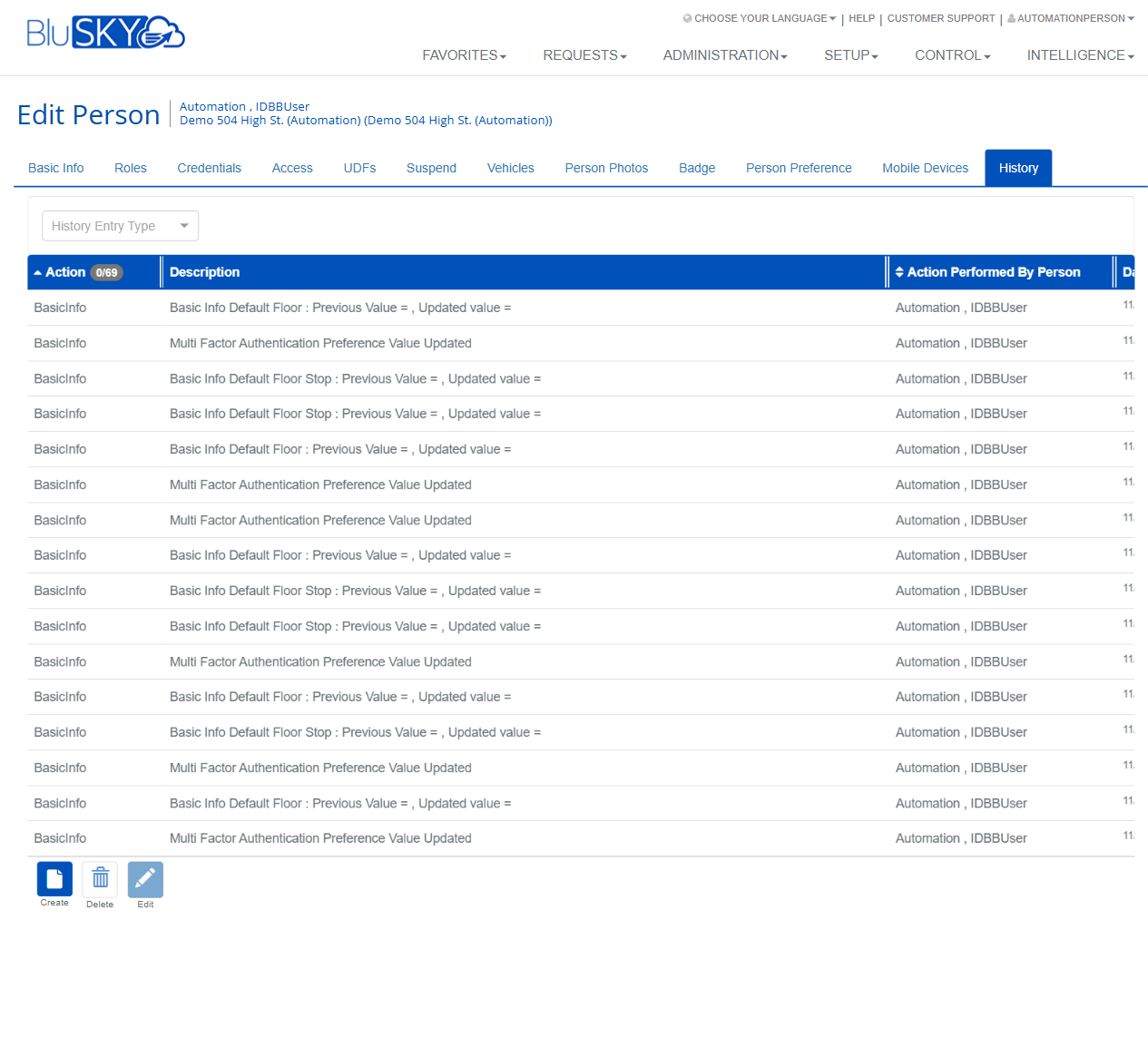
| History Entry Type | Filter for the audit log list. | Limits entries by category. |
| Action (History) | The module or area changed. | Read-only. |
| Description (History) | Details of what changed. | Read-only. |
| Action Performed By Person | Who made the change. | Read-only. |
| Date/Time (History) | When the change occurred. | Read-only. |
Screen Actions and Functions
- Save – Commits changes on the current tab.
- Cancel – Reverts unsaved changes on the current tab.
- Back To List – Returns to the person list view.
- Back To Filter – Returns to the previous filter/search state.
- Check In – Initiates a check-in for the person from Basic Info.
- Add (Credentials) – Opens workflow to add a physical or mobile credential.
- Add Access Level(s) – Assigns one or more access levels to the person.
- Add Access Level Group(s) – Assigns a group of access levels.
- Add Role – Adds an additional security role on the Roles tab.
- Upload – Uploads a selected photo on the Person Photos tab.
- Send To Printer – Sends the selected badge design to a configured printer.
- Delete (Mobile Device) – Removes the selected device record.
- Create/Delete/Edit (History toolbar) – Administrative tools for audit records (availability depends on policy; typically view-only).
Usage Instructions & Examples
- Update Basic Information
- Open the Basic Info tab.
- Verify Occupancy and Floor (set Manual or accept AI suggestion, then click Apply).
- Enter required fields: First Name, Last Name, User Name; set BluB0X Login as needed.
- Click Save.
- Assign a Role
- Go to the Roles tab and click Add Role.
- Select the Role, confirm Role Scope and related Location/Scope Detail.
- Click Save.
- Enable a Mobile Credential Type
- Open the Credentials tab.
- Set the toggles to Yes for the provider(s) you allow (e.g., Allow BluID).
- Click Save, then click Add to issue a credential via the selected provider workflow.
- Assign Access Levels
- Open the Access tab and ensure View = Assigned.
- Click Add Access Level(s) and choose the desired levels.
- For each row, set BluREMOTE to All/None/Default as required.
- Click Save.
- Temporarily Suspend a Person
- Go to the Suspend tab.
- Enter the Start and End Date Time for Suspend Access Rights.
- Optionally set a separate window for Suspend Website Access.
- Click Save.
- Upload a Photo and Print a Badge
- Open Person Photos, select Upload Via File (or Upload Via Camera), choose File, then click Upload.
- Go to the Badge tab, choose a Badge Design, click Set Badge Template.
- Review the Badge Preview, then click Send To Printer.
- Set Personal Preferences
- Navigate to Person Preference.
- Set Time Zone, DDE Auto Floor Assignment and Mode; optionally accept the DDE AI Suggestion by clicking Apply.
- Enter Inactivity seconds after video switches to live and click Save.
System Behaviors and Edge Cases
- Saving is per tab; changes on one tab are not saved until Save is clicked on that tab.
- User Name must be unique; duplicates are blocked.
- BluB0X Login must be enabled to allow website access; disabling it immediately prevents login.
- Suspend Access Rights affects physical access only; Suspend Website Access affects portal login only. The two schedules are independent.
- When a Start Date is in the future, access and credentials may remain inactive until that date depending on system policy.
- Access level assignments prevent duplicates; attempting to assign an already-assigned level is ignored or flagged.
- BluREMOTE selection applies only to remote-capable points defined within each Access Level; Default follows the Access Level’s own settings.
- Badge printing requires a valid Badge Design and a configured printer; otherwise Send To Printer is disabled or fails with an error.
- Person Photos enforce allowed image formats and size limits defined by system settings; oversized files are rejected.
- UDFs tab displays only when user-defined fields are configured for the tenant.
- Mobile Devices are populated automatically when the person enrolls a device via a supported mobile credential app; records are read-only except for Delete.
- History is an immutable audit trail in most deployments; edit/delete options may be hidden based on policy.
Permissions
- Screen access: Global Administrators, Tenant/Facility Administrators, and authorized Operators with People:View/People:Edit.
- Edit Basic Info, Preferences, Photos: People:Edit.
- Assign Roles: Roles:Assign.
- Manage Credentials: Credentials:Manage and provider-specific rights (e.g., MobileCredential:Issue).
- Assign Access Levels and Groups: Access:Assign.
- Suspend Access/Website Access: People:Suspend.
- Print Badges: Badge:Print.
- Delete Mobile Devices: Devices:Manage or MobileCredential:Revoke.
- View History: Audit:View; modifying audit records (if enabled) requires Audit:Admin.
Linked Workflows
- Access Levels – Create and maintain Access Levels before assignment to people.
- Roles – Define permission roles used on the Roles tab.
- Credential Providers – Configure BluID, HID Mobile, Apple Wallet, and Google Wallet integrations to enable corresponding toggles.
- Badge Designs – Build and publish badge templates for selection and printing.
- Person Photos – Capture or upload images used for badges, intercom directories, and video overlays.
- Destination Dispatch Elevator (DDE) – Configure DDE and AI suggestions to use Auto Floor Assignment features.
- Mobile Enrollment – Users enroll devices via the mobile app; enrolled devices appear on the Mobile Devices tab.
- Audit and Compliance – Use the History tab to verify who changed person records and when.
Reference Image Links