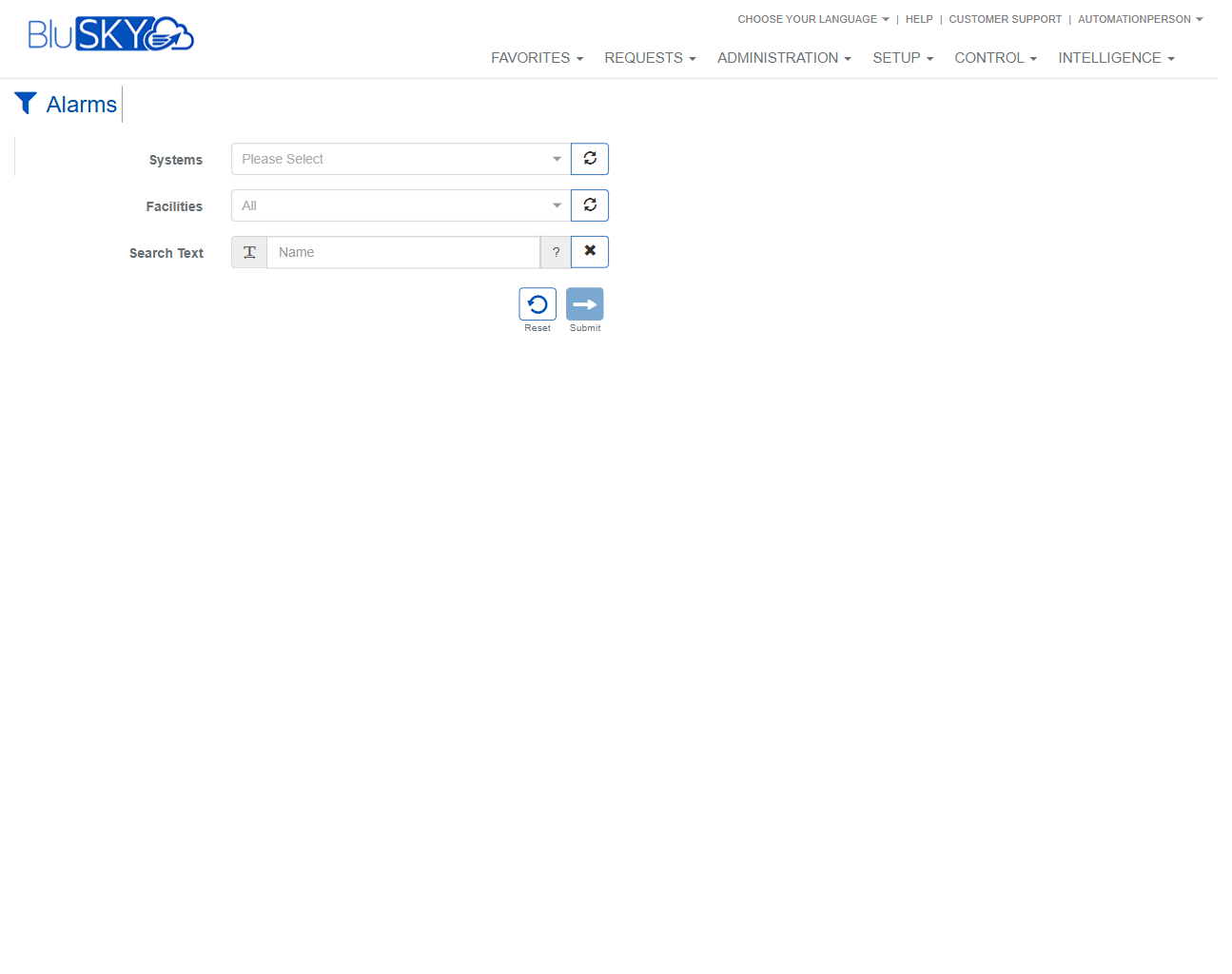
View Alarms
Alarms Screen
Screen Overview
The Alarms screen displays real-time and historical alarm events for selected systems and facilities. It provides filtering tools to target a specific system/facility and controls to manage audible notifications, silence alarms, and raise test events. Use this screen for live monitoring and operational response within BluSKY.
Field Definitions
| Field Label | Definition | Notes |
|---|---|---|
| Systems | Dropdown to select the BluSKY system to monitor. | Required to limit results to a specific system; use the refresh icon to reload available systems. |
| Facilities | Dropdown to filter alarms by facility within the selected system. | Defaults to All; list can be refreshed independently. |
| Search Text | Free-text filter applied to alarm attributes (e.g., Name/Description). | Has a help icon for syntax tips and an X icon to clear the entry. |
| Event Date | Timestamp of when the alarm occurred. | Column header shows the most recent first; includes a counter badge. |
| Meta View | Categorized or summarized view of the event’s metadata. | Read-only; format depends on event source. |
| Source | Originating device or subsystem that generated the alarm. | Examples: reader, panel, sensor. |
| Facility | Facility associated with the event. | Mirrors the Facilities filter but per event row. |
| Type | The event classification (e.g., Alarm, Trouble, Tamper). | Determined by the controller or integration. |
| Description | Text description of the event. | May include device name and contextual details. |
| Event Counter (0/0) | Badge next to Event Date showing Active/Total counts in the current result set. | Updates as results stream in or filters change; read-only. |
Screen Actions and Functions
- Open Filters – Click the filter icon to expand/collapse the filter panel.
- Submit – Applies the selected filters and loads matching alarms.
- Reset – Clears the filter panel to defaults.
- Refresh Systems/Facilities – Reloads the choices for those dropdowns.
- Clear Search (X) – Empties the Search Text field only.
- Clear – Clears current results from the grid without changing filters.
- Enabled – Toggles audible alarm notifications on/off for the user session.
- Silence Alarm – Mutes audible notification for the selected alarm.
- Silence All – Mutes audible notifications for all currently listed alarms.
- Raise Events – Opens a dialog to manually generate test events (for diagnostics/training).
Usage Instructions & Examples
How to view alarms for a specific site
- Click the filter icon to open the panel.
- Choose the appropriate System.
- Optionally choose a Facility and/or enter Search Text.
- Click Submit to load results in the grid.
How to quickly locate an alarm by name or description
- Open the filter panel.
- Enter a keyword in Search Text (e.g., “Door 12”).
- Click Submit. Review the Description column for matches.
How to silence a single alarm
- In the results grid, select the target alarm row.
- Click Silence Alarm. Audible notification for that alarm is muted.
How to silence all current alarms
- Click Silence All.
- Confirm if prompted. All active audible notifications are muted.
How to disable/enable audio alerts globally for your session
- Click Enabled to toggle audio on or off.
- The icon state reflects whether alerts are currently audible.
How to raise a test event
- Click Raise Events.
- Complete the required selections in the dialog (e.g., device/type).
- Confirm to create the test event. It will appear in the grid if it matches current filters.
How to reset filters
- Open the filter panel.
- Click Reset, then Submit to reload with defaults.
System Behaviors and Edge Cases
- Facilities list may update based on the selected System; use the refresh icons if recent changes are not visible.
- If no System is selected, results may be empty even after Submit.
- Event Counter (Active/Total) updates with filters and as new events arrive.
- Silencing an alarm mutes audio only; the event remains visible until resolved/cleared by the underlying system.
- Enabled toggle affects only the current user’s browser session.
- Clear removes the current result set from view; filters remain unchanged.
- If permissions do not allow manual event generation, Raise Events is hidden or disabled.
- When filters return no matches, the grid displays no rows without an error message.
Permissions
- View Alarms: Required to access the Alarms screen and see event data. Typical roles: Operator, Tenant Administrator, Global Administrator.
- Manage Audio: Required to use Enabled, Silence Alarm, and Silence All controls.
- Raise Events: Required to open and use Raise Events for test/diagnostic purposes.
- Data Visibility: Users only see systems/facilities they are scoped to.
Linked Workflows
- Event/Alarm History: Drill into detailed logs for investigation and audit.
- Devices/Controllers: Navigate to the originating device to troubleshoot or configure.
- Notifications/Rules: Configure who is alerted and how for specific alarm types.
- Intelligence/Reports: Analyze alarm trends and volumes across systems/facilities.
- Service Requests: Create a support ticket if repeated alarms indicate a fault.
Reference Image Links