Visitor Invitation
Create Visitor Invitation
Screen Overview
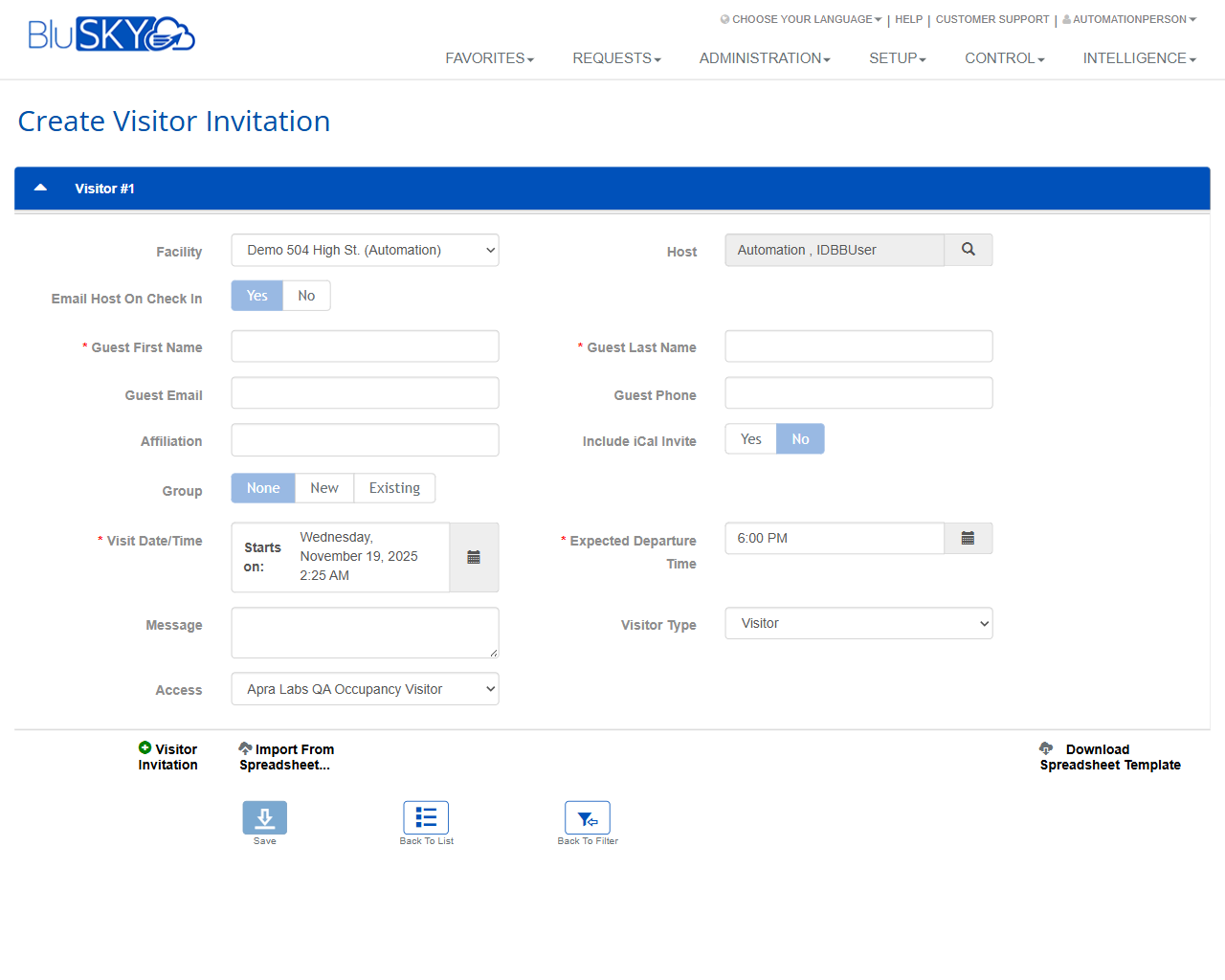
The Create Visitor Invitation screen is used to schedule and send invitations for visitors to a selected facility. It captures guest identity, visit timing, host, access to be granted, and optional notifications (email and calendar). This page supports both single invitations and bulk creation via spreadsheet import.
Field Definitions
| Field Label | Definition | Notes |
|---|---|---|
| Facility | The building or site where the visit will occur. | Dropdown. Filters available Hosts and Access options to the chosen facility. Required. |
| Host | The employee/person responsible for the visitor. | Includes a lookup (magnifying glass) to search/select a host. Required. |
| Email Host On Check In | Sends an email to the host when the visitor is checked in. | Toggle Yes/No. Defaults as configured by the site. |
| Guest First Name | Visitor’s given name. | Required. |
| Guest Last Name | Visitor’s family name. | Required. |
| Guest Email | Email address used for invitation delivery and calendar invites. | Required if Include iCal Invite = Yes; also needed to send the invitation email. |
| Guest Phone | Visitor’s contact phone number. | Optional; used for contact or SMS (if enabled). |
| Affiliation | Company or organization associated with the visitor. | Optional free text. |
| Include iCal Invite | Adds a calendar (.ics) attachment to the guest invitation. | Toggle Yes/No. Requires a valid Guest Email to deliver. |
| Group | Assigns the invitation to a group of visitors (e.g., an event). | Options: None, New, Existing. Selecting New/Existing prompts for additional group details. |
| Visit Date/Time (Starts on) | Start date and time for the visit. | Date/time picker. Displayed in the facility time zone. Required. |
| Expected Departure Time | Target end time for the visit. | Date/time or time picker. Must be on/after the Start time. Required for time-bound access rules. |
| Message | Free-form note included with the invitation. | Optional; visible to the guest and/or front desk depending on configuration. |
| Visitor Type | Classification of the guest. | Dropdown (e.g., Visitor). May affect available access or reporting. |
| Access | Access level or profile to be granted to the visitor during the visit. | Dropdown filtered by Facility. Optional if access is assigned at check-in; otherwise required when pre-authorizing access. |
Screen Actions and Functions
- Save – Creates the invitation with the entered details.
- Back to List – Returns to the visitor invitation list without saving changes.
- Back to Filter – Returns to the previous filter/search page.
- Import From Spreadsheet… – Opens the bulk-import flow to create multiple invitations from a file.
- Download Spreadsheet Template – Downloads the required CSV/XLS template for bulk imports.
- Host Lookup – Search dialog (magnifying glass) to find and select a host.
- Expand/Collapse Visitor #1 – Shows or hides the visitor detail section for easier page navigation.
Usage Instructions & Examples
- Create a single visitor invitation
- Select the Facility.
- Use Host Lookup to choose the responsible host.
- Toggle Email Host On Check In to Yes if you want a host alert at check-in.
- Enter Guest First Name and Guest Last Name.
- (Optional) Enter Guest Email and Guest Phone.
- If you want to send a calendar invite, set Include iCal Invite = Yes and ensure Guest Email is populated.
- Set Group = None unless you are creating or joining a visitor group.
- Pick the Visit Date/Time (Starts on) and the Expected Departure Time.
- (Optional) Enter a Message and select Visitor Type.
- Choose an Access level if you are pre-authorizing building access.
- Click Save. The invitation is created and, if email is configured, sent to the guest.
- Create invitations for a group/event
- Set Group to New or Existing.
- If New, provide the prompted group details; if Existing, choose the target group.
- Complete guest details and visit timing.
- Save. Repeat for additional guests, or use bulk import for many guests.
- Bulk import multiple visitor invitations
- Click Download Spreadsheet Template and open the file.
- Fill the template columns (e.g., first name, last name, email, start, end, facility, host).
- Save the file.
- Click Import From Spreadsheet… and upload the completed template.
- Review the preview/validation results and confirm to create the invitations.
System Behaviors and Edge Cases
- Required fields are indicated with a red asterisk; Save is blocked until requirements are met.
- Times are stored/displayed in the Facility’s time zone. Changing Facility may clear or re-validate Host and Access selections.
- Expected Departure Time cannot be earlier than the Visit Start; if attempted, validation prompts the user to correct it.
- Include iCal Invite = Yes requires a valid Guest Email; the system will show an error or disable the option otherwise.
- Email Host On Check In triggers when the guest is checked in by a front desk operator or kiosk (if deployed).
- Access dropdown is filtered to access levels available at the selected Facility; changing Facility refreshes this list.
- Selecting Group = New or Existing reveals additional inputs (not shown in this image) to create or select a group.
- Bulk import validates date/time formats and required columns; invalid rows are rejected with row-level error details.
- Saving with an unchanged past start time may be blocked or warned depending on site policy.
Permissions
- Available to Global Administrators, Tenant Administrators, and authorized Front Desk/Reception or Host users.
- Creating or editing invitations requires the Visitor Invitations create/edit permission for the target Facility.
- Assigning Access requires permission to grant access levels at that Facility.
- Bulk import requires the visitor invitation import permission.
- Users without sufficient permissions can view but cannot save or import invitations.
Linked Workflows
- Check-In/Check-Out workflow at the front desk or kiosk uses created invitations to verify identity and print badges.
- Email notifications to guests and hosts (and optional calendar invites) are sent upon saving, per site configuration.
- Assigned Access is activated for the visit window and can be audited in Access Logs and Visitor Reports.
- Visitor Groups support event management and bulk actions (e.g., batch check-in, batch cancel).
- Post-visit processes include automatic deactivation of temporary access at Expected Departure Time.
Reference Image Links