Facilities
Facility List Screen
Screen Overview
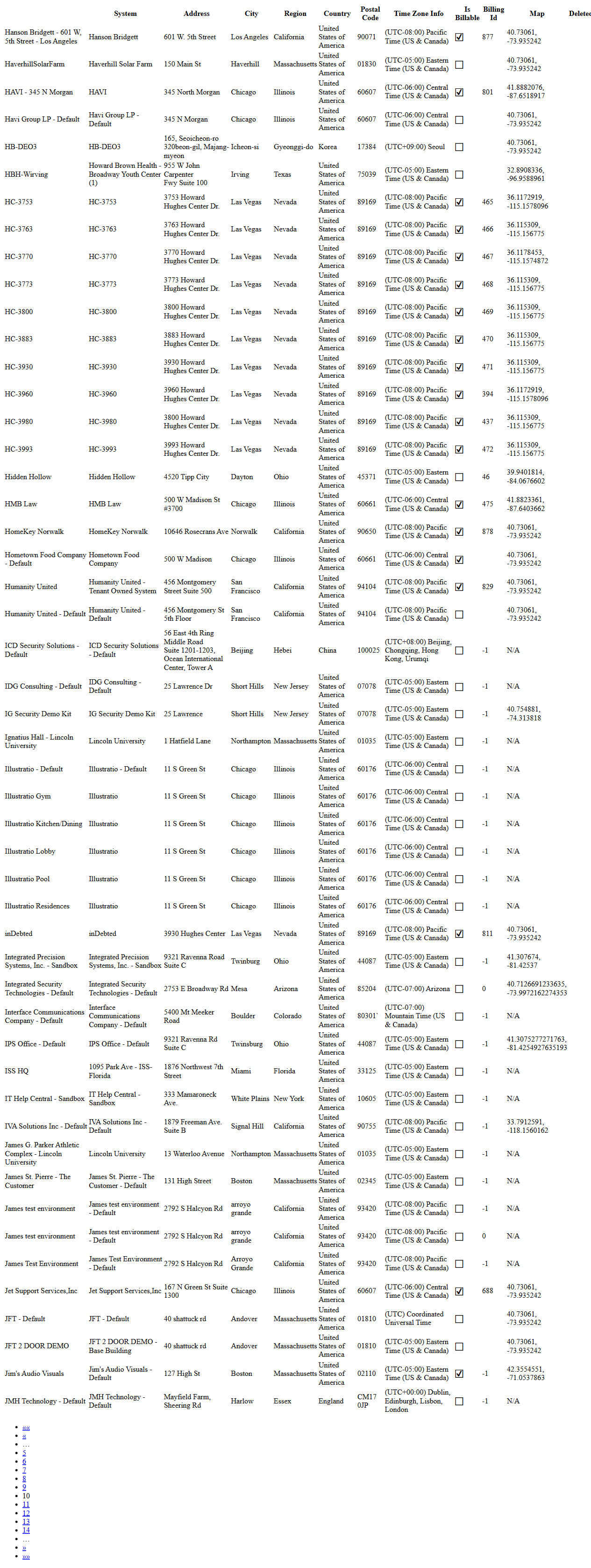
The Facility List screen provides a centralized view of all facilities configured in BluSKY. It displays key attributes such as facility name, associated system, address details, region, and administrative/billing metadata. From this screen you can create new facilities, open and edit existing records, delete facilities, check sync status, and open an expanded, print‑friendly list.
Field Definitions
| Field Label | Definition | Notes |
|---|---|---|
| Facility | The facility’s display name. | Primary identifier used throughout BluSKY. Click a row to select it for actions. |
| System | The access control/automation system associated with the facility. | May mirror the facility name for base-building systems or show a tenant-owned system. |
| Address | Street address for the facility. | May include suite or floor information. |
| City | City where the facility is located. | Read-only in the list; editable in the facility record. |
| Region | State/Province or administrative region. | Formatting follows site configuration (e.g., CA, California). |
| Country | Country of the facility. | Shown in Expanded view. |
| Postal Code | Zip/Postal code for the facility. | Shown in Expanded view. |
| Time Zone Info | The facility’s time zone in UTC offset and friendly name. | Used for schedules, reports, and event timestamps. Shown in Expanded view. |
| Is Billable | Indicates whether the facility is billable. | Checkbox indicator in the grid; typically edited in the facility record. |
| Billing Id | External or internal billing identifier. | Populated per organization billing practices. |
| Map | Latitude/Longitude coordinates of the facility. | Used by mapping features; may be N/A if not set. |
| Delete | Per-row delete control (where enabled). | Subject to permissions and dependency checks. |
| Facility Count | Displays the total number of facilities returned by the current criteria. | Appears above the grid (e.g., Facility Count 1048). |
| Criteria | Collapsible filter panel to refine the list. | Click “Criteria” to open/close filters. Exact fields depend on configuration. |
| Selection Summary | Shows how many rows are selected on the current page. | Appears next to the screen title (e.g., 1/50 selected). |
Screen Actions and Functions
- Create – Open the facility creation form.
- View – Open the selected facility in read-only mode.
- Edit – Open the selected facility for editing.
- Delete – Remove selected facility records (subject to dependency checks).
- Sync Status – Request/refresh synchronization status for the selected facilities.
- Generate – Produce a generated report/summary for selected facilities (button label may display “Generate …”).
- Expand – Open an expanded, print-friendly list showing additional columns (e.g., Country, Postal Code, Time Zone Info, Is Billable, Billing Id, Map).
- Pagination controls – Navigate between pages (first/prev/numbered/next/last).
Usage Instructions & Examples
How to find facilities
- Click Criteria to open filters.
- Enter filter values (e.g., Facility, City, Region).
- Press Enter or apply the filter to refresh the list.
- Use pagination to browse additional results.
How to create a new facility
- Click Create.
- Complete required fields including Facility, System, Address, City, Region, Country, Time Zone.
- Save. The new facility appears in the list.
How to view or edit a facility
- Click a row to select it.
- Click View to inspect details, or click Edit to make changes.
- Save changes to return to the list.
How to delete facilities
- Select one or more rows.
- Click Delete and confirm the prompt.
- Verify the records are removed from the current list.
How to use Expanded view and export/print
- Click Expand.
- Review the full-width grid with additional columns.
- Use the browser’s print or export tools as needed.
How to check sync status
- Select one or more facilities.
- Click Sync Status.
- Wait for the status to refresh; review any messages returned.
How to generate a report for selected facilities
- Select one or more facilities.
- Click Generate.
- Follow prompts to download or view the generated output.
System Behaviors and Edge Cases
- Row selection is per page; the header shows count as “(x/50 selected)” based on current page size.
- Some columns (e.g., Is Billable, Map) are read-only in the list; edit them in the facility record.
- Expand shows additional columns and a print-friendly layout; data is read-only in this view.
- Delete may be blocked if a facility is referenced by systems, devices, people, or billing; the system will display an error message if dependencies exist.
- Time Zone Info drives schedules and timestamps; inconsistent time zones across facilities can affect cross-facility reports.
- If no records match the Criteria, the grid displays empty with Facility Count = 0; action buttons (except Create) are disabled.
- Horizontal scrolling is available to view columns not currently in frame.
Permissions
- Access to the Facility List requires View Facilities permission.
- Create and Edit require Manage Facilities (or equivalent administrator) permission.
- Delete requires Delete Facilities permission.
- Sync Status and Generate may require additional feature-specific permissions.
- Some organizations restrict facilities by tenant or region; users only see facilities they are authorized to view.
Linked Workflows
- Systems – Manage controllers and integrations linked to each facility.
- People/Access Management – Assign people, access levels, and schedules associated with a facility.
- Maps – Use stored coordinates to place facilities on interactive maps.
- Billing/Reporting – Use Is Billable and Billing Id for invoicing and operational reports.
- Schedules/Time Zones – Ensure facility time zones align with schedule configuration.
Reference Image Links