Events
Events Screen
Screen Overview
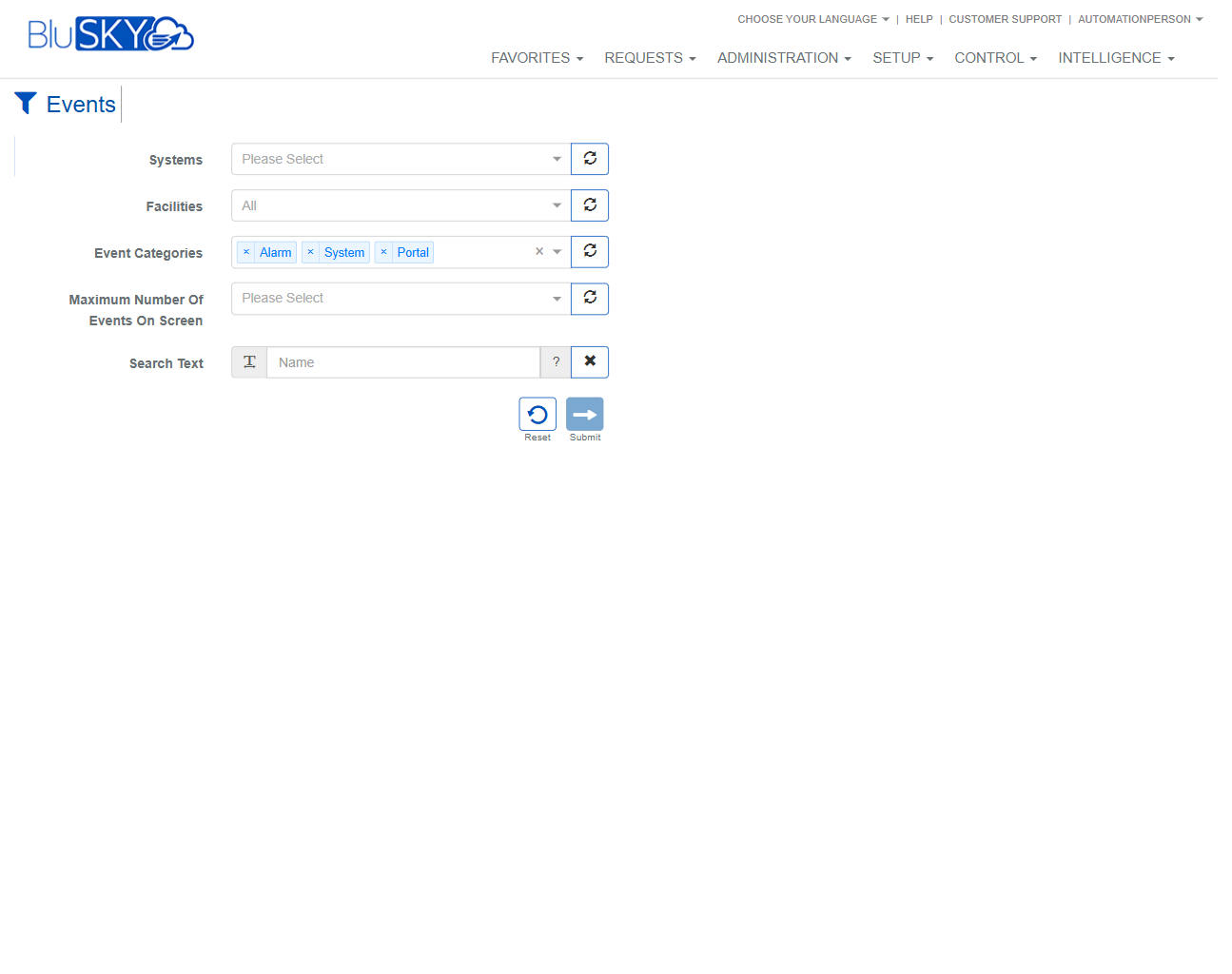
The Events screen provides a centralized view into system activity logs across BluSKY. Users can filter by system and facility, choose one or more event categories (e.g., Alarm, System, Portal), limit the number of results returned, and perform text-based searches. Use this page to quickly locate recent activity, investigate incidents, or narrow results before opening detailed event records.
Field Definitions
| Field Label | Definition | Notes |
|---|---|---|
| Systems | Selects the BluSKY system(s) from which to retrieve events. | Required in most deployments. Use the refresh icon to reload available systems. |
| Facilities | Narrows results to a specific facility or All. | Defaults to All. Refresh icon reloads facility list based on the selected system. |
| Event Categories | Multi-select list of event types to include (e.g., Alarm, System, Portal). | Chips show current selections. Use the X to clear selections; refresh icon reloads list. |
| Maximum Number Of Events On Screen | Limits how many events are returned/displayed in the results. | Choose an available maximum to prevent overly large result sets. |
| Search Text | Free-text search applied to standard event fields (name, description, source, etc.). | Case-insensitive. “?” opens inline help. The X clears the current search text. |
Screen Actions and Functions
- Submit – Executes the search with the current filters and displays matching events.
- Reset – Restores default filter values and clears selections/text.
- Refresh (per field) – Reloads the picklist for Systems, Facilities, and Event Categories without running a search.
- Clear Event Categories – Removes all currently selected categories.
- Clear Search – Removes the entered Search Text.
- Help (?) – Opens guidance on supported search syntax for the Search Text field.
Usage Instructions & Examples
-
View recent alarms for a single facility
- Select the target System in Systems.
- Set Facilities to the desired facility.
- In Event Categories, keep only Alarm selected.
- Choose a reasonable Maximum Number Of Events On Screen.
- Click Submit to view results.
-
Find portal-related activity for a person or door
- Select the appropriate System.
- Leave Facilities = All (or choose a facility).
- In Event Categories, select Portal.
- Enter a name, badge ID, or door name in Search Text.
- Click Submit.
-
Refresh lists after configuration changes
- If a new system or facility was recently added, click the refresh icon next to Systems or Facilities.
- Re-select values as needed and click Submit.
System Behaviors and Edge Cases
- If Systems is not selected, access policies may prevent results; some configurations require a System before Submit will run.
- Leaving Event Categories empty may include all categories, depending on tenant defaults.
- Results are capped by Maximum Number Of Events On Screen; larger datasets are truncated to this limit.
- Picklists (Systems, Facilities, Event Categories) only show entities the user is permitted to view.
- If no events match the filters, the results area indicates that no data was found.
- Refresh icons only reload option lists; they do not execute a search—use Submit to run the query.
- Search Text is case-insensitive and typically matches partial strings across common event fields.
- Very recent configuration or permission changes may require using the refresh icons or reloading the page to reflect updates.
Permissions
- Page access requires a role with permission to view event logs (e.g., ViewEvents or equivalent).
- Visibility of Systems and Facilities is restricted by the user’s scope (global, system-level, or facility-level).
- Access to specific categories (e.g., Alarm) may require additional rights such as Alarm View.
- Users without sufficient permissions will not see restricted systems/facilities and cannot retrieve their events.
Linked Workflows
- From event results, open Event Details to review metadata, comments, and related objects.
- For alarm events, proceed to alarm acknowledgment/comment workflows if enabled.
- Jump to related entities (device/door, person/cardholder) from the event detail to continue investigation.
- If video is integrated, launch video playback from the corresponding event when available.
Reference Image Links