Preferences
Person Preferences
Screen Overview
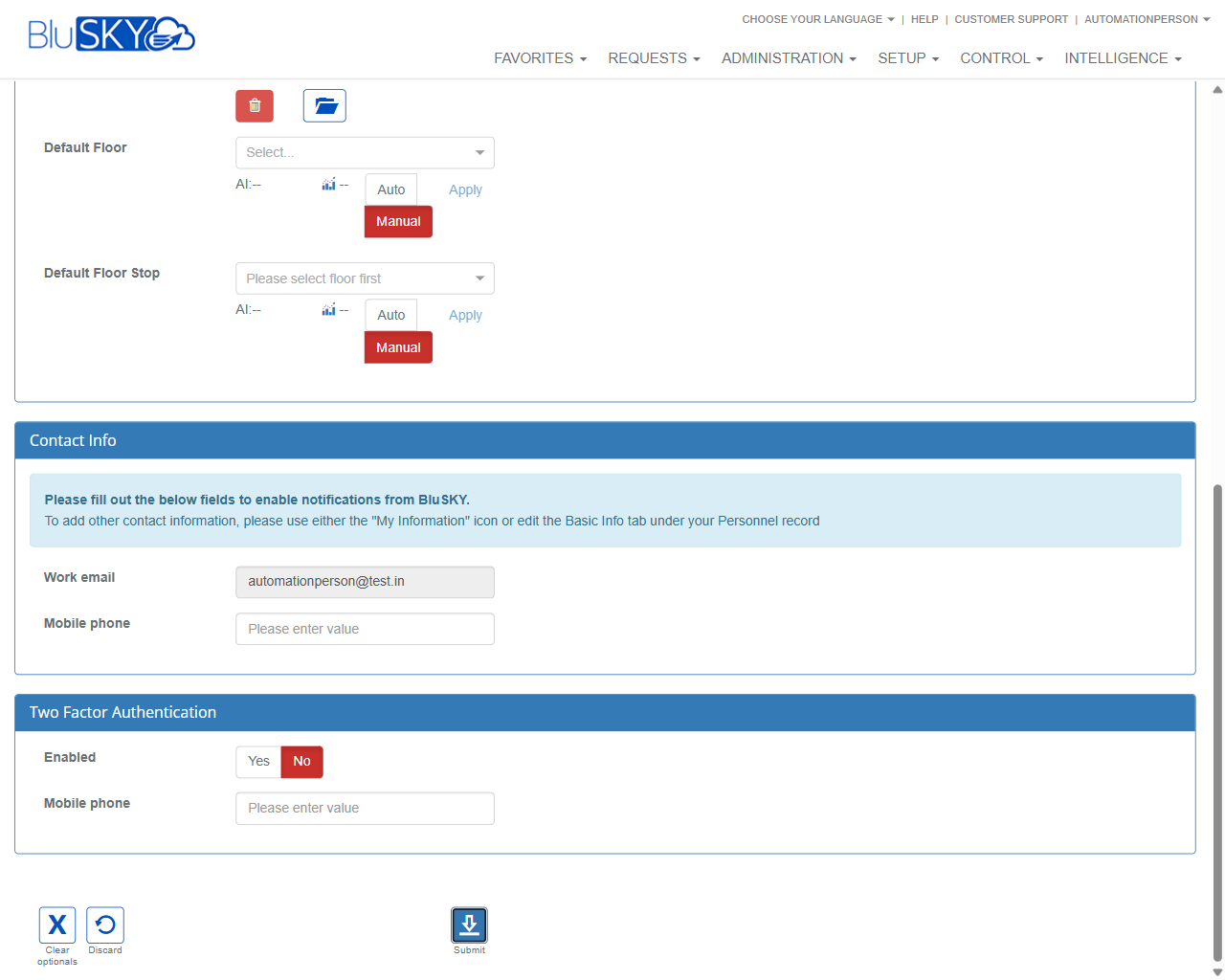
The Person Preferences screen lets administrators and end users manage individual profile preferences that affect notifications, time zone handling, destination dispatch elevator defaults, media consent, two‑factor authentication, and profile photo. Changes saved here immediately update the person’s profile across BluSKY.
Field Definitions
| Field Label | Definition | Notes |
|---|---|---|
| Appearance, Voice, Name Opt In | Consent toggle to allow BluSKY to use/display the person’s appearance, voice, and name in enabled features (e.g., intercom/video experiences). | Default is No in many systems. Some regions require explicit consent. |
| Time Zone | Time zone applied to this person for timestamps, schedules, and notifications. | Overrides the site default for this user. |
| DDE Auto Floor Assignment | Enables automatic calculation of the user’s default floor using Destination Dispatch Elevator (DDE) logic. | Available only when DDE is enabled for the site. |
| Inactivity seconds after video switches to live | Number of seconds of inactivity before the interface switches a video tile to live view. | Leave blank to use system default. Numeric only. |
| Picture | The person’s profile image displayed across BluSKY. | Use the upload button to change; trash icon removes the current image. File type/size limits apply per system policy. |
| Default Floor | The person’s primary floor used by elevator dispatch and wayfinding. | Use Auto/AI to get a suggestion, then Apply; or choose Manual to select from the list. |
| Default Floor Stop | The specific stop/landing on the default floor (e.g., bank or side). | Shown when the site uses granular stops. Also supports Auto/AI, Apply, and Manual selection. |
| Work email | Email address used for BluSKY notifications and, when applicable, account login. | May be read‑only if managed elsewhere (e.g., Personnel > Basic Info or directory sync). Required to receive email notifications. |
| Mobile phone (Contact Info) | Mobile number used for SMS notifications. | Enter in international format when possible. Optional unless required by policy. |
| Enabled (Two Factor Authentication) | Toggles two‑factor authentication (2FA) for this user. | When set to Yes, a valid mobile number is required. |
| Mobile phone (Two Factor Authentication) | Phone number used to deliver 2FA codes. | Must be reachable for OTP delivery; format validated on save. |
Screen Actions and Functions
- Submit – Saves all changes to the person’s preferences.
- Discard – Cancels edits and reverts to the last saved values.
- Clear optionals – Clears optional fields without affecting required ones.
- Upload Picture – Opens file picker to set a new profile image.
- Delete Picture – Removes the current profile image.
- Auto – Requests the system to automatically suggest a value (e.g., floor).
- AI suggestion/AI—indicator – Displays when an AI/automatic suggestion is available.
- Apply – Writes the suggested Auto/AI value into the field.
- Manual – Enables direct user selection/entry for the field.
Usage Instructions & Examples
-
Set Time Zone
- Open the Time Zone dropdown.
- Select the appropriate time zone.
- Click Submit.
-
Configure Default Floor with Auto/AI
- Ensure DDE Auto Floor Assignment is set to Yes if using DDE.
- Click Auto to fetch a suggested Default Floor.
- Review the suggestion and click Apply.
- If needed, repeat for Default Floor Stop.
- Click Submit.
-
Manually Choose Default Floor
- Click Manual under Default Floor.
- Select a floor from the dropdown.
- Optionally choose a Default Floor Stop.
- Click Submit.
-
Enable Two‑Factor Authentication
- Under Two Factor Authentication, set Enabled to Yes.
- Enter the Mobile phone number for OTP delivery.
- Click Submit; follow any verification prompts.
-
Update Profile Picture
- Click the Upload Picture button.
- Select an image file that meets system requirements.
- Confirm upload and click Submit.
-
Enable Notifications
- Verify Work email is correct.
- Enter a Mobile phone (optional or as required by policy).
- Click Submit.
System Behaviors and Edge Cases
- If 2FA is enabled without a valid mobile number, the system blocks submission and prompts for the number.
- Work email may be non‑editable on this page when managed from Personnel > Basic Info or via directory sync.
- Auto/AI suggestions are available only when the associated feature is enabled (e.g., DDE for floors). If disabled, Manual selection is required.
- Apply is enabled only when a valid suggestion exists; otherwise it has no effect.
- Default Floor and Default Floor Stop lists are limited to floors/stops the person is permitted to be assigned to within the site.
- Phone numbers are validated; non‑numeric or invalid formats may prevent saving. E.164 format is recommended.
- Leaving “Inactivity seconds after video switches to live” blank uses the system default.
- Deleting a picture removes it immediately upon Submit; the avatar placeholder displays until a new image is uploaded.
- Clear optionals removes values from optional fields but will not clear required items such as Work email when mandated by policy.
Permissions
- Accessible to Global Administrators, Tenant Administrators, and (when enabled) the person themselves via My Information.
- Editing preferences requires permission to update person records (e.g., EditPerson or equivalent).
- DDE‑related options appear only for sites licensed and configured for Destination Dispatch Elevators.
- 2FA settings may be restricted by security policy; some tenants may mandate 2FA and prevent disabling it.
Linked Workflows
- People (Personnel) record management for core identity details.
- Access Levels assignment after setting default floor preferences.
- Notifications configuration (email/SMS) leveraging Work email and Mobile phone.
- Destination Dispatch Elevator setup under Setup > Elevator/DDE.
- Account Security processes for 2FA enrollment and verification.
- My Information (self‑service) for users to review or update their own preferences, when allowed.
Reference Image Links