Notifications
Notification Screen
Screen Overview
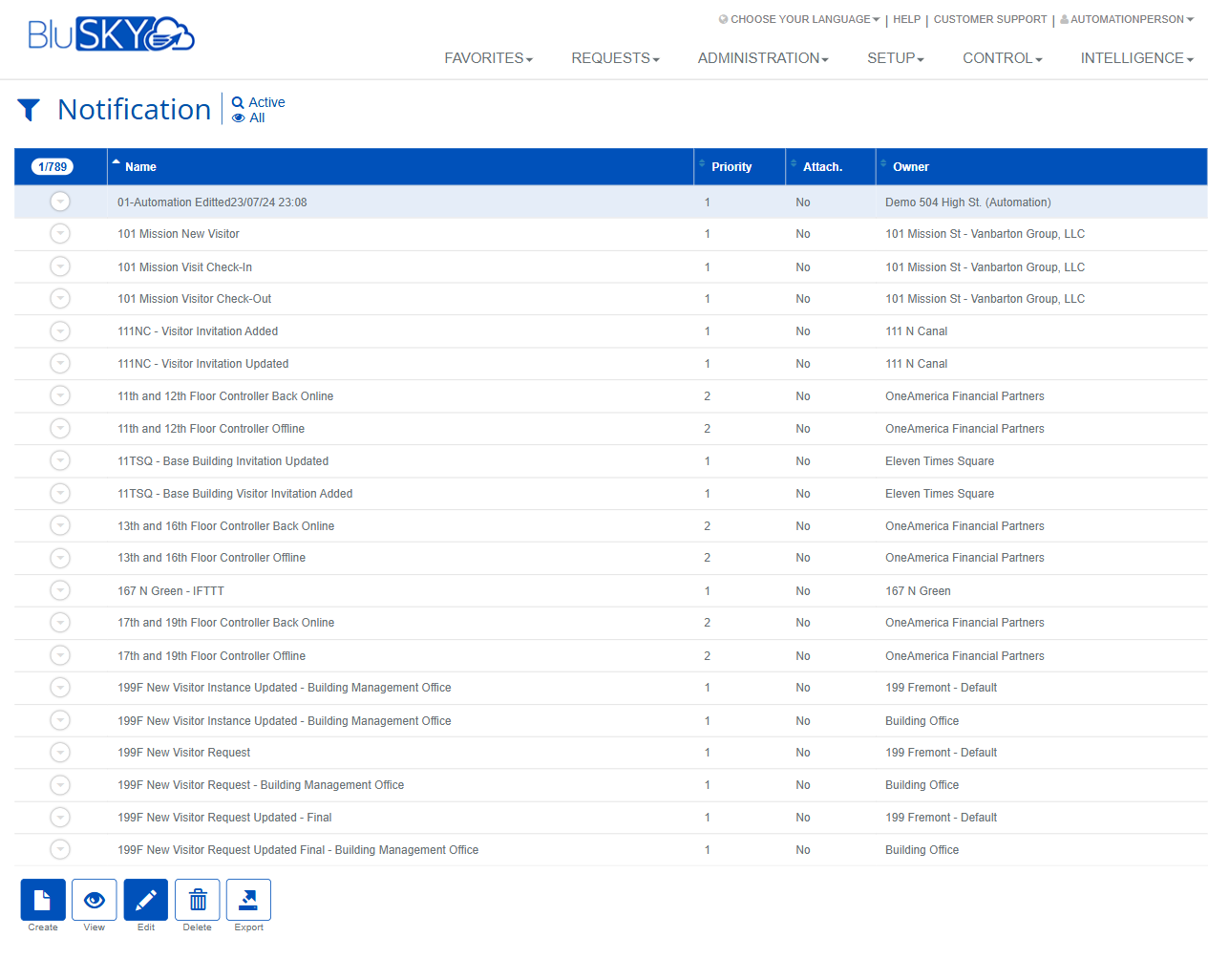
The Notification screen allows administrators to search, create, and manage notification templates used by BluSKY to communicate system events (e.g., visitor updates or controller status) by email or other methods. The screen provides filtering by system and facility, a results grid with key attributes, and a creation form for new templates.
Field Definitions
| Field Label | Definition | Notes |
|---|---|---|
| Active / All (quick filter) | Header toggle that limits results to Active notifications or shows All statuses. | Applies instantly to the list when used with the filter. |
| System | Filter to limit notifications to a specific system. | Optional; default is All systems. |
| Facility | Filter to limit notifications to a facility within the selected system. | Optional; default is All facilities. |
| Communication Category | Filter by the notification’s functional category. | Helps narrow results to a business area (e.g., visitor, system events). |
| Search | Status filter for the query (e.g., Active). | Defaults to Active. |
| View | Additional view filter that limits the set returned (e.g., All). | Defaults to All. |
| Search Text | Free-text filter that searches by Name. | Partial matches are supported. |
| Name | The display name of the notification template. | Required when creating a template. |
| Priority | The notification’s delivery/display priority. | Shown in the list; editing may be managed in advanced settings. |
| Attach. | Indicates whether the template includes or supports attachments. | Read-only in the list. |
| Owner | The entity that owns and can use the template. Options include System, System Group, Facility, Company, Occupancy, Vendor, and BluSKY. | Choose one when creating; determines visibility and usage scope. |
| Description | A short summary of the template’s purpose. | Required when creating a template. |
| Communication Type | The category/type of communication the template represents (e.g., Generic). | Used to organize templates and support workflows. |
| Communication Method | The transport used to send the notification (e.g., Email). | Determines delivery channel and available formatting. |
| Default Template | Toggle that marks this template as the default for its scope. | If set to Yes, it may become the preselected template within the chosen Owner scope. |
| Language | The language used for the template content. | Choose the language that matches recipients. |
Screen Actions and Functions
- Create – Opens the Create Notification form.
- Submit – Applies current filter selections and refreshes the results.
- Reset – Clears filters back to defaults.
- View – Opens the selected notification in read-only mode.
- Edit – Opens the selected notification for modification.
- Delete – Removes the selected notification(s) from active use.
- Export – Exports the current result set to a file.
- Save – Saves a new or edited notification template.
- Back To List – Returns to the results grid without applying unsaved changes.
- Back To Filter – Returns to the filter panel.
- Row Expand/Collapse – Expands a row to preview additional details where available.
- Record Selection – Selecting a row enables View/Edit/Delete actions; the selection count is shown above the grid (e.g., 1/789).
Usage Instructions & Examples
How to Find a Notification
- Open Notification.
- Optionally set System, Facility, and Communication Category.
- Leave Search = Active (default) or change as needed; keep View = All.
- Enter a keyword in Search Text (e.g., part of the Name) and click Submit.
- Select a row to view details or perform actions.
How to Create a New Notification Template
- Click Create from either the filter or list view.
- Enter Name and Description.
- Choose Communication Type and Communication Method.
- Select one Owner (e.g., Facility) and choose the appropriate Language.
- Set Default Template to Yes if this should be the preferred template for the chosen Owner.
- Click Save. You will be returned to the list, and the new template will appear.
How to Edit an Existing Template
- Search and locate the template.
- Select the row and click Edit.
- Update fields as needed and click Save.
How to Export the List
- Apply filters to narrow the results.
- Click Export to download the list using the current filters.
System Behaviors and Edge Cases
- Fields marked with a red asterisk are required; Save is disabled until required fields are complete.
- The action bar shows only Create and Export until a row is selected; selecting a row enables View, Edit, and Delete.
- Export includes only records matching the current filters.
- Reset clears all filter selections to their defaults (e.g., Active, All).
- Marking a template as Default may trigger validation if another default exists in the same scope; follow on-screen guidance to resolve conflicts.
- Navigating Back To List or Back To Filter without saving discards unsaved changes.
- If no records match, the grid shows zero results; you can still click Create.
Permissions
- Access typically granted to Global Administrators, Tenant Administrators, or users with Notification Management privileges.
- Edit and Delete require specific rights (e.g., EditNotification, DeleteNotification).
- Export may be restricted to users with data export permissions.
- Users without edit rights can search and view but cannot modify or delete templates.
Linked Workflows
- Notification templates can be referenced by event and alerting workflows across BluSKY (e.g., visitor invitation updates, controller status alerts).
- After creating a template, associate it in the relevant module or rule configuration so events trigger the correct communication method and content.
Reference Image Links