Card Uploads
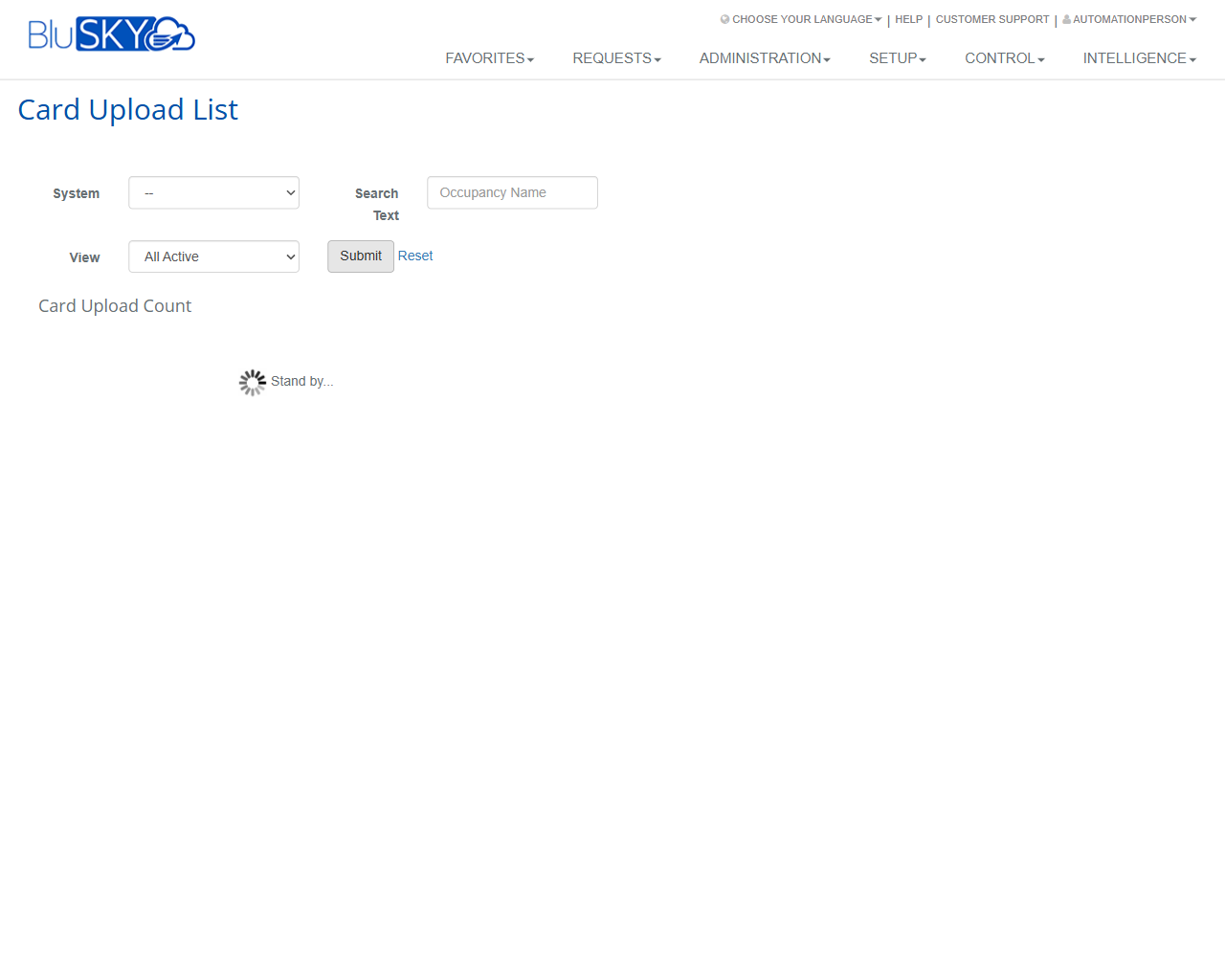
Card Upload List Screen
Screen Overview
The Card Upload List screen provides administrators with filters to find and review bulk card upload records associated with occupancies and systems. Use the System, Search Text, and View filters to narrow results, then run the search to display matching uploads. The page also shows a Card Upload Count indicator for quick insight into how many records match the criteria.
Field Definitions
| Field Label | Definition | Notes |
|---|---|---|
| System | Dropdown used to limit results to a specific connected access control system. | Default value is “--”. Only systems the user is authorized to view are listed. |
| Search Text | Free-text search box for matching records by Occupancy Name. | Partial text is typically supported; leave blank to return broader results. |
| View | Dropdown that filters by record status or visibility (e.g., All Active). | Default is “All Active”. Other options may include inactive or archived records depending on configuration. |
| Card Upload Count | Readout showing the total number of card upload records returned by the search. | Updates after Submit. Read-only. |
Screen Actions and Functions
- Submit – Executes the search with the selected filters and refreshes the results.
- Reset – Clears all filters back to their default values and clears current results (if any).
Usage Instructions & Examples
How to locate card uploads for a specific system and occupancy
- Open the System dropdown and select the desired system.
- In Search Text, type all or part of the occupancy name.
- Ensure View is set to the desired scope (e.g., All Active).
- Click Submit. Review the Card Upload Count and the returned list.
How to view inactive or archived uploads
- Open the View dropdown.
- Choose the option that includes inactive/archived records.
- Click Submit to refresh results.
How to clear filters and start over
- Click Reset.
- Re-enter filters as needed and click Submit.
System Behaviors and Edge Cases
- A “Stand by…” spinner displays while the system processes the query and loads results.
- Card Upload Count updates after each search, reflecting the total number of records that match the current filters.
- If the user lacks permission to a system, it will not appear in the System dropdown.
- Searches using Search Text are not case-sensitive in most configurations; if no records match, the results area will be empty and Card Upload Count will indicate zero.
- Leaving Search Text blank returns records based on System and View only, which may result in a large result set.
Permissions
- Page access is typically limited to users with administrative rights to the Setup module and to the target System(s).
- Ability to view records requires read permissions for card uploads within the selected system.
- Users without appropriate privileges will see an empty System list or no results.
Linked Workflows
- Review upload results, then validate created credentials in People/Credentials management screens.
- After identifying problem uploads, proceed to the corresponding upload detail page (if available) to review errors or reprocess as allowed by site configuration.
- Use import/upload utilities (outside this list) to initiate new card upload jobs, which will later appear in this list.
Reference Image Links