Integrators
Integrator List
Screen Overview
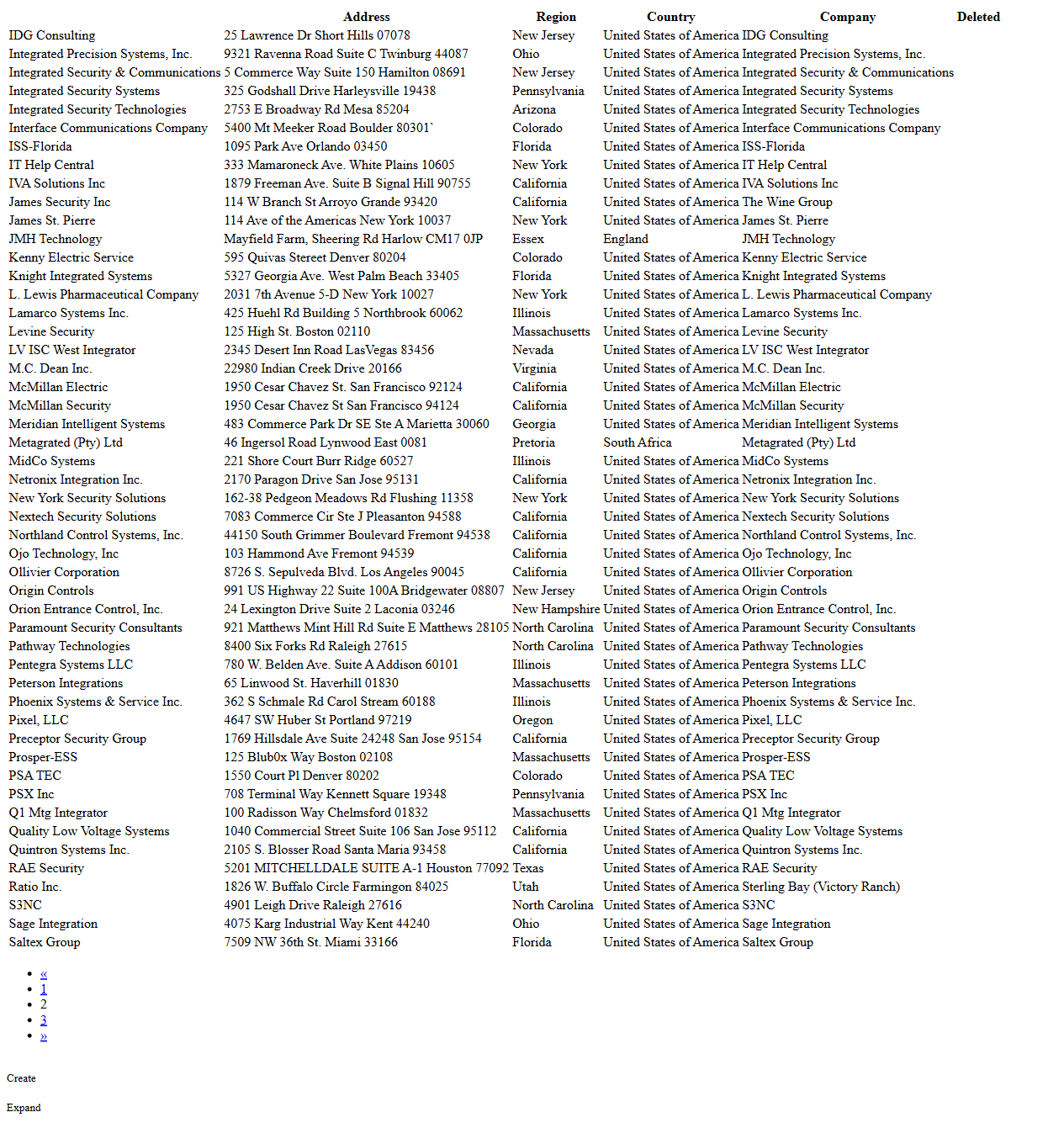
The Integrator List screen provides a searchable directory of integrator organizations used within BluSKY. Administrators can quickly locate integrators, review core details (address, region, country, and linked company), and perform record maintenance actions. The screen supports filtering by status, paginated browsing, and a printable expanded view.
Field Definitions
| Field Label | Definition | Notes |
|---|---|---|
| Search Text | Free-text search box for finding integrators by name. | Placeholder shows “integrator name”. Press Enter or click Submit to run the search. |
| View | Status filter for the list. | Default shown is “All Active”. Other options may be available based on configuration. |
| Submit | Executes the current search and filter criteria. | Disabled until criteria change; enabled when inputs are modified. |
| Reset | Clears Search Text and View to their defaults and reloads the list. | Useful for removing all filters. |
| Integrator Count | Displays the total number of integrators returned by the current criteria. | Read-only; updates after Submit/Reset (e.g., “Integrator Count 133”). |
| Selection Indicator | Shows how many rows are selected on the page header. | Appears after selecting a row (e.g., “(1/33 selected)”). |
| Integrator (column) | The integrator’s display name. | Clicking a row selects it; actions then become available. |
| Address (column) | Street address details for the integrator. | Read-only in the grid; editable in the record form. |
| Region (column) | State, province, or regional designation. | Format varies by country. |
| Country (column) | Country of the integrator’s address. | Standardized country names. |
| Company (column) | Linked Company record associated with the integrator. | Often matches the Integrator name; may link to a separate Company entity. |
| Deleted (column) | Indicates whether the record is soft-deleted. | Column appears in some views/permissions; values typically blank or “Yes”. |
| Pagination | Page number links shown below the list. | Use to navigate result pages; selection is cleared when changing pages. |
Screen Actions and Functions
- Submit – Runs the search using the entered criteria.
- Reset – Clears filters and reloads defaults.
- Create – Opens a form to add a new integrator.
- View – Opens the selected integrator in read-only mode.
- Edit – Opens the selected integrator for modification.
- Delete – Soft-deletes the selected integrator (sets Deleted flag).
- Expand – Toggles a print-friendly expanded list view; use browser print if needed.
- Row Select – Click a row to select it; action buttons (View/Edit/Delete) enable when a row is selected.
- Pagination – Navigate through additional pages of results.
Usage Instructions & Examples
How to find an integrator
- Enter part of the name in Search Text.
- (Optional) Change View to refine by status (e.g., All Active).
- Click Submit. Use the Pagination links to browse results.
- Click a row to select it and then click View to see details.
How to create a new integrator
- Click Create.
- Complete required fields on the integrator form (e.g., Name, Address, Country).
- Save. The new record appears in the list and contributes to Integrator Count.
How to update an integrator’s address
- Search for the integrator and click the row to select it.
- Click Edit.
- Update Address, Region, or Country as needed.
- Save and verify the grid reflects the change.
How to mark an integrator as deleted
- Locate and select the integrator.
- Click Delete.
- Confirm the action. The record is soft-deleted and will appear only in views that include deleted records (if permitted). The Deleted column will indicate its status.
How to get a print-friendly list
- Apply desired filters and click Submit.
- Click Expand to open the expanded list view.
- Use your browser’s Print function to print or save as PDF.
System Behaviors and Edge Cases
- Action availability changes with selection:
- No selection: only Create and Expand are shown.
- One row selected: View, Edit, and Delete become available.
- Searches are case-insensitive and match on integrator name; partial matches are supported.
- Changing pages or filters clears the current row selection and updates the Integrator Count.
- Delete performs a soft delete (record retained, flagged as Deleted); visibility depends on the View filter and user permissions.
- The Deleted column appears only in certain views or roles; it may be hidden otherwise.
- Expand switches to a tall, print-friendly layout and preserves current filters; use browser print to output.
- If Submit is clicked with no changes, the list refreshes with the existing criteria.
- Network timeouts or very large result sets may momentarily disable the Submit button while results load.
Permissions
- Access to this screen requires Setup privileges for Integrators.
- Create requires permission to add integrators.
- Edit requires permission to modify integrators.
- Delete requires permission to soft-delete integrators; button is hidden if not granted.
- Users with view-only rights can search and view records but cannot create, edit, or delete.
- The Deleted column and non-active records may be visible only to elevated roles.
Linked Workflows
- Company management – Integrator records can be associated with Company entities for organizational mapping and reporting.
- Service/Requests – Integrator information may be referenced when opening or routing support requests.
- Site/Project setup – During onboarding or configuration, an integrator may be linked to a site or project for accountability and contact routing.
Reference Image Links