Server Roles
Server Role List
Screen Overview
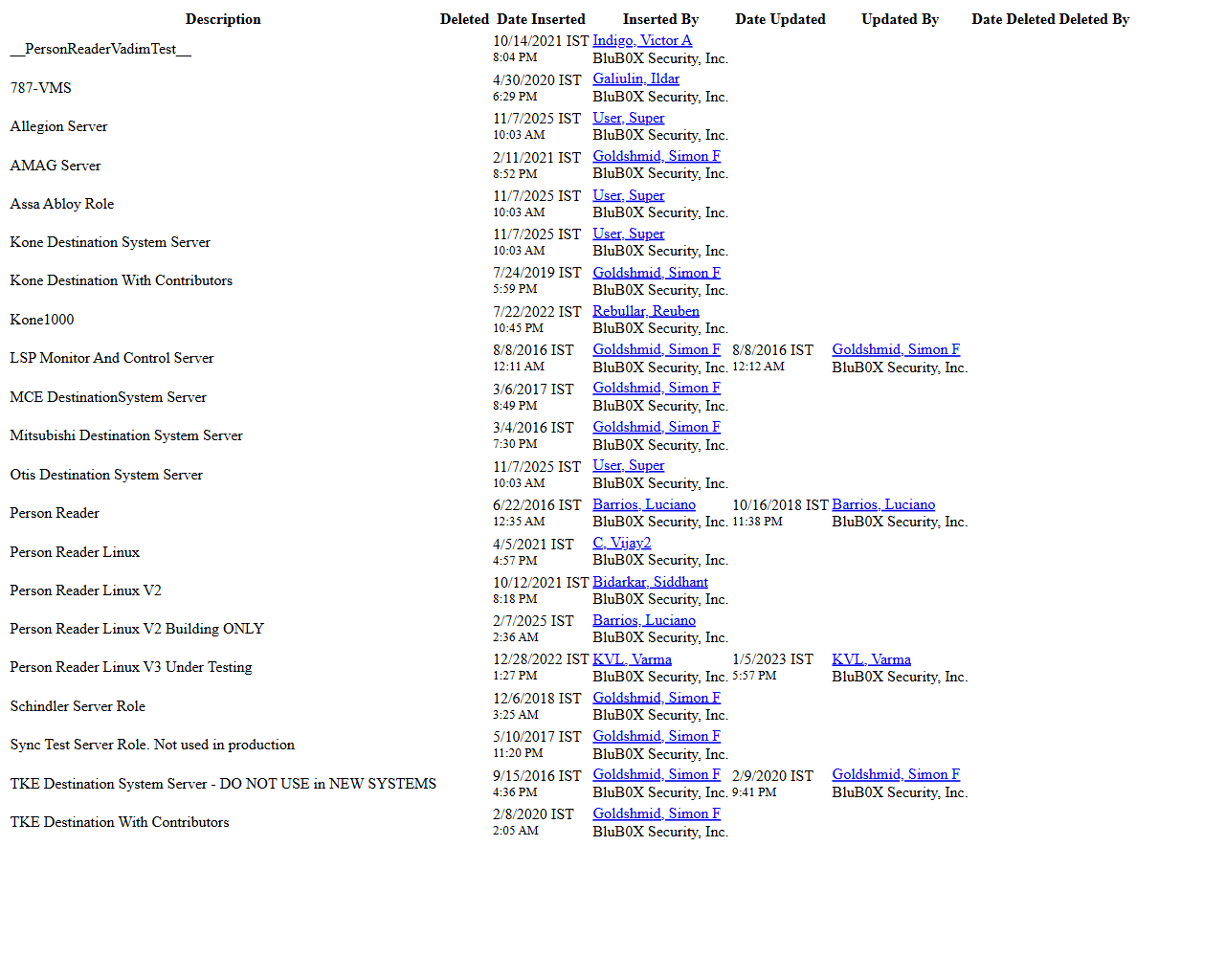
The Server Role List screen (Setup > Server Role List) is used to view and manage all Remote Server Roles that define capabilities for external systems and device integrations (e.g., destination systems, readers, middleware servers). It provides search and status filtering, row selection, and actions to create, view, edit, delete, and print a detailed list. Audit columns show who created or last updated each role.
Field Definitions
| Field Label | Definition | Notes |
|---|---|---|
| Search Text | Free‑text search for roles by name/description. | Case‑insensitive partial match. Enter text and click Submit to apply. |
| View | Status filter for the list. | Common options include All Active (default) and views that include deleted records. |
| Submit | Executes the current Search Text and View filter. | Refreshes the grid and updates Server Role Count. |
| Reset | Clears Search Text and restores default filters. | Returns the grid to its default state. |
| Server Role Count | Displays the number of roles returned by the current filter. | Updates after Submit/Reset. |
| Selected Count | Indicator showing how many rows are selected out of the total displayed. | Appears next to the title (e.g., “(1/21 selected)”). |
| Description | The name/description of the server role. | Primary identifier; click the row to select it. |
| Deleted | Flag indicating whether the role is soft-deleted. | Deleted roles are excluded from “All Active.” |
| Date Inserted | Timestamp when the role was created. | Read‑only, system-generated. |
| Inserted By | Person who created the record. | Hyperlink to the Person view. |
| Date Updated | Timestamp when the role was last modified. | Read‑only, system-generated. |
| Updated By | Person who last updated the record. | Hyperlink to the Person view. |
| Date Deleted | Timestamp when the role was deleted. | Visible in the expanded/print view and when filters include deleted items. |
| Deleted By | Person who performed the delete action. | Visible in the expanded/print view and when filters include deleted items. |
Screen Actions and Functions
- Create – Opens the form to add a new server role.
- View – Opens the selected role in read-only mode. Requires exactly one selection.
- Edit – Opens the selected role for modification. Requires exactly one selection.
- Delete – Soft-deletes the selected role(s); the record remains available in non-active views.
- Expand – Opens a printable, report-style page showing all rows and additional audit columns.
- Row Select – Click a row to select/deselect it. The actions toolbar enables when a selection is made.
- Person Links – Click Inserted By or Updated By to open the person’s record in a new tab/window.
Usage Instructions & Examples
How to find a server role
- Enter a keyword in Search Text (e.g., part of the role name).
- Optionally change View to include inactive/deleted records.
- Click Submit. Review results and Server Role Count.
How to view or edit a role
- Click a row to select it.
- Click View to review details, or Edit to modify the role.
- Save changes (Edit only). The grid updates and Date Updated/Updated By are refreshed.
How to create a new server role
- Click Create.
- Complete required fields on the create form (e.g., Description and any role-specific settings).
- Save. The new role appears in the list and Server Role Count increases.
How to delete (soft-delete) a role
- Select one or more rows.
- Click Delete and confirm.
- The roles are marked Deleted. Use View = a filter that includes deleted to see them again.
How to print or export the list
- Optionally apply Search/View filters.
- Click Expand to open the printable view.
- Use the browser’s Print or Save as PDF function to export.
System Behaviors and Edge Cases
- With no selection, only Create and Expand are available; View/Edit/Delete appear when at least one row is selected.
- Delete is a soft delete. Deleted, Date Deleted, and Deleted By are populated; items are hidden from “All Active” but visible in views that include deleted.
- Expand displays an audit-focused report with additional columns (e.g., Date Deleted, Deleted By) suitable for printing.
- Server Role Count updates after each Submit or Reset based on current filters.
- Person names in Inserted By and Updated By are hyperlinks; opening them requires permission to view Person records.
- If a role is referenced by an active remote server/integration, deletion may be blocked by system rules until dependencies are removed.
- Timestamps display with time zone abbreviations as configured for the tenant/user.
Permissions
- View the list: Users with ServerRole-View privilege (typically Global Administrators, System/Integration Administrators).
- Create: Requires ServerRole-Create.
- Edit: Requires ServerRole-Edit.
- Delete: Requires ServerRole-Delete.
- Person record links require permissions to view People.
Linked Workflows
- Remote Servers/Integrations – After creating a role, assign it within the relevant Remote Server or integration configuration screen.
- Audit and Compliance – Use Expand for a printable audit of creation, updates, and deletions.
- People – Click Inserted By or Updated By to open the related Person record for accountability.
Reference Image Links