Elevator Call Panels
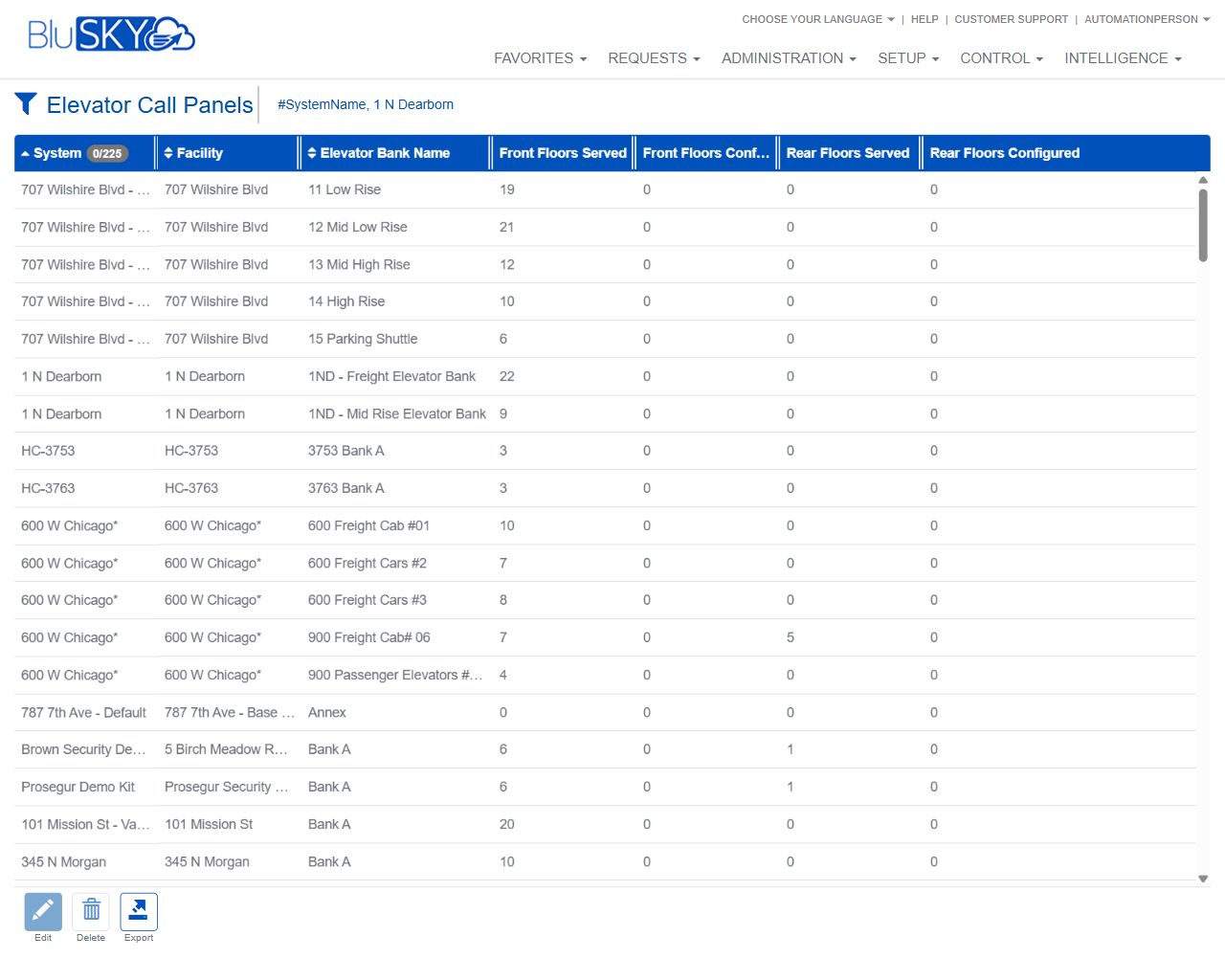
Elevator Call Panels Screen
Screen Overview
The Elevator Call Panels screen allows administrators to search, review, and manage elevator call panel configurations across systems, facilities, and elevator banks. Use the filters to narrow results and then perform actions such as editing configurations, deleting panels, or exporting the list. The results grid summarizes how many front and rear floors each call panel serves and how many are configured in BluSKY.
Field Definitions
| Field Label | Definition | Notes |
|---|---|---|
| System | Filter to one or more security/elevator systems. | Multi-select. Click the refresh icon to reload available systems. Required for scoped searching in multi-system environments. |
| Facility | Filter by facility/building within the selected system(s). | Defaults to All. Options cascade from System. Use the refresh icon to reload the list after changing System. |
| Elevator Bank | Filter by elevator bank that the call panel belongs to. | Defaults to All. Options cascade from Facility. Use the refresh icon to reload. |
| Floors | Filter by a specific floor or range served by the call panel. | Defaults to All. Options cascade from Elevator Bank. Use the refresh icon to reload. |
| Search Text | Free-text search for name-related attributes. | Placeholder shows “Name.” Supports partial, case-insensitive matches. Use ? for help and X to clear. |
| System (grid) | The system associated with the call panel in each result row. | Read-only, system-generated column. |
| Facility (grid) | The facility/building where the call panel is installed. | Read-only, system-generated column. |
| Elevator Bank Name | The bank associated with the call panel. | Read-only, system-generated column. Often reflects the operational grouping (e.g., “Low Rise”). |
| Front Floors Served | Count of front-entrance floors the panel can serve. | Derived from elevator configuration. |
| Front Floors Configured | Count of front-entrance floors configured in BluSKY for this panel. | May be less than or equal to “Front Floors Served.” |
| Rear Floors Served | Count of rear-entrance floors the panel can serve. | Derived from elevator configuration. |
| Rear Floors Configured | Count of rear-entrance floors configured in BluSKY for this panel. | May be less than or equal to “Rear Floors Served.” |
Screen Actions and Functions
- Reset – Clears all filters back to defaults.
- Submit – Applies the selected filters and loads the results grid.
- Edit – Opens the selected call panel for modification.
- Delete – Removes the selected call panel from BluSKY (subject to dependency checks).
- Export – Exports the current result set to a downloadable file (e.g., CSV/Excel).
- Column sorting – Click any column header to sort ascending/descending.
- Row selection – Click a row to select it; actions (Edit/Delete) are enabled when rows are selected.
Usage Instructions & Examples
-
Find call panels for a specific building
- Open Setup > Elevator Call Panels.
- In System, select the desired system(s).
- Choose the Facility.
- Optionally set Elevator Bank, Floors, or enter Search Text.
- Click Submit to view results.
-
Edit a call panel’s configuration
- Filter and Submit to locate the target panel.
- Select the desired row.
- Click Edit.
- Make necessary changes (e.g., floor assignments or naming) and save.
-
Export a list of call panels
- Apply filters to define the scope (System, Facility, etc.).
- Click Submit.
- Click Export to download the grid data for reporting/audit.
-
Remove a decommissioned call panel
- Locate the panel via filters and Submit.
- Select the row.
- Click Delete and confirm. Resolve any dependency warnings if prompted.
System Behaviors and Edge Cases
- Cascading filters: Facility options depend on System; Elevator Bank depends on Facility; Floors depend on Elevator Bank. Use the refresh icon beside each filter to reload choices after changing an upstream filter.
- “All” is the default for Facility, Elevator Bank, and Floors and returns every matching record within the selected System scope.
- Search Text performs a partial, case-insensitive match across name fields (panel/bank names). Clicking X clears the search instantly.
- Filters are not applied until Submit is clicked; changing a filter does not auto-refresh results.
- The results grid may virtualize/scroll for large datasets; sorting re-queries the current filtered set.
- Front/Rear “Served” counts reflect the hardware’s capability; “Configured” counts reflect what is defined in BluSKY and may be lower.
- Edit/Delete require at least one selected row. Some panels cannot be deleted if referenced by active elevator configurations; the system will block deletion and display a message.
- Export respects all active filters and current sort order.
Permissions
- View access: Users with Elevator Configuration – Read for the targeted System/Facility.
- Edit: Requires Elevator Configuration – Modify.
- Delete: Requires Elevator Configuration – Delete; may also require Facility scope.
- Export: Requires Data Export or equivalent reporting permission.
- Access typically granted to Global Administrators, System Administrators, and authorized Facility/Elevator Managers.
Linked Workflows
- Configure or review Elevator Banks before managing call panels (Setup > Elevator Banks).
- Manage floor mappings and access control for banks and cars (Setup > Elevator Floors / Floor Groups).
- After editing a panel, verify operation via Control > Elevator Activity or system monitoring dashboards.
- Update related access policies (Administration > Access Levels) if panel floor service changes impact tenant access.
Reference Image Links