Video Stream
Video Stream Screen
Screen Overview
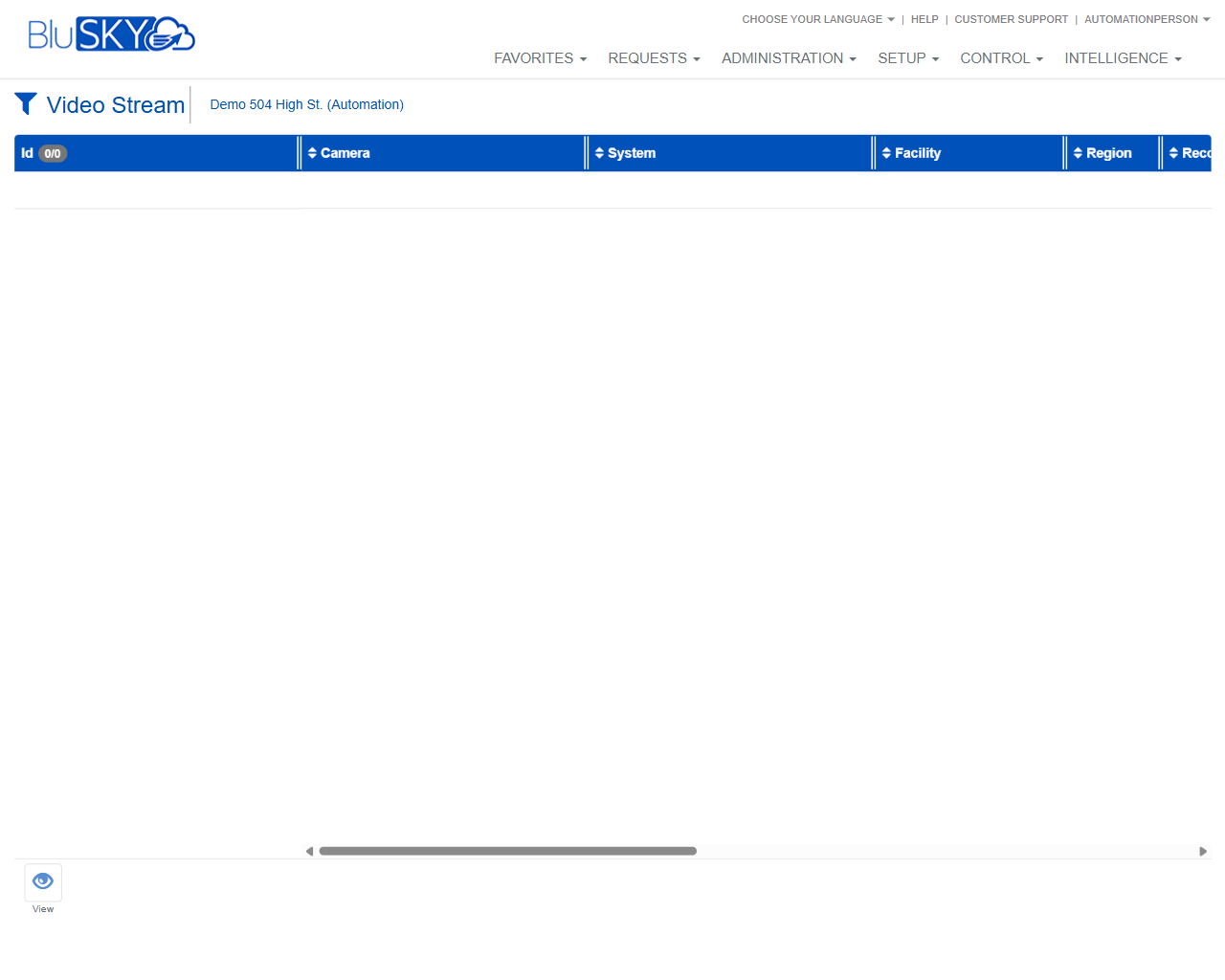
The Video Stream screen lets administrators and operators locate and review video stream records tied to cameras across systems, facilities, and regions. Use the filters to narrow the dataset (e.g., by recorder or health) and then view details for individual stream records in the results grid.
Field Definitions
| Field Label | Definition | Notes |
|---|---|---|
| System | Filters streams by the parent security/video system. | Optional. Leave as All to include every system you can access. |
| Facility | Filters streams by facility/building. | Multi-select. A selected facility appears as a removable tag. |
| Server | Filters by video server hosting or brokering streams. | Availability depends on your integration; may show “All.” |
| Region | Filters streams by defined region within a facility or enterprise. | Optional. Populated by the selected System/Facility. |
| Recorder | Filters by the Network Video Recorder (NVR) or VMS recording node. | Optional. Values depend on selected System/Server. |
| Camera | Filters by camera name or ID. | Optional. Use after narrowing by Facility/Recorder for faster loading. |
| Type | Filters by stream type. | Typical values may include Primary, Substream, or Integration-specific types. |
| Route | Filters by routing method for the stream. | Examples may include Direct, Proxy, or Cloud Relay (varies by integration). |
| Health | Filters streams by current health/state. | Examples may include Good, Warning, or Offline (varies by integration). |
| Id (grid column) | Unique identifier for the video stream record. | Read-only. Useful for audits and API references. |
| Camera (grid column) | Camera associated with the stream. | Click to sort; values reflect current camera names. |
| System (grid column) | System that owns the stream. | Read-only in this grid. |
| Facility (grid column) | Facility where the camera/stream resides. | Read-only in this grid. |
| Region (grid column) | Region mapped to the stream. | Read-only in this grid. |
| Recorder (grid column) | Recorder or recording server managing the stream. | Read-only in this grid. |
| Type (grid column) | The stream’s type as registered in the platform. | May not display if the column is off-screen; scroll horizontally. |
| Route (grid column) | The active route for the stream. | May not display if the column is off-screen; scroll horizontally. |
| Health (grid column) | Current health state for the stream. | Health may be unavailable for some integrations. |
Screen Actions and Functions
- Submit – Executes the search with the current filters and refreshes the grid.
- Reset – Clears all filters back to their defaults.
- Per-field Refresh – The circular arrow beside each filter reloads that field’s option list from the server.
- Column Sorting – Click any column header in the grid to sort ascending/descending.
- Horizontal Scroll – Use the bottom scrollbar to access columns that are off-screen to the right.
- View – Opens details for the selected stream record.
Usage Instructions & Examples
-
Find all streams for a facility
- Open Setup > Video Stream.
- In Facility, select one or more facilities.
- Click Submit to load the results.
- Sort by Camera or Recorder as needed.
-
Identify offline/problem streams
- Set Facility (optional) and Health = Offline or Warning.
- Click Submit.
- Select a row and click View to review details and troubleshoot.
-
Locate a specific camera’s stream and route
- Choose System and Facility.
- Select the Camera from the dropdown.
- Click Submit and check the Route and Recorder columns.
-
Refresh filter options after recent changes
- If a new camera/recorder was added, click the refresh icon beside the relevant filter (e.g., Recorder or Camera).
- Re-open the dropdown and make your selection.
- Click Submit.
System Behaviors and Edge Cases
- Filters are cascading; narrowing earlier filters (e.g., System, Facility) reduces the option lists for downstream fields (e.g., Recorder, Camera).
- If no results match, the grid displays an empty list and the counter shows 0/0.
- Health, Type, and Route values are integration-dependent; some systems may not report health or may use different labels.
- The Facility filter supports multiple selections; other dropdowns may be single-select depending on tenant configuration.
- The View action is enabled only when a single row is selected.
- Running Submit with all filters left as All returns all streams within your permission scope; this may be slower on very large datasets.
- The per-field refresh icon only reloads that field’s options; it does not execute the search. Use Submit to refresh the grid.
Permissions
- Access typically limited to users with administrative roles such as Global Administrator, Enterprise/Tenant Administrator, or Video Administrator.
- Visibility of systems, facilities, cameras, and streams is restricted to the user’s assigned scope.
- The View action requires read permission for the associated camera/recorder object.
- Users without Setup access cannot reach this screen.
Linked Workflows
- Camera configuration – Manage camera properties and assignments that affect stream listings.
- Recorder/NVR configuration – Add or modify recorders that host streams.
- Regions and Facilities – Maintain organizational mappings used by these filters.
- Device Health monitoring – Investigate persistent Offline/Warning states surfaced in the Health column.
Reference Image Links