System Setup Quick
System Setup
Screen Overview
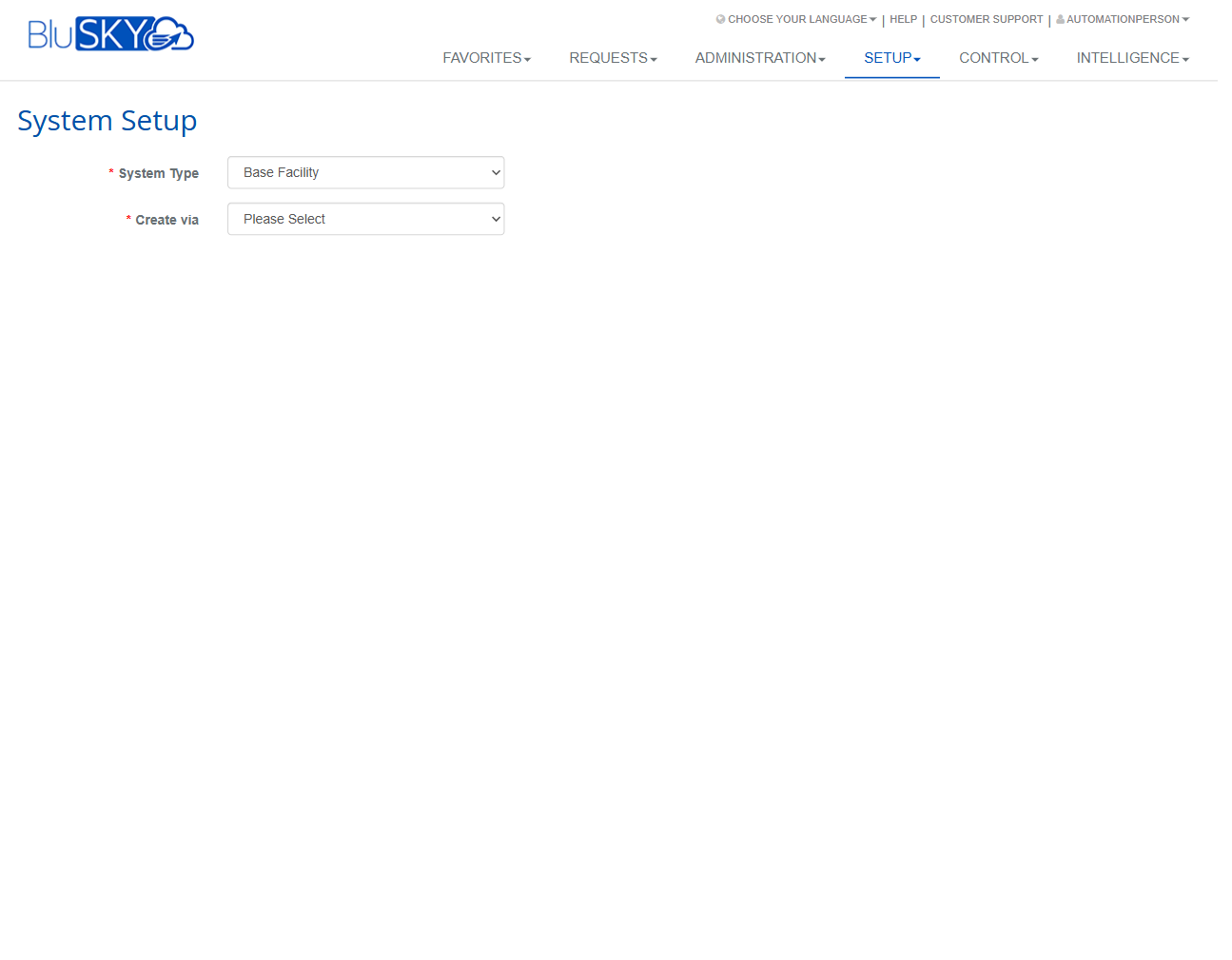
The System Setup screen is the starting point for creating a new BluSKY system configuration. Administrators choose the overall system model and the method by which the configuration will be created. Subsequent setup steps and required information depend on these two selections. Accessed from Setup > System Setup.
Field Definitions
| Field Label | Definition | Notes |
|---|---|---|
| System Type | Defines the structural model of the BluSKY environment to create (e.g., a base facility). | Required (indicated by a red asterisk). The selected type determines which creation methods and follow‑on setup pages are available. Default shown: Base Facility. |
| Create via | Selects the method used to create the system configuration (for example, from a template, copy/clone, or import). | Required. Available options vary by System Type, site configuration, and user permissions. Once both fields are set, the system routes you to the corresponding creation workflow. |
Screen Actions and Functions
- Select System Type – Chooses the target environment model and filters available creation methods.
- Select Create via – Chooses how the environment will be created; triggers navigation to the relevant setup flow when valid.
- Change selections – You can modify either dropdown at any time before proceeding; incompatible choices will be reset or blocked.
Usage Instructions & Examples
- Open Setup > System Setup.
- From System Type, choose the environment you want to create (e.g., Base Facility).
- From Create via, pick the creation method offered for your chosen type.
- Confirm your choices. The application will automatically advance to the appropriate setup workflow.
- Complete the fields required in the subsequent pages (these vary by method) and save.
Example A: Create a new base facility from a template
- Choose System Type = Base Facility.
- Choose Create via = Template (if available).
- Select the desired template on the next screen and follow the prompts to name the facility and set defaults.
- Save to generate the new configuration.
Example B: Create by copying an existing system
- Choose System Type matching the target environment.
- Choose Create via = Copy/Clone (if available).
- Select the source system, review what will be copied, and proceed.
- Update identifiers (e.g., name) and save.
System Behaviors and Edge Cases
- Required validation: You cannot proceed until both fields are populated.
- Dependency behavior: Changing System Type clears or refreshes the Create via options to ensure compatibility.
- Option visibility: The available Create via methods may differ by tenant, licensing, and user permissions.
- Redirect: After valid selections, the system automatically routes to the corresponding workflow (wizard, import, copy, etc.).
- Session timeout: Inactivity may time out the session; unsaved selections will be lost.
- Browser navigation: Using the browser Back button before saving will discard current selections.
Permissions
- Screen access is typically limited to roles with system configuration privileges (e.g., Global Administrators, Implementation/Integrator roles).
- Visibility of specific System Types and Create via options may be further restricted by role-based permissions and licensing.
- Users without the required permissions will not see the Setup menu or will be blocked from proceeding beyond this page.
Linked Workflows
- Facility/Building configuration wizard (when creating a base facility).
- Template-based system creation and default provisioning.
- Copy/Clone from an existing system, including post‑copy review.
- Import-driven setup (e.g., uploading structured configuration files).
- Post‑creation tasks such as device enrollment, access level creation, and credential configuration.
Reference Image Links