Inputs
Input List Screen
Screen Overview
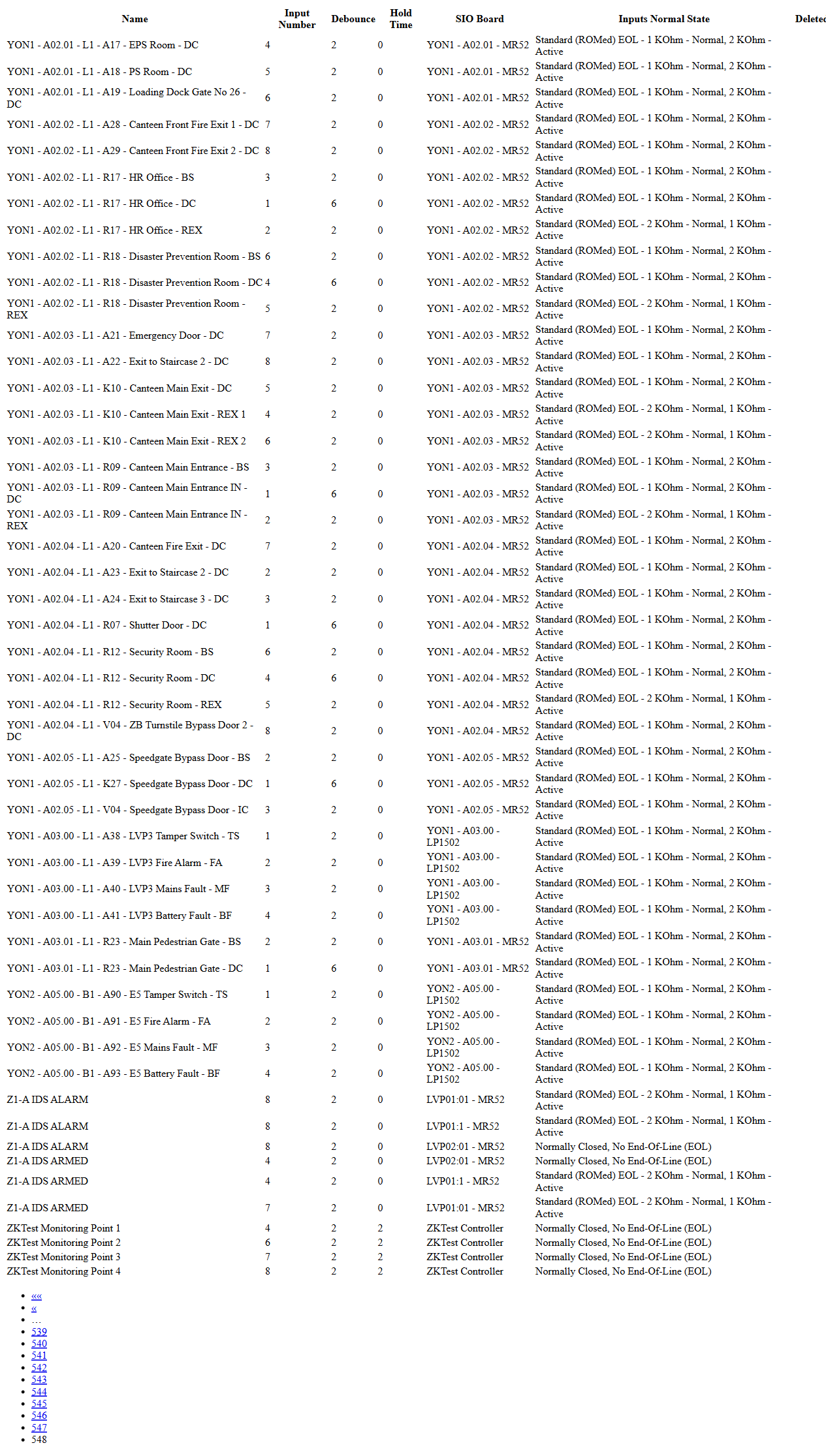
The Input List screen in Setup provides a searchable, filterable list of all hardware inputs configured in BluSKY (e.g., door position switches, REX devices, tamper switches). Administrators use this page to locate inputs by system, controller, or SIO board, review configuration attributes such as debounce and normal state, and open records for detailed viewing or create new inputs. An Expand view is available for fast, print-friendly browsing of very large lists.
Field Definitions
| Field Label | Definition | Notes |
|---|---|---|
| System | Dropdown to limit results to a specific access control system. | Selecting a system filters the Controller and SIO Boards lists. |
| Controller | Dropdown to filter inputs by a specific controller within the selected system. | Disabled until a system is chosen in some deployments. |
| SIO Boards | Dropdown to filter by a specific SIO (I/O) board. | Lists SIO boards associated with the selected controller/system. |
| Search Text | Free-text search box. | Performs a contains match on input Name (and commonly other metadata). Case-insensitive. |
| View | Status filter for the result set. | Default shown is “All Active.” Other options may include All or Deleted (availability depends on configuration/permissions). |
| Submit | Executes the current filters and refreshes the grid. | Changes to filters do not auto-apply until Submit is clicked. |
| Reset | Clears all filters back to defaults. | Also refreshes the grid. |
| Input Count | Displays the total number of inputs returned by the current filters. | Read-only; updates after Submit. |
| Name | The configured name/description of the input. | Click the row to select it for actions. |
| Input Number | The physical/logical input number on the SIO board. | Read-only in the list; configurable on the input detail page. |
| Debounce | The debounce interval applied to input state changes. | Helps ignore momentary chatter from the device. |
| Hold Time | The duration the input must remain active before acting. | Used to reduce false triggers. |
| SIO Board | The SIO board to which the input is connected. | Shown as board name/identifier; includes location hints in some sites. |
| Inputs Normal State | The expected electrical state when idle. | Examples: Normally Open (No EOL), Normally Closed (No EOL), Standard EOL with defined resistances. |
| Deleted | Indicates whether the input is soft-deleted. | Visible in Expand view; not shown on the standard grid. |
| Pagination Controls | Page navigator shown below the grid. | Use to move across result pages; includes first/last and jump controls. |
| Selection Counter | Indicator in the title showing how many rows are selected (e.g., “(1/50 selected)”). | Reflects current page selection. |
Screen Actions and Functions
- Submit – Apply current filters and refresh the list.
- Reset – Clear filters to defaults and reload.
- Create – Open the create form to add a new input.
- View – Enabled when a row is selected; opens the selected input’s detail page.
- Expand – Opens a high-density, print-friendly list view that includes the Deleted column.
- Row Select – Click any row to select/deselect it for actions.
- Pagination – Navigate between pages of results.
Usage Instructions & Examples
-
Find inputs on a specific SIO board
- Choose the System.
- Choose the Controller.
- Choose the SIO Board.
- Click Submit to refresh the list.
-
Search by name
- Enter a keyword in Search Text (e.g., “DPS” or “REX”).
- Optionally set View = All Active.
- Click Submit. Review matching rows.
-
View an input’s details
- Click a row to select it (confirm the Selection Counter updates).
- Click View to open the input detail page.
-
Create a new input
- Click Create.
- Complete required fields on the form (name, board, input number, normal state, timing).
- Save. The new input appears in the list after the page refreshes.
-
Review or print large result sets
- Apply filters to narrow the list as needed.
- Click Expand to open the condensed view.
- Use the browser’s print or export tools if a hard copy is needed.
System Behaviors and Edge Cases
- The page shows a “Stand by…” indicator while data is loading after Submit.
- Input Count updates after each search and reflects the filtered dataset.
- Filters are hierarchical: selecting a System constrains the available Controllers and SIO Boards.
- The View button is disabled until at least one row is selected.
- The Selection Counter reflects selections on the current page; changing pages clears or changes the count based on visible selections.
- Expand view renders faster for very large datasets and includes a Deleted column not shown in the standard grid.
- If no records match the filters, the grid is empty and Input Count shows 0.
- Changes to filters do not take effect until Submit is clicked.
Permissions
- Access to the Input List requires a role with hardware configuration rights (e.g., Global Administrator, System Administrator, or Installer).
- Create requires permission to add inputs for the selected system/controller.
- View is available to users with read access to the system’s hardware configuration.
- Deleted records visibility in View/Expand may be restricted by role.
Linked Workflows
- After creating or editing an input, map it to door functions (e.g., DPS or REX) or other automation rules in the relevant door/area configuration pages.
- Verify input activity under Control > Live Monitoring to confirm wiring and normal state.
- Manage related hardware under Setup > Controllers and Setup > SIO Boards.
Reference Image Links