Sio Boards
SIO Board List
Screen Overview
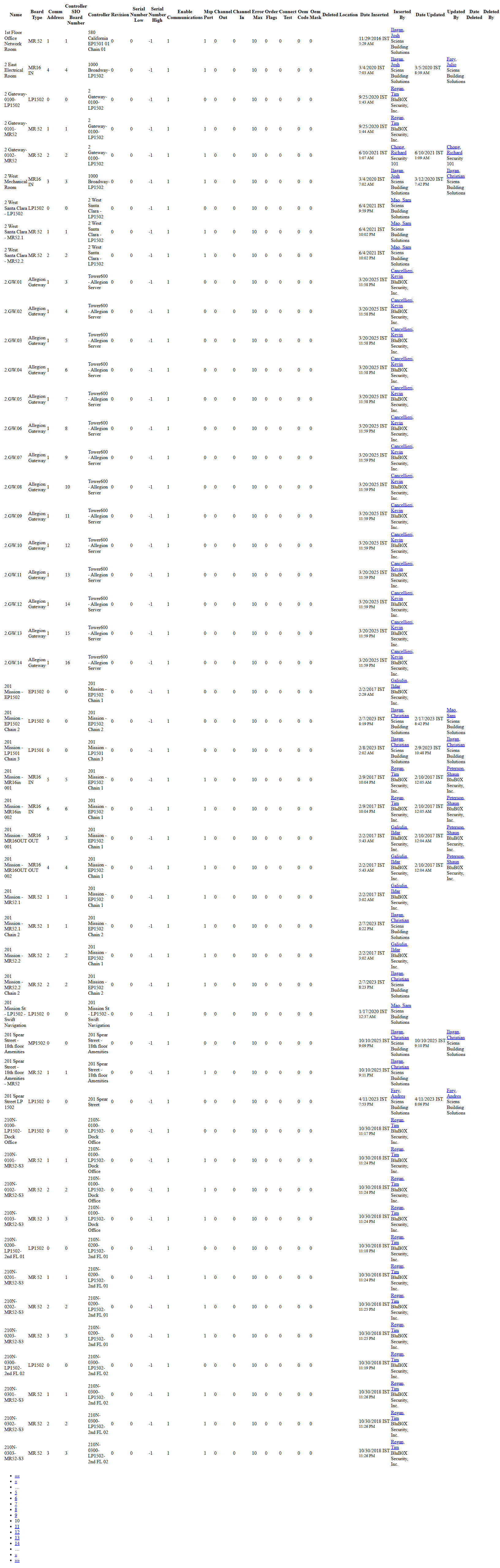
The SIO Board List screen provides tools to search, view, create, and maintain Serial I/O (SIO) boards connected to BluSKY-managed controllers. It includes filter criteria at the top and a results grid showing each board’s key attributes (name, type, addressing, parent controller, and revision). Use this screen to locate boards, adjust configuration, and manage lifecycle status.
Field Definitions
| Field Label | Definition | Notes |
|---|---|---|
| System | Dropdown used to filter boards by access control system. | Optional. Narrowing to a system speeds searches in large environments. |
| Controller | Dropdown to filter boards by a specific controller/panel. | Optional. Only controllers within the selected System are shown. |
| Search Text | Free-text search across board name (and commonly-used identifiers). | Partial matches supported. Leave blank to return all within filters. |
| View | Status filter to control the result set (e.g., All Active). | Defaults to All Active. Set to All/Inactive to include archived records. |
| Submit | Executes the search using current criteria. | Required to load or refresh results after changing filters. |
| Reset | Clears all criteria and returns filters to default values. | Also refreshes the grid. |
| Name | Display name of the SIO board. | Click a row or use View/Edit to open details. Expected to be unique per site. |
| Board Type | Hardware model/type of the board (e.g., MR52, MR50, LP1502, EP1502, Allegion Gateway). | Determines available channels/IO and addressing rules. Read-only in list. |
| Comm Address | Communication address of the board on the controller bus. | Must be unique on the bus. Typically numeric per manufacturer limits. |
| Controller SIO Board Number | The board’s indexed position/number as known by the controller. | Must be unique per controller. Often correlates with bus position. |
| Controller | Parent controller to which the SIO board is attached. | Read-only in list. Selectable via Controller filter above. |
| Revision | Firmware or board revision reported by the panel. | Read-only; helpful for troubleshooting/compatibility checks. |
| Row Expand | Per-row toggle to show additional details for that board (when available). | Appears as a small expand icon to the left of each row. |
| Pagination | Controls to navigate between pages of results. | Shows current page and total pages; use arrows/number buttons to move. |
| Result Count | Badge showing the total number of matching records. | Updates after Submit. Large counts may require paging. |
| Criteria Panel Toggle | Show/Hide control for the “Criteria” section. | Useful to maximize grid space on smaller screens. |
Screen Actions and Functions
- Create – Opens a form to add a new SIO board.
- View – Opens the selected board in read-only mode.
- Edit – Opens the selected board for modification.
- Delete – Removes (archives) the selected board from active use.
- Expand – Expands or collapses all rows in the grid to reveal additional per-board details (where available).
- Submit – Runs the search with the chosen filters.
- Reset – Clears filters to defaults and refreshes the grid.
- Column Sort – Click a column header to sort ascending/descending.
- Pagination – Navigate result pages using page numbers and arrow controls.
- Row Expand – Toggle details for a single row without leaving the list.
Usage Instructions & Examples
-
Locate boards for a specific controller
- Open System and choose the desired system.
- Open Controller and select the target controller.
- Leave View = All Active and click Submit.
- Use column sort or Search Text to refine by name if needed.
-
Create a new SIO board (example: MR52 on Controller A)
- Filter to the correct System and Controller, then click Submit.
- Click Create.
- Enter Name (e.g., “Floor 10 – MR52 A”).
- Select Board Type = MR52.
- Set Comm Address and Controller SIO Board Number according to your panel plan.
- Save. Confirm the new board appears in the list.
-
Update a board’s addressing
- Search for the board using Search Text or filters; click Submit.
- Select the row and click Edit.
- Adjust Comm Address or Controller SIO Board Number to an unused value.
- Save. If prompted, acknowledge any panel synchronization notices.
-
Review additional details for multiple boards
- Run your search and click Expand to expand all rows.
- Alternatively, use the Row Expand icon next to specific boards.
System Behaviors and Edge Cases
- The grid remains empty until Submit is clicked; a prompt may display “Select search criteria and submit.”
- Filters persist during the session; Reset restores defaults.
- Duplicate addressing (Comm Address or Board Number) on the same controller is blocked or warned, depending on configuration.
- Some boards/columns may display as read-only values that originate from the controller and update after panel synchronization.
- Deleting a board typically archives it; it will not appear unless View is set to All or Inactive.
- Sorting is applied per page; combined with Pagination, you may need to refine filters for precise ordering across very large datasets.
- Expand All on very large result sets can impact page responsiveness; use filters to narrow results first.
Permissions
- Access typically available to Global Administrators and users with Hardware/Setup management rights.
- Create/Edit/Delete require elevated hardware configuration permissions for the selected System/Controller.
- Users without edit rights can search and view but cannot modify or delete boards.
Linked Workflows
- Controller List – Open a controller to review or add its SIO boards from this list.
- Device/Point Configuration – After creating a board, configure downstream devices (e.g., inputs, outputs, readers) appropriate to the Board Type.
- Panel Synchronization/Download – Changes to addressing or board membership may require a controller update to take effect.
Reference Image Links