Watchlist Risk Level
Watchlist Risk Level Screen
Screen Overview
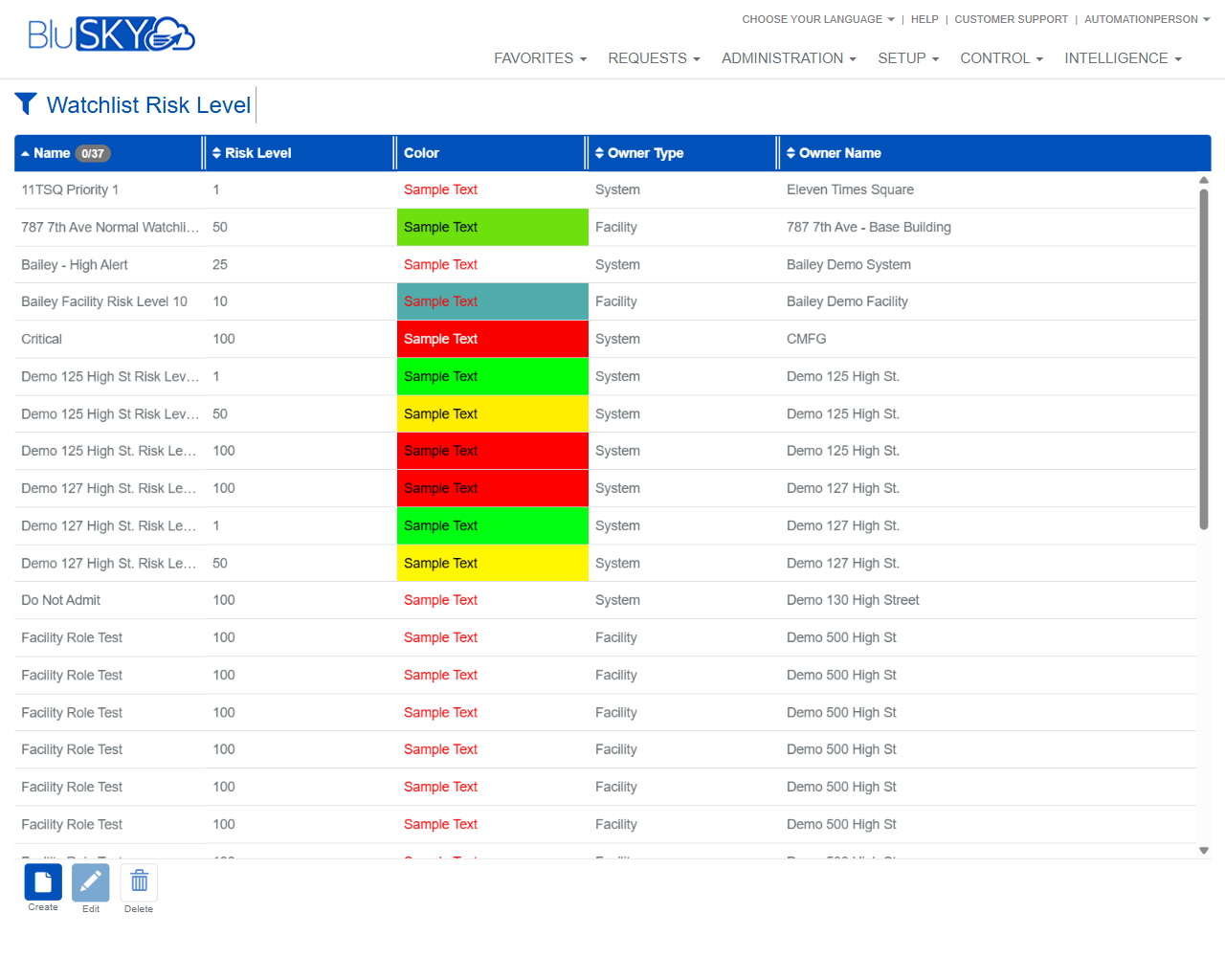
The Watchlist Risk Level screen allows administrators to define and maintain the standardized risk levels used across watchlist processes. It provides filters to scope records by System Group, System, and Facility, and a results grid to view, create, edit, or delete risk level definitions. Color coding and numeric values make it easy to distinguish severity.
Field Definitions
| Field Label | Definition | Notes |
|---|---|---|
| System Group | Filter that limits available Systems to the selected group. | Default is All. Use the refresh icon to reload options after changes to hierarchy. |
| System | Filter that limits available Facilities and records to the selected System. | Default is All. Options are constrained by the selected System Group. Refresh icon available. |
| Facility | Filter that returns records owned by or applicable to a specific Facility. | Default is All. Options are constrained by the selected System. Refresh icon available. |
| Name | Display name of the risk level. | Should be descriptive (e.g., High Alert, Do Not Admit). Appears in watchlist views and reports. |
| Risk Level | Numeric severity value used to rank risk. | Integer (typical range 1–100; higher values indicate greater risk). |
| Color | Visual color associated with the risk level for quick recognition. | Shows as a color swatch in the grid. Choose contrasting colors for readability. |
| Owner Type | Scope of ownership for the record. | Common values: System or Facility. Determines who can use/see the definition. |
| Owner Name | The specific System or Facility that owns the record. | Read-only in the grid; set during creation or edit. |
Screen Actions and Functions
- Reset – Clears all filters back to All.
- Submit – Applies the selected filters and refreshes the grid.
- Create – Opens a form to add a new watchlist risk level.
- Edit – Opens the selected record for modification.
- Delete – Removes the selected record from use.
- Refresh picker icons – Reload available options for System Group, System, or Facility.
- Sort by column – Click any column header (e.g., Name, Risk Level) to sort ascending/descending.
- Row selection – Click a row to select it for Edit or Delete.
Usage Instructions & Examples
How to find risk levels for a specific facility
- From Setup > Watchlist Risk Level, choose the appropriate System Group.
- Select the System that contains your Facility.
- Select the Facility and click Submit.
- Review the filtered list, sorted by Risk Level if needed.
How to create a new “Do Not Admit” risk level
- Click Create.
- Enter Name = “Do Not Admit”.
- Set Risk Level to 100.
- Choose a distinct Color (e.g., red).
- Set Owner Type and Owner Name to the desired scope (System or Facility).
- Save. The new record appears in the grid and can be used by watchlist processes.
How to update the color of an existing level
- Select the target record in the grid.
- Click Edit.
- Change the Color to improve visibility.
- Save and verify the color swatch in the grid.
How to clean up unused levels
- Filter by System/Facility to narrow the list.
- Select the record you want to remove.
- Click Delete and confirm when prompted.
System Behaviors and Edge Cases
- Filters are hierarchical: System list is constrained by System Group; Facility list is constrained by System.
- Clicking Reset reverts all filters to All and clears current selections.
- Edit and Delete are disabled until a single row is selected.
- Grid shows a live color swatch for each record to represent the assigned Color.
- If no filters are applied and you click Submit, the grid returns all records the user is permitted to view.
- Sorting persists until you change it or navigate away.
- Deleting a risk level that is referenced elsewhere may be prevented by system configuration and require reassignment before deletion.
Permissions
- Accessible to users with administrative privileges for Setup in the selected System/Facility.
- Create, Edit, and Delete require manage-level permissions for Watchlist Risk Levels.
- Users with view-only permissions can filter and view results but cannot modify records.
Linked Workflows
- Watchlist management: Risk levels are referenced by watchlist entries to standardize severity.
- Alerting/escalation rules: High risk levels can be used to trigger notifications and operational responses.
- Reporting and dashboards: Risk level names, values, and colors appear in security and compliance reports.
Reference Image Links