Power Controllers
Power Controller Screens
Screen Overview
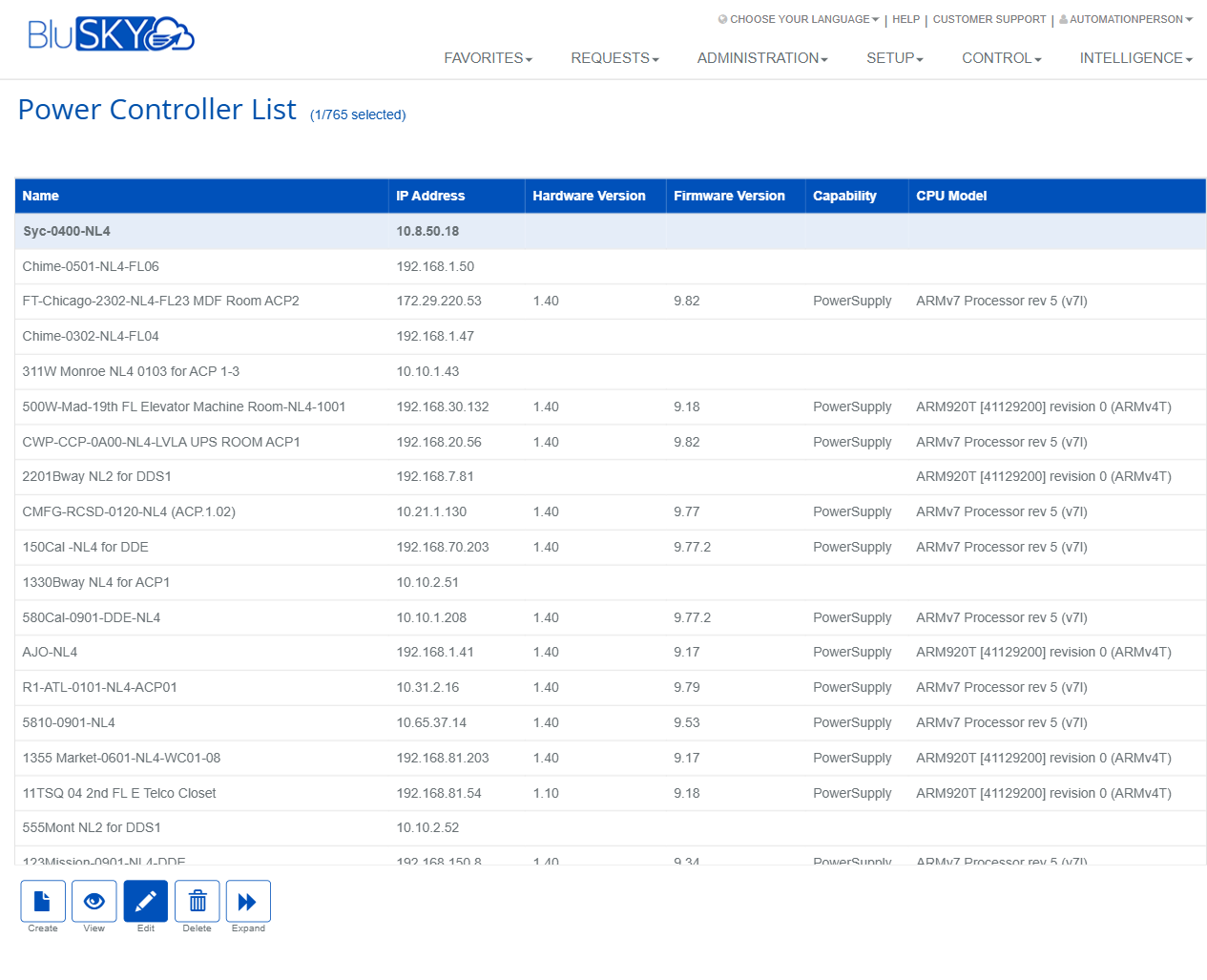
The Power Controller screens allow administrators to register and manage network-addressable power controllers used for power monitoring and control. The list view displays all configured controllers with key hardware details; the create form is used to add a new controller and define communication parameters and polling intervals.
Field Definitions
| Field Label | Definition | Notes |
|---|---|---|
| Name | Descriptive name of the power controller. | Shown in the list and throughout the system. Recommended to be unique. |
| Server | Host server within BluSKY to which this controller is assigned. | Drop-down selection. Required for device association. |
| Model | Hardware model of the power controller. | Drop-down selection. Determines supported capabilities. |
| IP Address | Network IPv4 address of the controller. | Required (indicated by red asterisk). Must be a valid IP format. |
| User Name | Login username used to authenticate to the controller. | Optional depending on device/security configuration. |
| Password | Login password used to authenticate to the controller. | Entered as a masked value. |
| Configuration Poll Interval Seconds | Frequency (in seconds) to poll for configuration/state changes. | Default shown: 60. Must be a positive integer. |
| System Poll Interval Seconds | Frequency (in seconds) to poll for system health. | Default shown: 60. Must be a positive integer. |
| Power Management Poll Interval Seconds | Frequency (in seconds) to poll for power metrics. | Default shown: 60. Must be a positive integer. |
| MaxPower Supply Number | Maximum number of power supplies supported/expected on this controller. | Default shown: 2. Integer only. |
| Max M8 Module Number | Maximum number of M8 modules supported/expected. | Default shown: 2. Integer only. |
| Hardware Version | The controller’s hardware revision as reported by the device. | Read-only in list view. |
| Firmware Version | The controller’s firmware/software version. | Read-only in list view. Useful for troubleshooting. |
| Capability | Reported capability profile of the device (e.g., PowerSupply). | Read-only in list view. |
| CPU Model | Processor model reported by the device. | Read-only in list view. |
Screen Actions and Functions
- Create (list) – Opens the Create Power Controller form.
- View – Opens a read-only view of the selected controller.
- Edit – Opens the selected controller for modification.
- Delete – Removes the selected controller from the system (subject to permissions).
- Expand – Expands the grid to maximize working area.
- Create (form) – Saves the new controller record.
- Back To List – Returns to the Power Controller List without saving.
Usage Instructions & Examples
How to Add a New Power Controller
- In Setup > Power Controller List, click Create.
- Select Server and Model.
- Enter Name and a valid IP Address.
- (Optional) Enter User Name and Password.
- Review or adjust the polling intervals and maximum module/supply values.
- Click Create to save. You are returned to the list with the new controller visible.
How to Edit an Existing Controller
- From the list, select a controller row.
- Click Edit.
- Update fields as needed (e.g., IP Address or polling intervals).
- Save your changes.
How to View Device Details
- Select a controller row.
- Click View to open a read-only summary of the device attributes.
How to Delete a Controller
- Select the controller to remove.
- Click Delete.
- Confirm the deletion when prompted.
How to Expand the List for Easier Browsing
- Click Expand to enlarge the grid area.
- Click Expand again (or use the UI control) to return to the standard layout.
System Behaviors and Edge Cases
- Action availability changes with selection: without a selected row only Create and Expand are shown; selecting a row reveals View, Edit, and Delete.
- IP Address is mandatory; the Create button remains disabled or will fail validation if it is missing or not in a valid format.
- Polling interval fields accept whole seconds only; very low values may increase network and controller load.
- Default values are pre-populated for polling intervals and maximum module/supply counts; these can be adjusted before saving.
- Deletion may be restricted by permissions or organizational policies; if blocked, the system will display an error or warning.
- Password fields are masked during entry for security.
- The list header displays the current selection count (e.g., “(1/7655 selected)”).
Permissions
- Access to the Power Controller List and Create/Edit/Delete functions is typically limited to users with device setup/administration rights.
- View is available to users with read access to Setup data.
- Delete requires elevated privileges; some tenants may restrict it to Global Administrators or integrator roles.
Linked Workflows
- After adding a power controller, administrators typically proceed to configure associated power supplies/modules supported by the device.
- Controllers added here appear in system monitoring and maintenance workflows where power status and device health are observed.
- Firmware and hardware details from the list can be used in support and upgrade planning processes.
Reference Image Links