System Groups
System Group List
Screen Overview
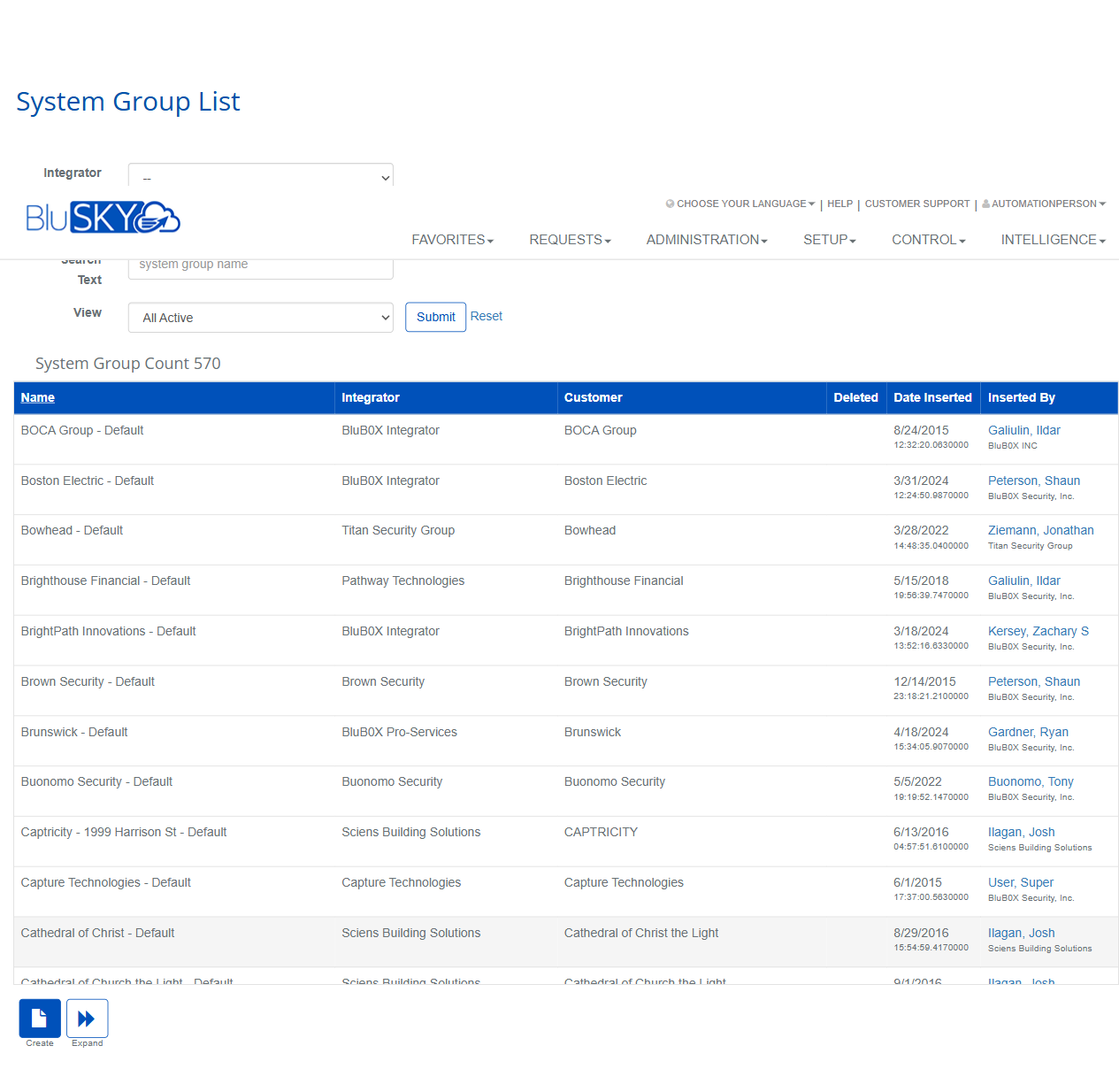
The System Group List screen provides a searchable list of all System Groups in BluSKY. It allows users to filter by Integrator and Customer, search by name, review audit information (creator, last update, deletion), and perform actions such as creating, viewing, editing, deleting records, and toggling an expanded audit view.
Field Definitions
| Field Label | Definition | Notes |
|---|---|---|
| Integrator (filter) | Dropdown to limit the list to System Groups owned/managed by an Integrator. | Optional; “--” shows all. |
| Customer (filter) | Dropdown to limit the list to a specific Customer. | Optional; “--” shows all. |
| Search Text | Free-text search for System Group name. | Partial matches supported; placeholder shows “system group name”. |
| View | Filter for record state. | Defaults to “All Active”; other options may be available based on permissions. |
| Submit | Executes the current filter/search criteria. | Required to refresh results after changing filters. |
| Reset | Clears all filters and returns the list to defaults. | Restores default View and empties Search Text. |
| System Group Count | Displays the total number of System Groups returned by the current filters. | Read-only. |
| Name (column) | The System Group’s display name. | Often formatted “<Name> - Default”; typically clickable when permitted. |
| Integrator (column) | The Integrator associated to the System Group. | Read-only in the list. |
| Customer (column) | The Customer associated to the System Group. | Read-only in the list. |
| Deleted (column) | Indicates deletion status/date. | Blank = active; may show the deletion date/time when deleted. |
| Date Inserted (column) | Timestamp when the System Group was created. | Read-only; visible in expanded view. |
| Inserted By (column) | User who created the System Group. | Shows user name (and organization). Visible in expanded view. |
| Date Updated (column) | Timestamp of the most recent update. | Visible in expanded view. |
| Updated By (column) | User who last updated the System Group. | Visible in expanded view. |
| Date Deleted (column) | Timestamp when the System Group was deleted. | Visible in expanded view; blank if not deleted. |
| Deleted By (column) | User who deleted the System Group. | Visible in expanded view; blank if not deleted. |
| Pagination | Page number links at the bottom of the list. | Navigate between result pages. |
| Selection Indicator | Shows the number of selected rows (e.g., “1/50 selected”). | Appears when one or more rows are selected. |
Screen Actions and Functions
- Submit – Runs the search with the selected filters.
- Reset – Clears filters and reloads defaults.
- Create – Opens the create form to add a new System Group.
- View – Opens the details of the selected System Group.
- Edit – Opens the selected System Group in edit mode.
- Delete – Marks the selected System Group as deleted.
- Expand – Toggles additional audit columns (Date/By fields) on or off in the grid.
- Column sort – Click any column header to sort ascending/descending.
- Row select – Click a row to select it; multi-select may be available based on configuration.
- Pagination – Use page numbers to move through result sets.
Usage Instructions & Examples
How to find a System Group
- Choose an Integrator and/or Customer from the dropdowns as needed.
- Enter all or part of the group name in Search Text.
- Ensure View is set appropriately (e.g., All Active).
- Click Submit to refresh results.
- Click the row and then View to open details.
How to show audit details for groups
- Click Expand in the bottom toolbar.
- Review Date Inserted, Inserted By, Date Updated, Updated By, Date Deleted, and Deleted By columns.
- Click Expand again to collapse back to the simple view.
How to create a System Group
- Click Create.
- Complete required fields in the create form (name and associations).
- Save. The new record appears in the list and the System Group Count updates.
How to edit an existing System Group
- Select the desired row.
- Click Edit.
- Modify the fields as needed and Save.
How to delete a System Group
- Select the target row.
- Click Delete and confirm when prompted.
- The group is marked deleted; use the View filter to include deleted records if you need to review or audit.
System Behaviors and Edge Cases
- Actions that require a selection (View, Edit, Delete) remain disabled until at least one row is selected; the selection count appears next to the screen title.
- Expand adds audit columns and may require horizontal scrolling on smaller screens.
- Reset clears all filters and returns the View to its default; it also resets sorting to the system default.
- Search Text performs a contains match on the Name column; empty Search Text with Submit returns results per other filters.
- Deleted records are hidden when View is set to All Active; use an alternate View to see deleted records and their deletion audit data.
- If no results match the filters, the grid is empty and only Create, Expand, Submit, and Reset remain available.
- Pagination preserves the current filter set until Reset is clicked.
Permissions
- View access requires permission to read System Groups (e.g., ViewSystemGroups).
- Create and Edit require elevated rights (e.g., CreateSystemGroups and EditSystemGroups).
- Delete requires delete rights (e.g., DeleteSystemGroups); may be restricted to Integrator or Global Administrators.
- Availability of Integrator and Customer filter scopes depends on user role (Global/Integrator/Customer Administrator).
Linked Workflows
- From the System Group detail screen, administrators typically:
- Associate Systems to the group.
- Configure default settings and templates that apply across Systems in the group.
- Manage ownership and sharing between Integrator and Customer organizations.
- After creating or editing a System Group, proceed to related configuration screens (e.g., Systems, Access Levels, or Roles) as required by your deployment.
Reference Image Links