Elevator Security Beta
Setup Workspace Screen
Screen Overview
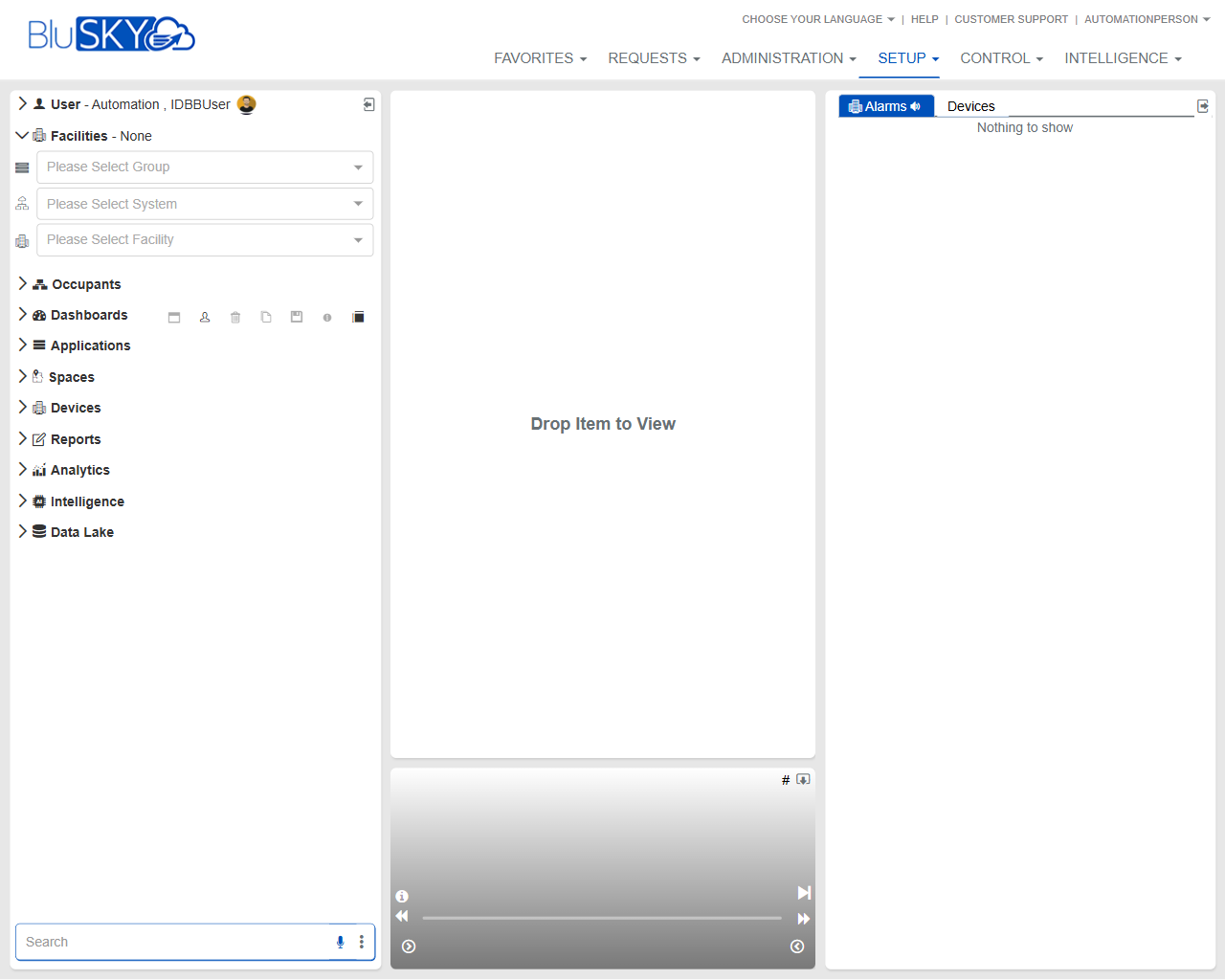
The Setup Workspace provides a configurable work area for configuring and reviewing BluSKY systems. Use the Group/System/Facility selectors to set scope, then drag items from the left navigation (e.g., Devices, Occupants) into the center canvas to open their setup views. A real-time Alarms panel on the right displays device-related alarms for the selected scope.
Field Definitions
| Field Label | Definition | Notes |
|---|---|---|
| User | Displays the signed-in user and opens the account menu. | Shown at the top-left (e.g., “User – Automation, IDBUser”). |
| Facilities | Shows the current facility scope status. | Displays “None” until a facility is selected. |
| Group | Drop-down to select a customer, portfolio, or organizational group. | Selecting a Group filters available Systems and Facilities. |
| System | Drop-down to select the target access/video/intercom system. | Options depend on the chosen Group. |
| Facility | Drop-down to select the site/campus/building to configure. | Required to load most setup lists. |
| Occupants | Navigation entry to drag occupant-related setup into the canvas. | Expand to reach people, visitors, vendors (content varies by deployment). |
| Dashboards | Navigation entry for administrative dashboards. | Drag to view dashboards scoped by the current selection. |
| Applications | Navigation entry for application-specific setup (e.g., Visitor, Identity). | Availability depends on licensed modules. |
| Spaces | Navigation entry for space/building structure setup. | Includes floors, suites, and related structures. |
| Devices | Navigation entry for hardware and endpoints. | Drag to configure controllers, readers, doors, cameras, etc. (as available). |
| Reports | Navigation entry to open reporting tools. | Opens report lists relevant to the current scope. |
| Analytics | Navigation entry to open analytics modules. | Visibility depends on entitlements. |
| Intelligence | Navigation entry to advanced analytics/AI features. | Availability varies by tenant. |
| Data Lake | Navigation entry to data export or warehouse features. | Requires appropriate licensing. |
| Left Pane Search | Search box at the bottom of the left pane. | Filters items in the navigation tree. |
| Canvas (Drop Item to View) | Central work area where dragged modules open. | Replaces its content when a new item is dropped. |
| Alarms Panel | Right-side panel listing real-time alarms. | Header shows “Alarms”; scoped to the current selection. |
| Alarms Filter | Selector/tab within the Alarms panel (e.g., “Devices”). | Filters the alarm list by source type. |
| Alarm List | The list of active alarms in the panel. | Shows “Nothing to show” when there are no alarms for the scope. |
| Panel Controls | Corner icons to collapse/expand or close side panels. | Behavior may vary by browser width and user preferences. |
| Global Navigation | Top menu: Favorites, Requests, Administration, Setup, Control, Intelligence. | The Setup tab is active on this screen. |
Screen Actions and Functions
- Select Group, System, and Facility to scope configuration data.
- Expand a navigation item (e.g., Devices) and drag it into the canvas to open its setup view.
- Use the Left Pane Search to quickly locate a module before dragging it to the canvas.
- Monitor the Alarms panel; use the Alarms Filter (e.g., Devices) to narrow alarm sources.
- Collapse or expand side panels using Panel Controls to maximize workspace.
- Switch application areas using Global Navigation (e.g., move from Setup to Control to test changes).
Usage Instructions & Examples
How to scope configuration to a facility
- Open Group and select the appropriate organization.
- Open System and choose the target system for that group.
- Open Facility and select the building/site you intend to configure.
How to open the Devices setup view
- In the left navigation, locate Devices.
- Drag Devices into the center canvas labeled “Drop Item to View.”
- Wait for the list or editor to load; perform your configuration changes as needed.
How to review device alarms while configuring
- Ensure the Facility selector is set to the desired site.
- In the Alarms panel on the right, confirm the filter shows Devices.
- Investigate any listed alarms; if none are present, the panel will show “Nothing to show.”
How to find a module quickly
- In Left Pane Search, type part of a module name (e.g., “report” or “spaces”).
- From the filtered results, drag the desired item into the canvas.
- Continue refining search terms as needed.
System Behaviors and Edge Cases
- If no Facility is selected, many setup views will load empty or be unavailable.
- The canvas displays the most recently dropped item; dropping a new item replaces the previous content.
- The Alarms panel is scope-aware and may show “Nothing to show” when there are no active alarms for the current Group/System/Facility.
- Navigation items the user is not permitted to access are hidden or open in read-only mode.
- Side panel collapse/expand states may persist for the current session.
- If the browser window is too narrow, some panel controls may condense or hide behind overflow menus.
Permissions
- Access to the Setup workspace requires a role with Setup access (e.g., Global Administrator, Tenant Administrator, or equivalent custom role).
- Viewing alarms requires alarm viewing permissions.
- Editing device or facility configuration requires device/facility management permissions.
- Users without edit permissions can still view scoped lists in read-only mode.
Linked Workflows
- After configuring items in Setup, switch to Control to test device behavior (e.g., door or controller actions).
- Use Reports to export or audit configuration (e.g., device inventory, status).
- Use Analytics/Intelligence to analyze events and performance post-configuration.
- Connect Space setup to Occupant provisioning workflows for access assignments.
Reference Image Links